
Import / Export Solution Template
Solution definitions can be reused across different models by exporting them as Solution Templates. By using Solution Templates, users can:
- Ensure Consistency: Maintain uniform analysis setups across multiple projects.
- Save Time: Eliminate the need to manually recreate similar solution setups for each new model.
- Reduce Errors: Minimise the chances of configuration mistakes that can occur during repetitive manual setup.
- Enable Faster Onboarding: New users can quickly apply established solution configurations without requiring deep domain setup knowledge.
Once exported, a Solution Template can be easily imported into other projects, allowing the same analysis setup to be applied to different geometries or models with minimal adjustments. This approach greatly enhances productivity and repeatability in simulation workflows.
Export Solution Template
Solution Browser > Right-click on a Solution / Solutions Header (to export all solutions) > Export Solution Template.
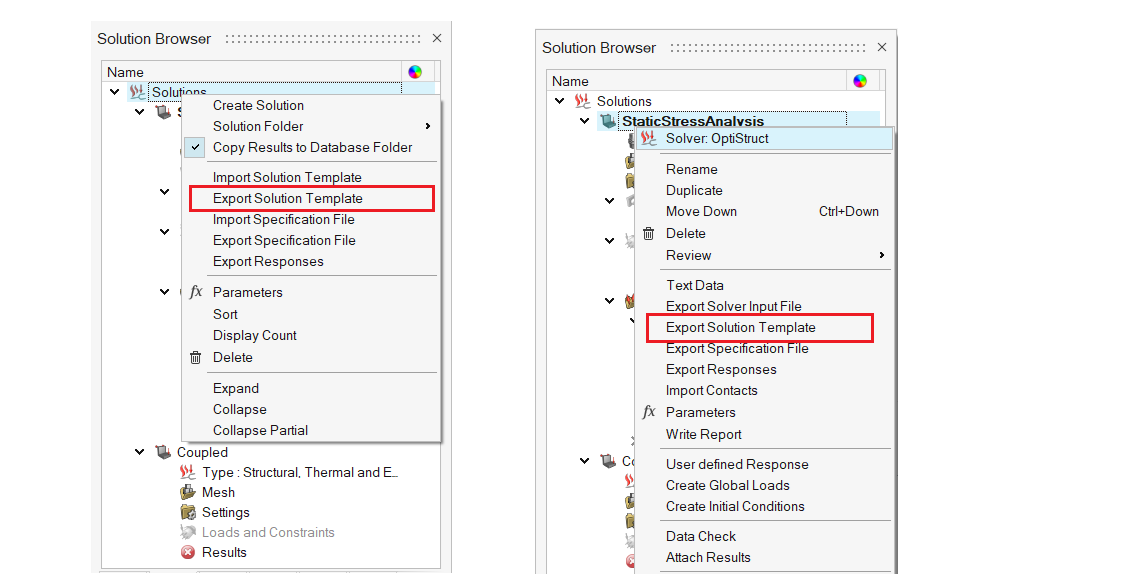
Data Included in a Solution Template Export
When a solution is exported as a Solution Template, all relevant data associated with that solution is captured and saved to ensure a complete, reusable setup. This allows users to apply the same simulation configuration to other models with minimal manual intervention.
The exported template includes the following components:
- Solution Settings
Captures solver type, analysis type, solver parameters and all the solver options defined in the solution setup.
- Loads and Boundary Conditions
Includes all applied loads, constraints, and boundary conditions along with the associated parameters.
- Materials and Properties
Exports all material definitions, property assignments, and associated metadata used in the solution.
- Mesh Controls
If the solution-associated bodies contain any mesh controls, those mesh control details are also included and saved in the solution template.
- Groups
Includes all user-defined groups that are referenced within the solution (for example, groups used in BCs, mesh controls, properties, material, field table).
- Field Tables
Saves user-defined field tables and associated data used for boundary conditions, material definitions.
- Parameters
Exports solution-related parameters used in the analysis setup.
Note: Model geometry parameters are excluded since they are specific to the CAD model. - Companion Folder Related Data
Includes supplementary data stored in the companion folder such as:
- Scenes
- Display Settings
- Circuits
- Responses and Notes
Import Solution Template
User can import a previously exported Solution Template (.slt file) using Solution Browser | Right-click on the Solutions header and select Import Solution Template
Behaviour During Import
- When the selected Solution Template includes body (or) group-based data (for example, Boundary Conditions, Materials, or Properties exported using specific bodies or groups as input), the system automatically searches for matching body or group names in the currently loaded model.
- The loaded model can be CAD or a mesh model. If multiple CAD or mesh models
are detected, the system displays a dialog prompting the user to select the
appropriate model to which the bodies or groups should be
assigned.
Example
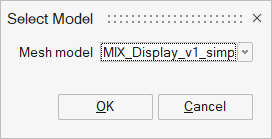
- If matching body names are found, the following confirmation message
is displayed, asking whether you want to apply these body or group
associations to the current model.
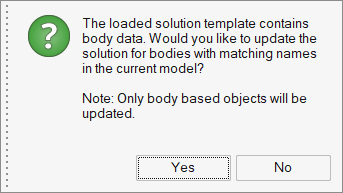
- Upon confirmation, the tool automatically reassigns the corresponding bodies/groups in the current model to the template objects (e.g., solution, BCs, Materials, or Properties). This helps in quickly transferring solution setups between models that share similar naming conventions.
Supported Automatic Assignments
Currently, the automatic body/group reassignment during import is supported for the following entities:
- Boundary Conditions (BCs) – Any BCs, including solutions that were originally defined using body inputs, will be mapped to bodies in the current model with matching names.
- Materials – Material definitions linked to specific bodies in the template are reassigned to the corresponding bodies in the current model.
-
Properties – Property definitions associated with bodies are similarly reassigned.
Other template data, such as groups, mesh controls, is still imported, but users may need to manually review and assign entities if required.