
Recover database
This option allows to recover the database if the application crashed unexpectedly.
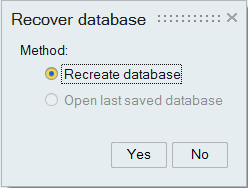
After an application crash, while launching SimLab next time, this dialog will pop up and display the following two options:
- Open database saved during the crash
Select this option to load the database as it was just before the crash.
All SimLab databases open during the crash are saved as SLB files (*.slb) in the Temp location:
C:\Users\<username>\AppData\Local\Temp\SimLab\SimLab_2026\Temp\
- Open database saved by AutoSave
Select this option to load the most recent database that was automatically saved prior to the crash.
This option will be available only if the Auto Save feature is enabled in File|Preferences|Application. The AutoSave database is stored in the user-specified location defined in the Auto Save settings.