
Exporting Slice Data
Export implicit parts as slice files (.cli and .3mf) to slice the native implicit model without meshing.
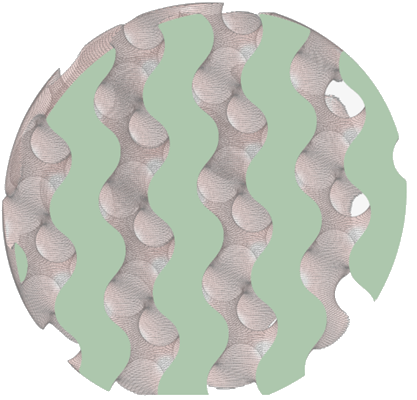
-
The settings to control slicing and the data stored in the slice files can be
found in and 3MF or CLI.
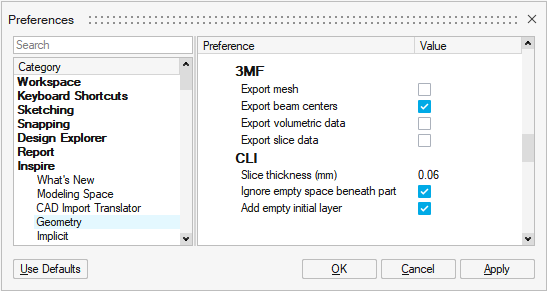
To add slice data to any exported 3MF file, select the Export slice data checkbox. To control the slice thickness for both 3MF and CLI files, set the Slice thickness under the CLI settings to the desired amount in millimeters
Select Add empty initial layer to create an empty layer at zero slice height, which is required by some software when reading in CLI files (e.g. Renishaw QuantAM).
Select Ignore empty space beneath part to remove any empty layers that do not contain contour data before the first layer which does contain it.
The resolution of the slice data will depend on the Visualisation Qualityselected for the Implicit Part. A higher Visualization Quality will resolve finer detail and create more accurate boundaries for the part in each slice layer.
-
Do one of the following:
- To export the entire model, select .
- To export only selected objects, first select the objects, and then select .
-
Choose a folder, enter a file name, and select a file type:
- 3MF (*.3mf)
- CLI Slices (*.cli)
-
Click
Save.
Note: All visible models will be sliced. You can hide a model to prevent slicing it. For more information, please see Show or Hide.