Graphics
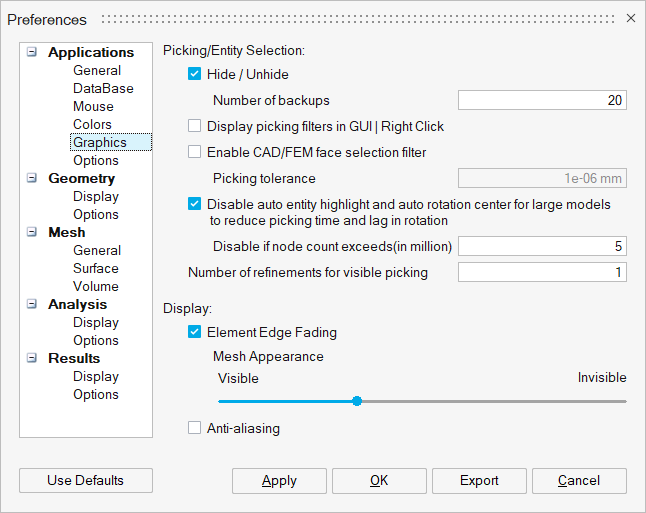
Picking/Entity Selection
Hide / Unhide
This option is used to specify number of back ups for hide and unhide operation. Hide and Unhide operation can also be performed by using shortcut keys. "H" key is used to hide the entity whereas "Shift + H" key is used to unhide the hidden entity.
Enable CAD/FEM face selection filter
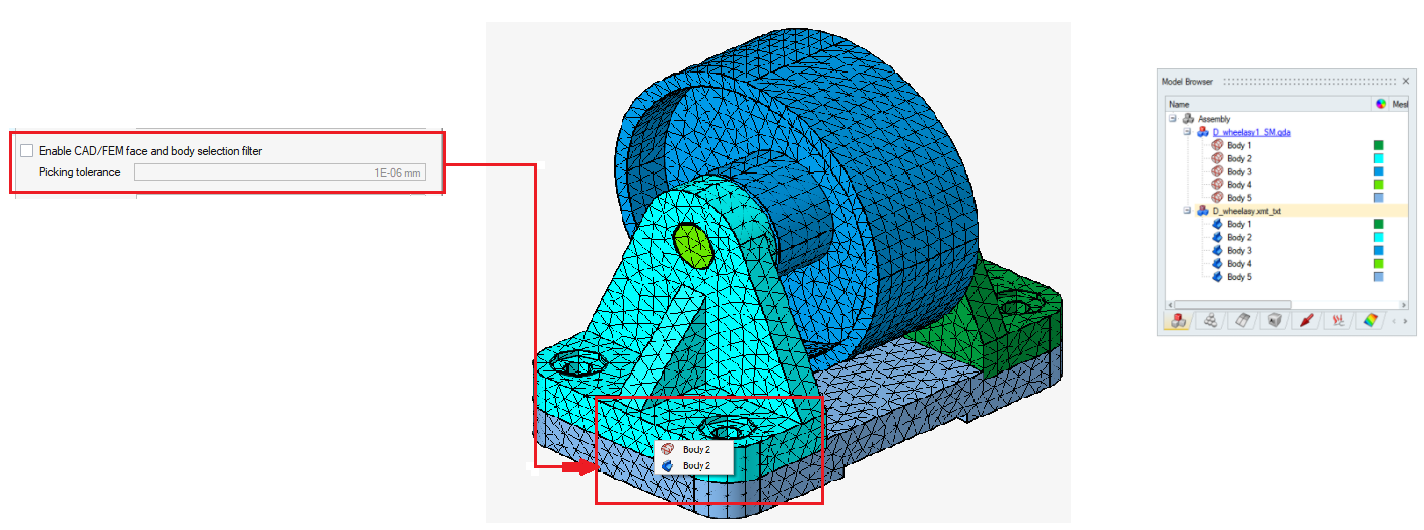
When the CAD body is overlapped with mesh body, it will pop up a micro dialog and ask the user to set the priority for the face and body selection.The face and body selection is done based on the picking tolerance measure given by the user.
Example
Disable auto entity highlight and auto rotation center for large models to reduce picking time and lag in rotation
Turn on this toggle to disable the auto entity highlight and rotation center if the model node count exceeds the given threshold value. It will enhance the picking time and rotation speed.
In this mode, rotation center will be updated only when the middle mouse button is pressed and released without any movement.
Display
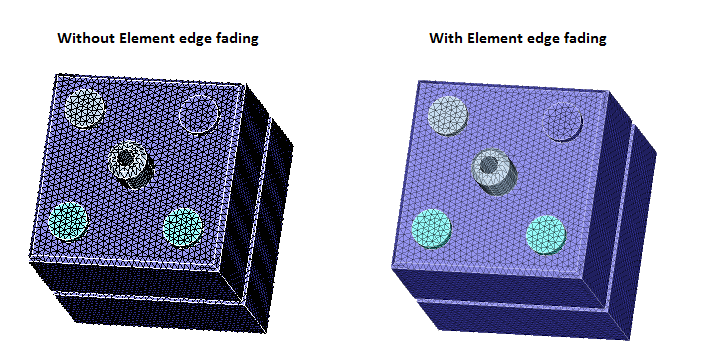
Element Edge Fading
This option allows the user to visualize the element edges with fading.
Mesh Appearance
This slider is used to adjust the element edge fading appearance.
Auto-hide small bodies
This option enhances viewing performance during rotation, panning, zooming, and navigation, particularly when working with large models. Although it can be applied to any model, its benefits are most significant in large assemblies containing numerous small or hidden components.
The Auto-hide Small Bodies feature automatically hides small bodies when the total body count exceeds a predefined limit set in the database. Bodies smaller than the specified pixel threshold are temporarily excluded from rendering to improve visual clarity and reduce graphics load. The visibility of these bodies updates dynamically during view operations such as zoom, pan, and rotate, ensuring smoother interaction and improved overall performance.
Anti-aliasing
This option is used to remove all jagged displays, which results in a smooth graphics display.
Display 1D bars as 3D elements
This option is used to visualize 1D bar and beams as 3D solid representations by selecting the respective bodies. When enabled, they are displayed in 3D based on their defined bar section properties.