
Material Calibration
The Material Calibration tool allows determining from measurements the parameters and coefficients required to create or to complete in SimLab the definition of a material to be used in the most important Electromagnetic solutions.
Introduction
- Soft analytical model with saturation and knee adjustment options and
- Hard nonlinear model described by Br, HcB and HcJ.
- Modified Bertotti model.
- How to run the Material Calibration tool.
- Using the Material Calibration tool.
- Specificities of the calibration modules.
How to run the Material Calibration tool
Once the user has defined one of the following three Electromagnetic solutions (i.e. MagnetoStatic, Transient Magnetic or AC Magnetic), in the SimLab Analysis --> Material menu the Material Calibration icon appears and allows the user to launch the provided tools dedicated to the parameter calibration of a magnetic material model.
Using the Material Calibration tool
For all proposed models the calibration consists of a 3-step procedure, whose general workflow is described below:
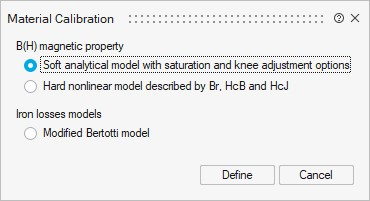
- Step 1: After choosing a specific type of B(H) magnetic property or an
iron losses model and clicking on Define button, the Material
Calibration tool will ask the user for the file(s) containing the
magnetic measurements representing the behavior of the material subjected to
calibration. Such file(s) must be loaded through the Load measurements
button located in the top-left part of the material model's GUI. The input data
required by the Material Calibration tool is given by .csv (in Windows
and Linux) or .xlsx (Windows only) file(s) containing magnetic measurements. The
file content and format depend on the specific kind of model being calibrated,
as detailed in the next section.Note: For the Modified Bertotti model, before clicking on Define button, the user is also invited to select - amongst the magnetic materials already integrated into the solution - the one whose definition needs to be completed or updated with the iron losses model under calibration.
- Step 2: Once the file(s) is correctly loaded, the calibration algorithm
launches automatically and finds the best model parameter set fitting the
selected model. The results are displayed automatically in the graph window, as
shown in #MaterialCalibrationTool__image_gk4_jsh_psb below. The red lines represent the
reconstructed behavior provided by the calibrated model, while the blue markers
correspond to the source measurement file. Depending on the model, the user may
consider adjusting the parameters iteratively with the sliders on the left side
of the panel or by typing their value in the corresponding boxes (when
available).
Figure 2. B(H) curves displayed using the soft analytical model with saturation and knee adjustment options. In red, the fitted B(H) curve, with the calibrated parameters appearing on the left side of the panel. The source B(H) measurements are shown in blue. 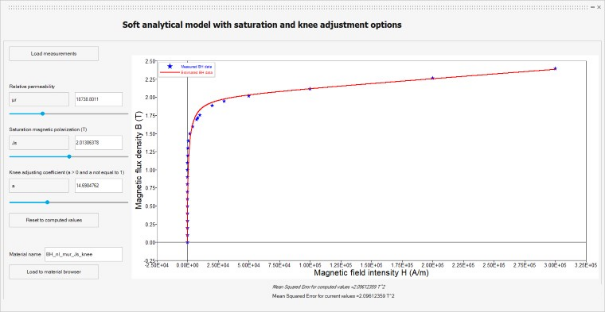
- Step 3: Once the user is satisfied of the model parameters for the
material under calibration, the button Load to material browser enables -
through the creation of an .xml file - the integration of this material into the
Electromagnetic solution that the user is creating.Note: For the Soft analytical model with saturation and knee adjustment options and the Hard nonlinear model described by Br, HcB and HcJ, a "Material name" field is located in the bottom-left part of the GUI. This field is pre-filled with a default suggestion but the user can modify it and assign a custom name to the material that will be created in the SimLab solution. This "Material name" field does not appear for the Modified Bertotti model since (as detailed in #MaterialCalibrationTool__ul_rkx_zbt_tkb above) this calibration procedure completes or updates the definition of an already existing material.
Specificities of the calibration models
In the previous section, a general workflow for the utilization of the Material Calibration tool was presented. However, since the modules integrated in this tool are all different, specific remarks apply for each calibration case.
For the Hard nonlinear model described by Br, HcB and HcJ, the input file must contain the magnet's B(H) curve (2nd and 3rd quadrants) and be provided either in .csv or a .xlsx formats. Two columns are required in the file: the first for the magnetic field H in amperes per meter and the second for the magnetic flux density B in teslas. An example input file is available here.
In the case of the Soft analytical model with saturation and knee adjustment options, the input file containing B(H) data has the same file format described in the previous paragraph, but represents instead the anhysteretic curve or the first magnetization curve of the material. An example input file is available here.
In the case of the Modified Bertotti model, the input data required by the calibration tool consists of a set of files relating the peak magnetic flux density Bmax (in teslas) in the material to the specific iron losses (in W/kg). The input file also contains additional information such as frequency f (in Hz), material density ρ (in kg/m3), electrical conductivity σ (in S/m) and lamination thickness d (in m). An example input file is provided here. The goal of this calibration tool is to find coefficients (k1, k2, k3) that best fit the input data. By default, the exponents (α1, α2, α3) are respectively forced to the set of values (2, 2, 1.5), but they may be manually adjusted with the help of sliders once a first identification is completed. It is also possible to select an option to force the classical losses coefficient k2 to remain equal to a suggested theoretical value during the data fitting procedure. That value is valid for low frequencies (which are equivalent to large skin depths), for a classical losses exponent α2= 2 and is given by (2π2σd2)/12. In the lower left corner of the GUI, the user has also the possibility to set the Bmax upper limit (in teslas) used to plot the estimated model and thus extend it beyond the values contained in the measurement files.
For a multi-frequency approach, the user can select several files corresponding to different values of frequency at Step 1 of the calibration.