
How to create a Magneto-Mechanical Topology Optimization solution?
Introduction
Despite its diverse underlying principles, topology optimization may be regarded as complementary technique and belong to the same framework of structural optimization method offered in SimLab. Common tools for the description of an optimization problem is shown in the following photo. These are accessible through the Analysis menu.
Topology optimization strategies implemented in SimLab
- the Density method and
- the LevelSet method (it is advised for electric motors).
For an introduction on these gradient-based methods, please refer to the following open access references: https://ieeexplore.ieee.org/document/9888100
Steps to create a Topology Optimization Solution
The workflow definition of a Magneto-Mechanical Topology Optimization Solution is as follows:
Step 1 - Geometry & Meshing- Create your 2D geometry in SimLab as CAD bodies. You can either define it using SimLab modeler or import it. If you start from an existing device, you may need to adapt the geometry of regions you plan on optimizing (remove holes, simplify corners).
- Create mesh bodies based on these CAD bodies. You can use the Motor Mesh tool to easily build a proper mesh for Electromagnetic finite element analysis, including mesh symmetries.
- Adapt the mesh of the regions of optimization. It is advised to use a fine and regular mesh in those regions. In SimLab, this can be achieved easily using a “Surface Mesh” control.
To optimize the magnetic torque of your device, it is required to define an electromagnetic study on the previously meshed bodies. This study must be a 2D Magneto Static or Transient Magnetic analysis. Please refer to Current limitations to get a detailed view of current limitations imposed on the Electromagnetic Solution for optimization.
- Take the time to solve your Electromagnetic Solution and check its results & physical validity.
- As you may want to later launch optimizations with different targets and settings, it is advised to save this validated study in a dedicated “EM study” SimLab database, and to use the “Save As” action to start the next Step in another database.
- Static Stress (Linear or Non-Linear Static) Solution
- Dynamic Stress (Normal Mode) Solution
- Create the Structural Solution on the rotor part
- Assign mechanical properties to your material and bodies
- Create and assign a cylindrical Coordinate system, a Body Force centrifugal Load and some Constraints to model your boundary conditions
- Solve the Solution to check results before moving to next step
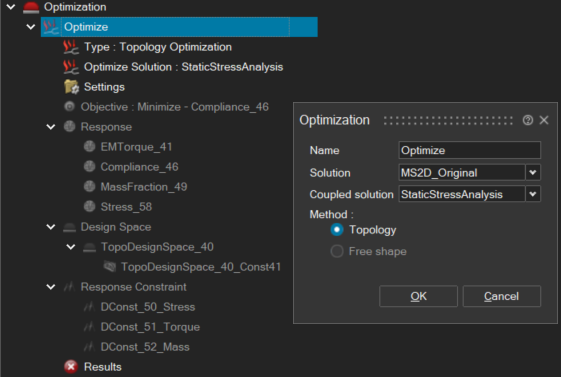
It is now time to define your Optimization Solution. In the Optimization Solution creation window, please select the Electromagnetic Solution defined at step 2. Then, please select as “Coupled Solution” the Structural Solution defined at step 3.
- Design Space can be used to define the bodies you want to optimize. It must be a region defined as a Soft Magnetic material in your Electromagnetic Solution. For more information: Current limitations. In this dialog box, you can also select the LevelSet option which is strongly recommended for EM/Structural topology optimization.
- Design Constraint allows you to add geometric constraints to your Design Space. This includes design thickness constraints, symmetries, manufacturing constraints, etc.
- Response is where you define the relevant physical targets of your
Optimization. In SimLab, you have access to a wide range of Responses, but
the most important ones in our case are the following:
- Electromagnetic Torque Response – computed from the Electromagnetic Solution defined at step 2, this is the most important Response for EM/Structural optimization
- Volume, Mass fraction and Mass – those responses can be defined to control the maximum amount of material allowed in the Design Space at the end of the optimization
- Static Stress of homogeneous material – this response gives the opportunity to optimize the Design Space with respect to the stress on the material
- Compliance – the sum of strain energy in your model.
- Objective & Constraints – are needed to define the effective targets of the Optimization for each previously defined Responses
- Solver Settings – can be used to refine solvers options. The
following modifications are suggested compared to default option values:
- Maximum number of iterations is suggested to be 80.
- Improved discrete topology optimization is suggested to be set “True”.