Use the Random Response tool to perform random response analysis using an existing
FRF file.
From the Post ribbon, select the Random Response
tool.
Figure 1.
The Random Response dialog opens.
For Input FRF, click and browse and
select a result file with FRF subcases.
Note: Currently, the supported solvers are OptiStruct (.op2,
.h3d), Nastran (.xdb,
.op2), Abaqus (.odb), and ANSYS (.rst).
Select a subcase and a preferred frequency range.
For Select Frequency Range, click
Subcases.
The Select Subcase dialog opens displaying
a list of complex subcases and their frequencies.
Select one subcase and a preferred frequency range.
Figure 2. Select Subcase Dialog
Click OK.
For Input PSD Curve From, complete one of the following options.
Option
Process
File
For Input PSD Curve From, select
File.
Click
and browse and select a .csv file with a
PSD curve.
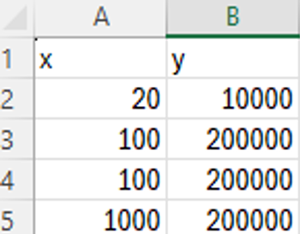
Note: The .csv must have the following two-column
layout with headers, see Figure 3.Figure 3. CSV File Layout Example The first column represents the frequencies and should include
the range of frequencies that are selected in the Select Frequency
Range option (see step 3). The second column represents the PSD load.
Curves
For Input PSD Curve From, select
Curves.
Select a PSD curve from an existing curve in the session.
Charts
For Input PSD Curve From, select
Charts.
Select a PSD curve from an existing chart in the session.
Note: Only charts that have been created from direct data are
supported.
For Output, click and browse and
select the output directory and result file.
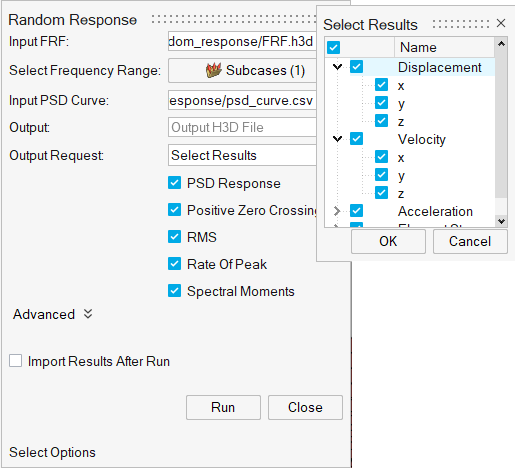
For Output Request, select result data types and components to be exported in
the output file.
All Results
All result data types and their components will be exported in the
output file.
Select Results
Select preferred result data types and components to be exported in
the output file. By default, all results are selected.Figure 4. Select Results
Select the preferred results calculations to be done.
PSD Response
Positive Zero Crossing
RMS
Rate of Peak
Spectral Moments
Click and define
Advanced options.
Select an axis scale type from linear and logarithmic.
Select Import Files After Run to import a output result
file of the random response analysis in the active window if the model file is
already imported.


 and browse and
select a result file with FRF subcases.
Note: Currently, the supported solvers are OptiStruct (.op2, .h3d), Nastran (.xdb, .op2), Abaqus (.odb), and ANSYS (.rst).
and browse and
select a result file with FRF subcases.
Note: Currently, the supported solvers are OptiStruct (.op2, .h3d), Nastran (.xdb, .op2), Abaqus (.odb), and ANSYS (.rst).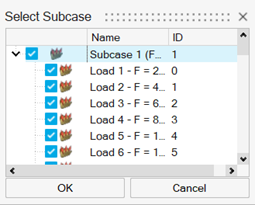
 and define
Advanced options.
and define
Advanced options.