Results
Introduction
The postprocessing of results is possible:
- In SimLab
- 2D Plot
- For S-parameters, by importing in another System software the results exported from SimLab in one of the 2 available formats (options in Result Request to define before the solving):
2D Plot

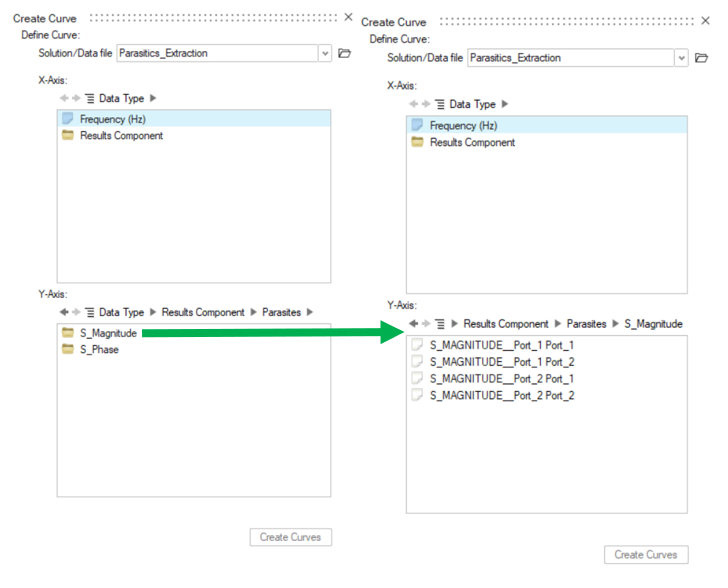
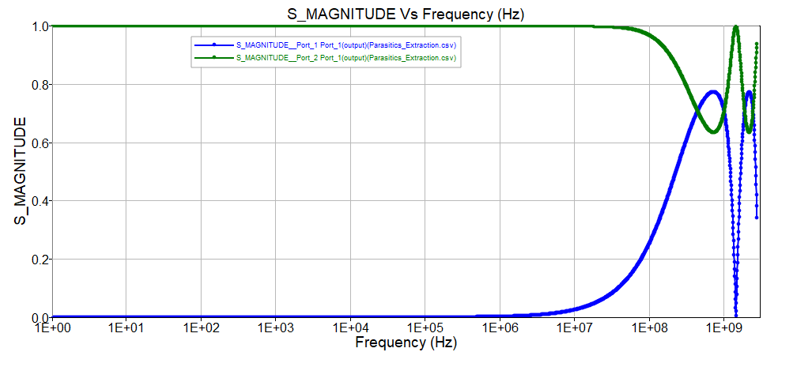
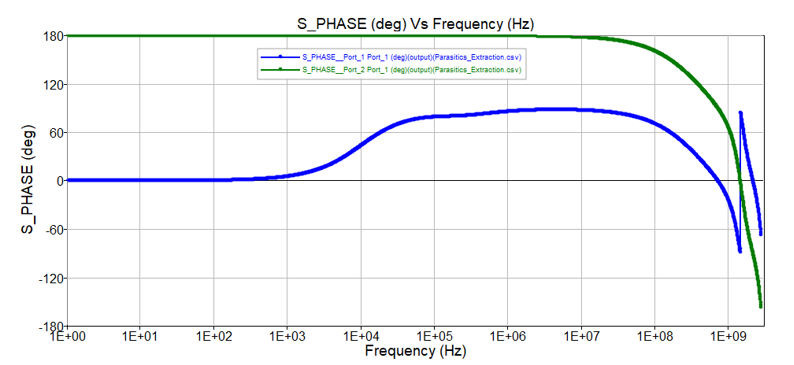
- S-parameters
- S-parameters with Motion
For scenarios with motion in S-parameter extraction, the X-Axis parameter in 2DPlot results is the motion values in meters for translation, and in degrees for rotation.
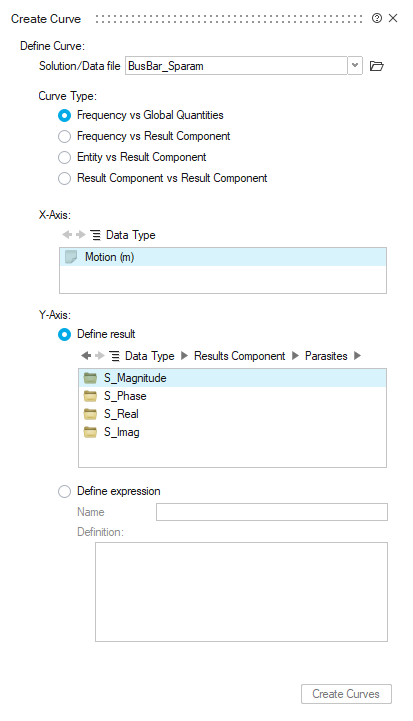
In case of double scenarios, e.g. parameter variation in motion and also in frequency (see solution definition below), the 2DPlot has various csv files to load.
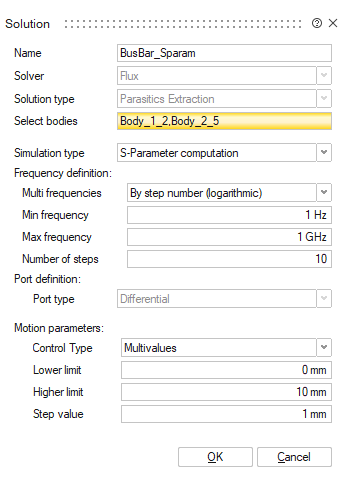
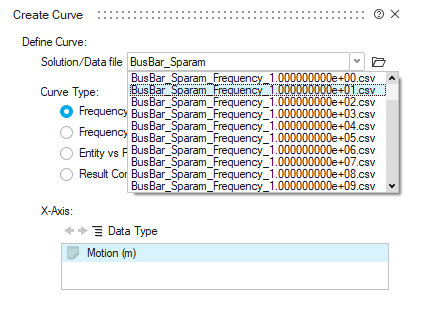
The rule in that case is: One csv file per frequency.
For each csv file, the variation parameter is the motion parameter. You can select the frequency result using the Solution/Data File combo-box.
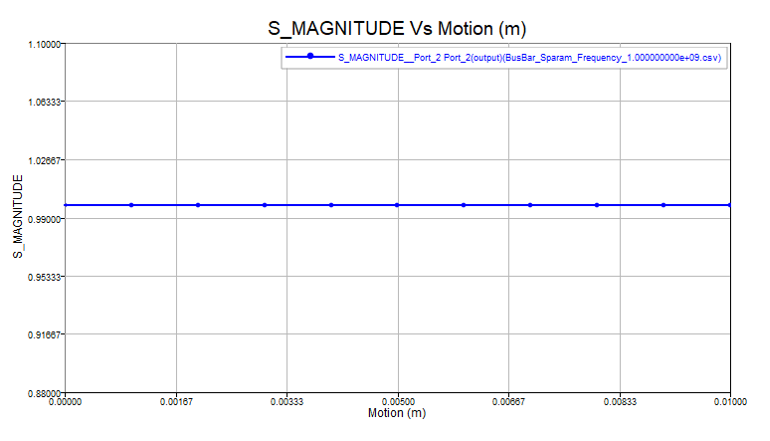
Then we can plot the variation according to motion values.
Note: For Touchstone files, it is the opposite. The touchstone format needs to have frequency as a variation parameter, so the various files created have motion value in the name instead of the frequency for csv files (see the preview of the Results folder).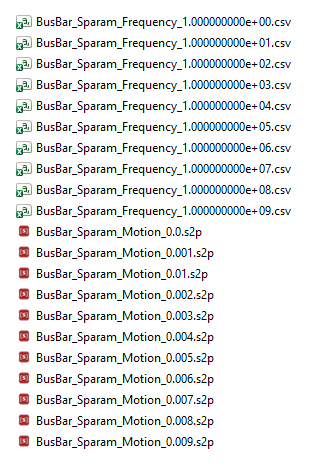
- Impedance
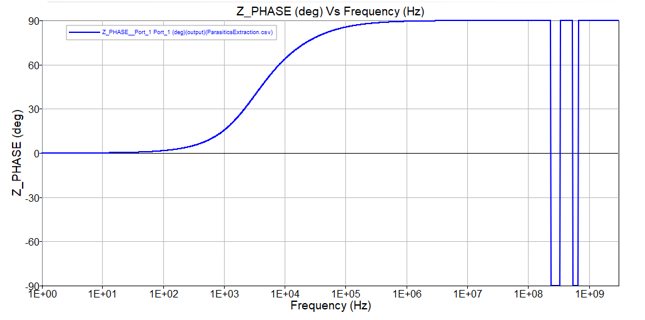
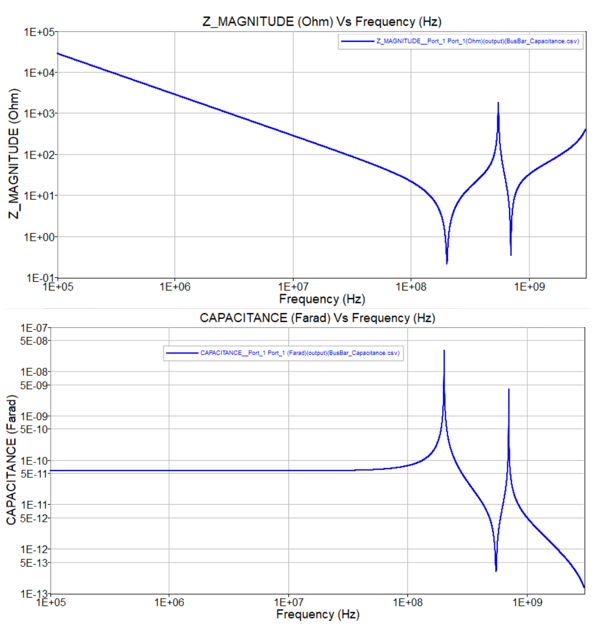
Open Loop 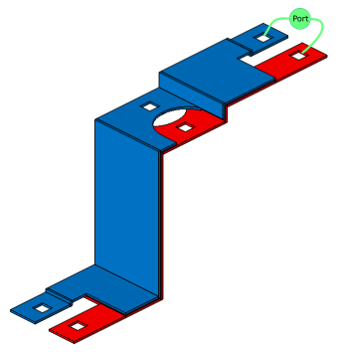
Closed loop 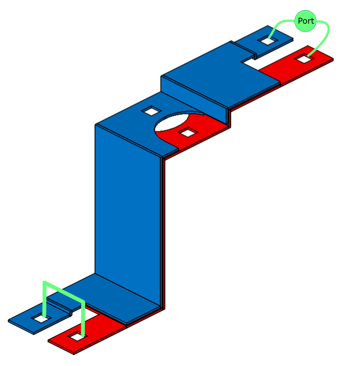
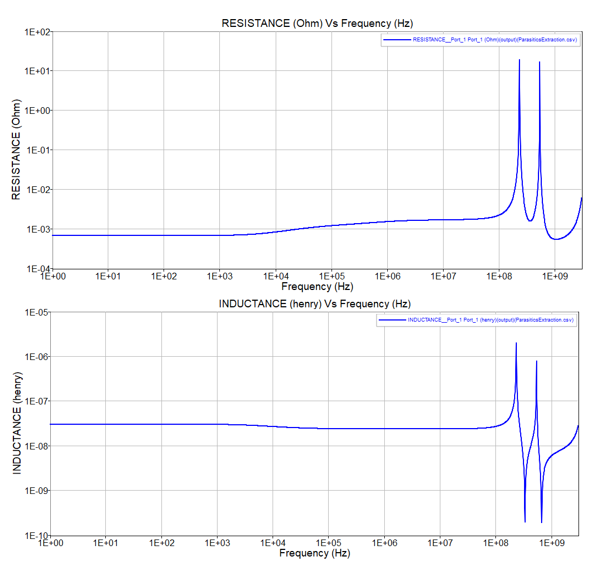
- Impedance with Motion
For scenarios with motion in Impedance extraction, the X-Axis parameter in 2DPlot results is the motion values in meters for translation, and in degrees for rotation.
In case of double scenarios, e.g. parameter variation in motion and also in frequency (see solution definition below), the 2DPlot has various csv files to load.
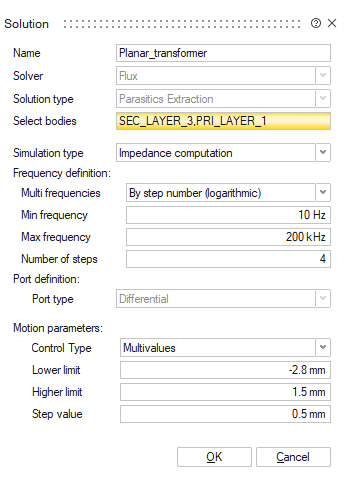
The rule in that case is: One csv file per frequency.
For each csv file, the variation parameter is the motion parameter. You can select the frequency result using the Solution/Data File combo-box.
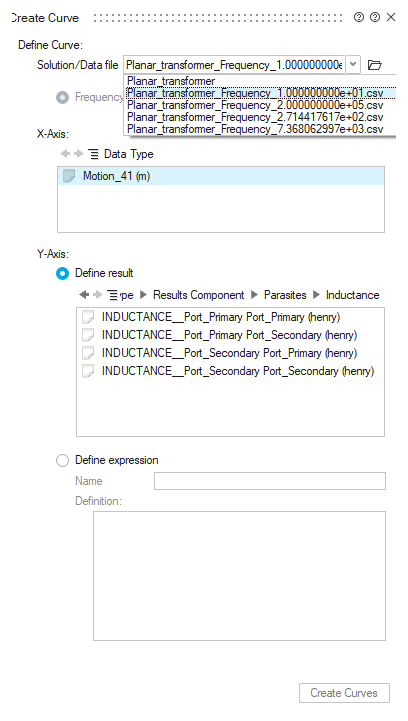
Then we can plot the variation according to motion values.
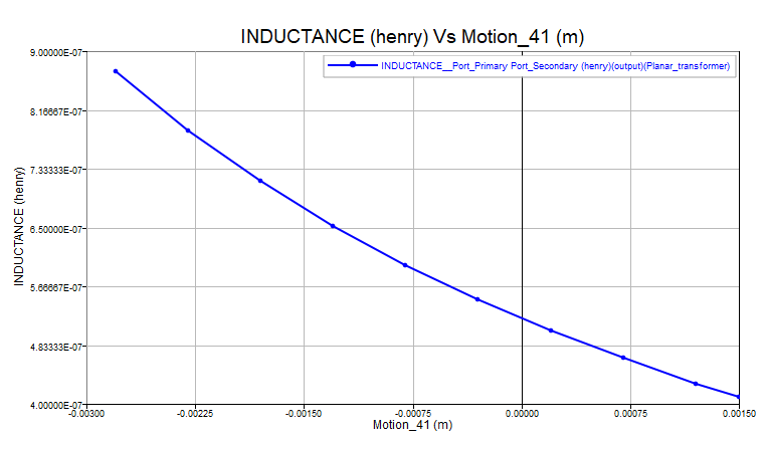
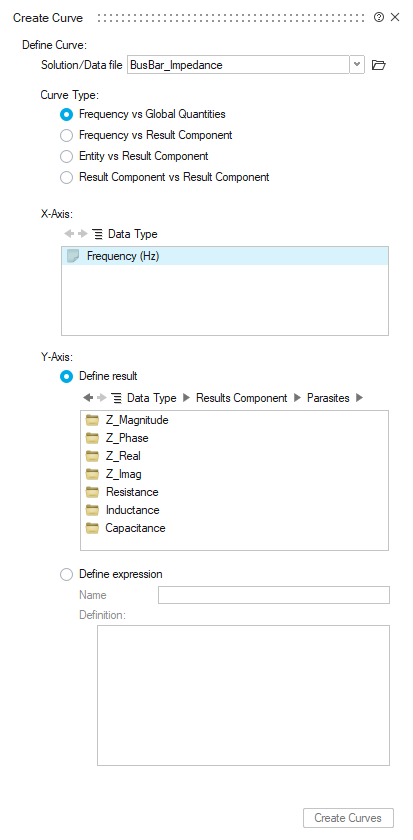
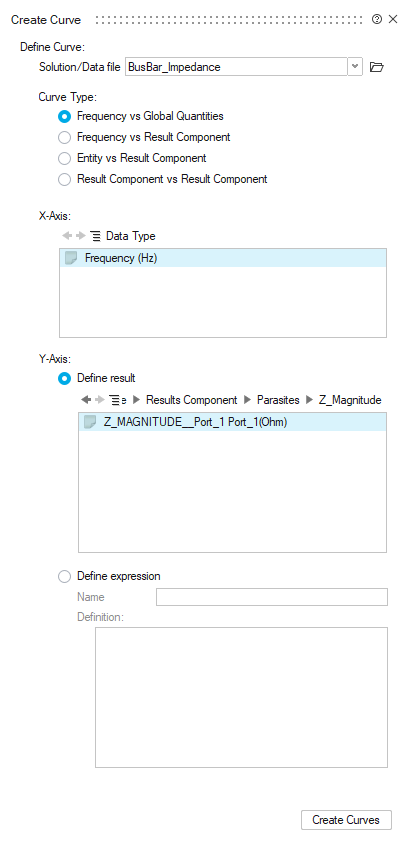
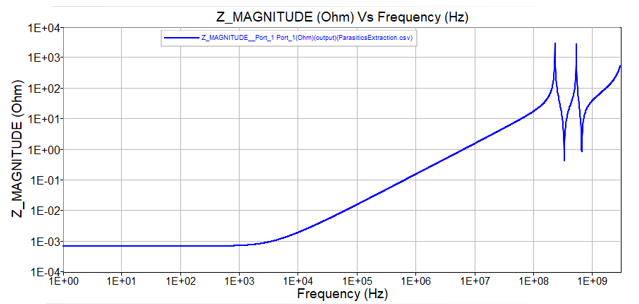
The 2D plot allows to post process global quantities chosen in the Result Request dialog box by the user
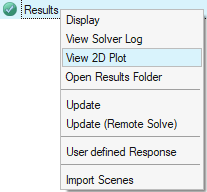
To access this tool, after solving your project, right-click on the Results node or directly access from the ribbon bar.