
SimSolid Plug-ins
SimSolid is integrated with Computer-Aided Design (CAD) and CAE preprocessor applications.
SimSolid utilizes dedicated CAD embedded plug-ins to
quickly and efficiently transfer geometry and material property data directly to
SimSolid. This process establishes a direct memory
link between the CAD system and SimSolid, ensuring fast
and efficient data transfer. All visible parts and assemblies are transferred. The
following applications are available:
- Siemens NX
- Autodesk Fusion 360
- Altair Inspire
- Altair SimLab (Supported for ECAD files only)
Note: Currently, all supported plug-ins only allow the export of solid
geometries. Exporting sheet bodies is not supported when using the plug-in
transfer method.
Siemens NX
- Installation and Setup
-
- Install SimSolid 2025 or a newer version.
- Upon installation, an environmental variable
(
UGII_USER_DIR) is automatically set. This variable points to the NX folder within the SimSolid installation directory, enabling NX to identify the SimSolid plug-in. - If the
UGII_USER_DIRenvironmental variable is not automatically listed, you can manually define it.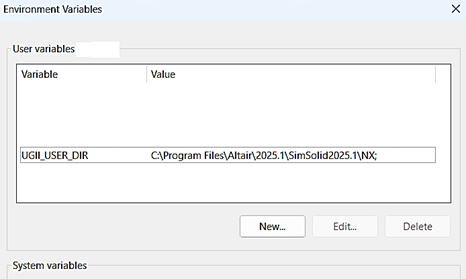
- Accessing the Plug-in
-
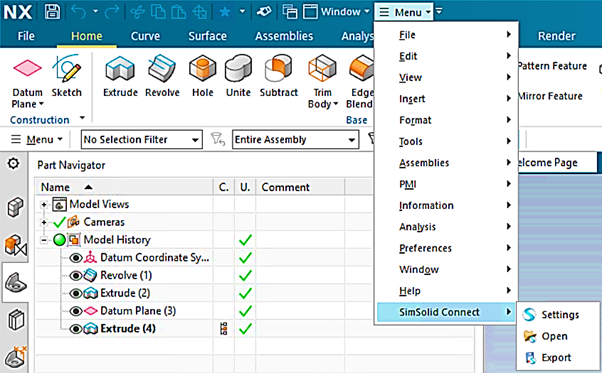
- Once the environmental variable is set, open NX.
- The SimSolid Connect option will be listed under the Menu option.
- If the menu option isn't visible, enable it from the Quick
Access Toolbar.
- SimSolid Connect Options
-
Under SimSolid Connect, the following three options are available:
- Settings: Allows users to choose the geometry faceting settings.
- Predefined options for face faceting parameters: Standard, Enhanced, and Fine.
- Custom option: Allows users to manually set the Angular Deviation and Chordal Deviation values.
- For more details on geometry import settings, refer to the SimSolid documentation.
- Open:
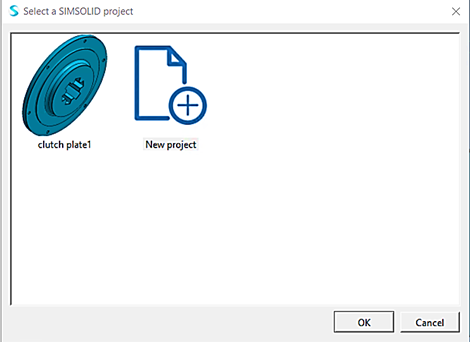
- If no active session of SimSolid is open, clicking this will launch a new session.
- If an active SimSolid
session is open, the user is prompted to choose
which session to open the geometry in. If opened in
an active session, a new Design Study (DS) will be
created, and loads and boundary conditions (if
defined in NX) will be mapped to the new DS.
- Export: Allows the geometry to be saved as an .SSJ file, which can be manually imported into SimSolid later.
Note: If a material applied in NX is not present in SimSolid's material database, a warning message is displayed, prompting the user to select an alternative material from the SimSolid database. - Settings: Allows users to choose the geometry faceting settings.
Autodesk Fusion 360
- Accessing the Plug-in
-
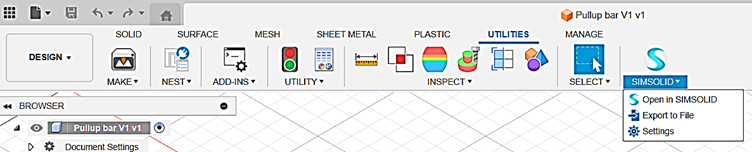
The SimSolid plug-in in Fusion 360 can be found under the Utilities tab. The three options (Settings, Open, and Export) are the same as those described for Siemens NX.
- Troubleshooting Plug-in Visibility
-
If the plug-in is not visible, follow these steps:
- Verify that the SimSolid plug-in files are located under: C:\Users\<userName>\AppData\Roaming\Autodesk\FusionAddins.
- Users can manually add the plug-in from the
Add-ins tab under Utilities by
clicking on Script or Add-in from
Device and selecting the SimSolid folder.
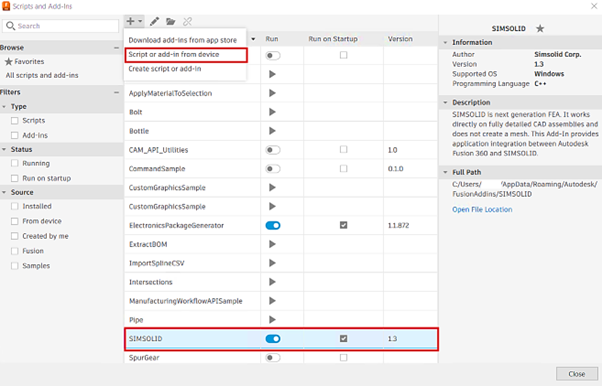
Note: Unlike Siemens NX, if the material properties are well-defined in Fusion 360 and the material is not present in SimSolid's database, the material properties will still be carried over to SimSolid.
Altair Inspire
- SimSolid Connect Extension
-
Use the SimSolid Connect Extension to port geometry directly to SimSolid from Inspire. Both SimSolid and Inspire version 2022.1 or newer are required for this extension.
- In the Inspire menu bar, click File > Extension Manager.
- In the Extension Manager, toggle the SimSolid Connect extension switch.
- Close the Extension Manager.
- In the menu bar, click SimSolid Connect to open the extension, or select it from the ribbon.
- SimSolid Connect Options
-
Select from the following options in the tool:
- Open: Automatically opens the geometry directly into a new or existing SimSolid project.
- Export: Exports the geometry to an .SSJ file for easy manual import into SimSolid.
Altair SimLab (ECAD)
ECAD files can be directly ported to SimSolid using the SimSolid Connect plug-in from Altair SimLab.
- SimSolid Installation Path
-
When launching SimSolid from SimLab for the first time, you'll be asked to locate the SimSolid installation path. This information is stored in the SimLab Settings file.
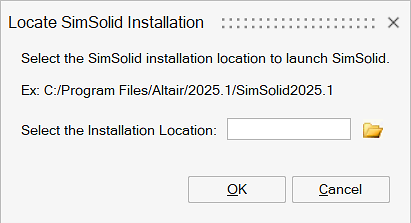 To override or change it:
- Approach 1: Manual editing of the SimLab Settings
file.
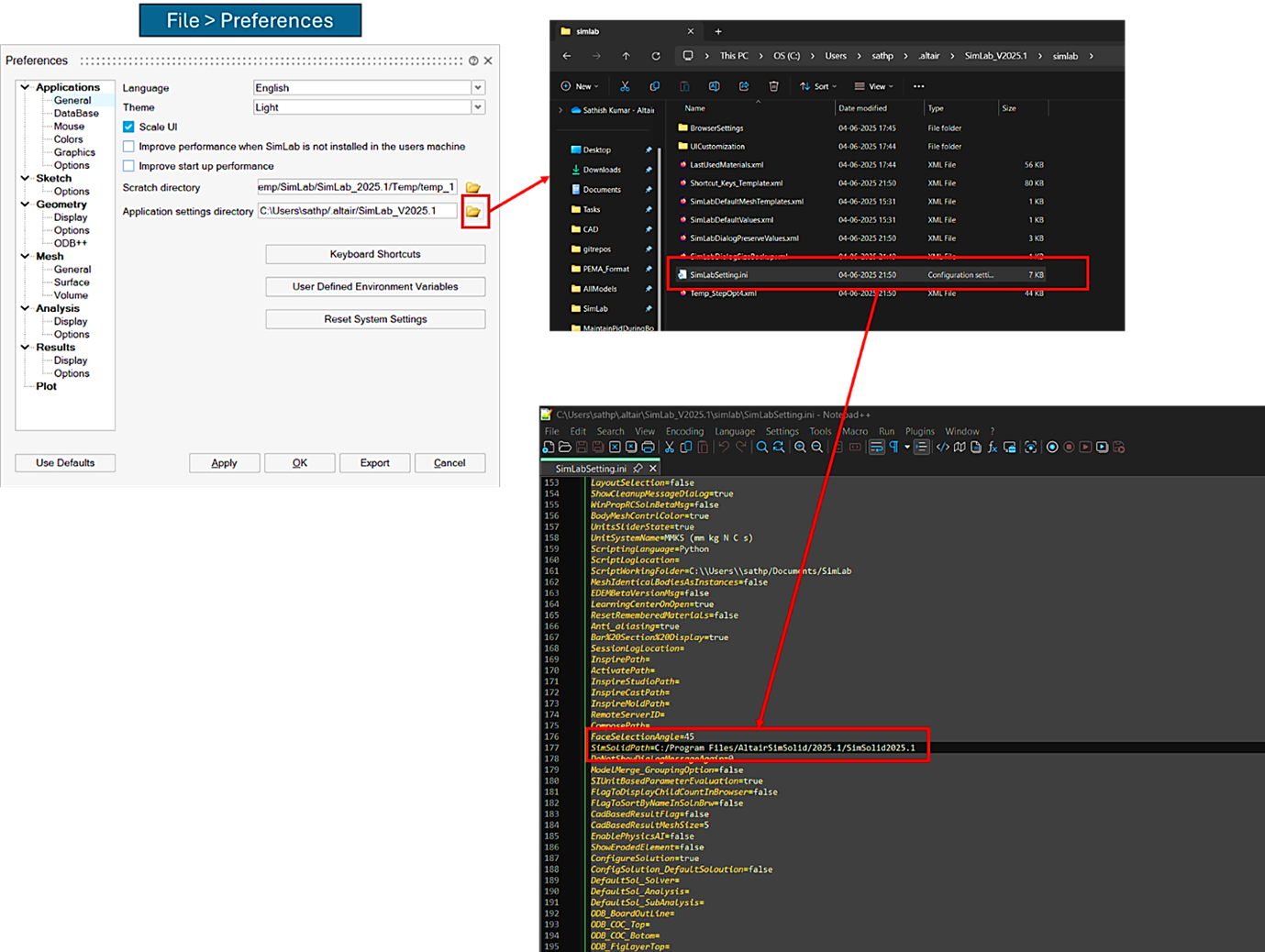
- Approach 2: Reset all SimLab Settings and restart SimLab,
which will prompt for the SimSolid installation path
again.
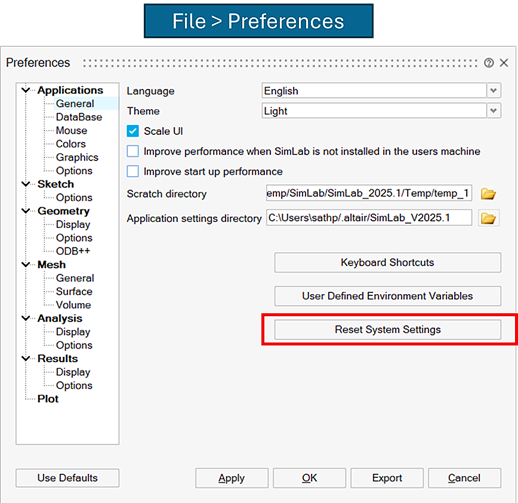
- Approach 1: Manual editing of the SimLab Settings
file.
- Accessing the Plug-in
-
In the SimLab menu bar, click File > Extensions.
In the Extensions list, click on SimSolid.
- Additional SimLab Settings for ECAD
-
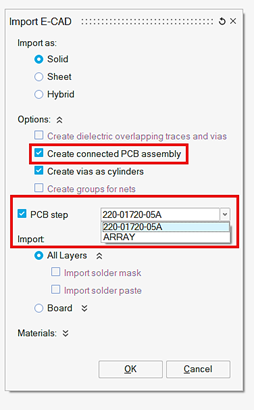
These settings are crucial for precise ECAD file transfer:
- Create Connected PCB Assembly: Check this option for creating precise connections between the layers and components of the PCB. These connections will be carried over to SimSolid.
- PCB Step Option: Check this option for importing a PCB Array
or Instance. Use the dropdown menu to select whether an
instance or the entire array should be imported.
Video
SimSolid connect to NX