
General
New Features
- Selection
- Feature angle based selection is now supported for surfaces and lines in
the user interface. The following new selection methods are available in
the Advanced Selection dialog and the “Alt”
selection switcher:
- SurfaceBy Limit
Figure 1. 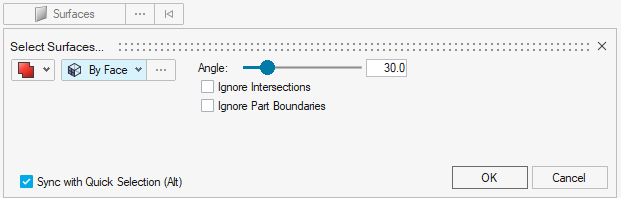
Figure 2. 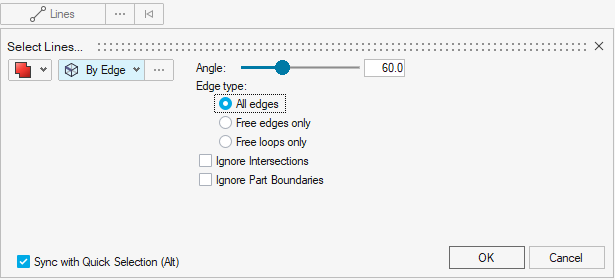
Enhancements
- Selection
-
- The All selector defaults to “Parts” if the object is organized in a part, and only falls back to “Components” if there is no part associated to it.
- Selection conversion from Element or Node to Parts and vice versa is supported. The microdialog positioning has been adjusted to facilitate performance improvements with model manipulation in contexts.
- The microdialog appears offset from the mouse location during selection. When appending a selection with more entities, the microdialog only moves if the new selection is near the microdialog, then it will re-offset itself to ensure it does not interfere with the selection.
Resolved Issues
- An issue specific to Windows 11, wherein the HyperView Load Model panel, in some cases, would not properly update with the file name in multi-window pages involving both HyperMesh and HyperView windows.
- Keyboard shortcuts were not working after coincident picking selection.
- An issue where Selection “By Type” was not possible for FE Geometry models.
Known Issues
- dialogs and Message dialog:
- There are inconsistencies seen in the appearance of the following
types of dialogs:
- Message dialog
- Based on the available file extension filters in the dialogs, and how those dialogs or a message dialog are opened, the appearance/style of the dialog can differ from other instances of those dialogs.
- Additionally, some of these dialogs can go behind the main application when you click elsewhere in the application, requiring you to bring them back to the foreground or reposition the application.
- Example showing the different versions of the dialog:
Figure 3. 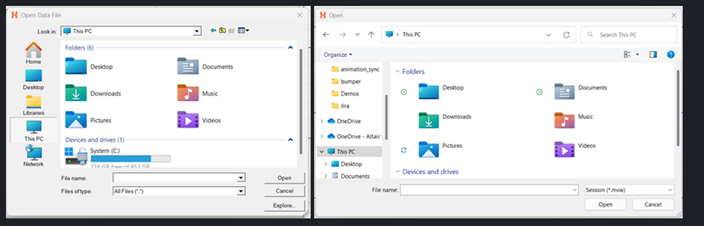
- There are inconsistencies seen in the appearance of the following
types of dialogs:
- The HyperMesh session can freeze if you open the File menu while the Import Options dialog is launching (but before it is displayed). If this happens, switch to another application and then return to HyperMesh to resolve the issue.
- When HyperMesh is launched by double-clicking on a session (MVW) file with multiple pages, in some cases, not all pages will be present in the HyperMesh session. To avoid this, launch HyperMesh via the Start menu or command line and load the session file from within HyperMesh via the GUI (menus, ribbons, and so on) or drag/drop.
- Occasionally, a new page created using the Session Browser context menu, accessed by right-clicking on a page in the browser tree, is not reflected in the page navigation tool. This can be avoided by creating new pages using the page navigation tool or by ensuring that the browser context menu used to create the new page is accessed via right-clicking on blank space within the browser tree area.
- In dark theme, thick white lines are seen between windows in multi-window layouts.
- In multi-window layouts, longer guide bars may be truncated. If this happens, resizing the graphics area to be wider, or expanding the window so that the guide bar is able to draw completely when it's accessed, resolves the issue.
- On Linux, if a post client (HyperView, HyperGraph, MotionView, and so on) is closed with the Session Browser closed, an application error is seen upon relaunch and the Session Browser will not draw properly. Clicking through the error messages, closing the browser, and reopening it via the View menu resolves the issue.
- In some cases involving multi-monitor setups, if a browser or dialog is dragged from one monitor to another, associated context menus can appear outside the browser/dialog, potentially even on the original monitor.
- When running in a NICE DCV environment, there are drawing issues with the Toolbelt and Advanced Capture when using older versions of NICE DCV.
- After switching from HyperMesh to one of the post clients (HyperView, HyperGraph, and so on), certain function keys not used as shortcuts in the clients can either display a HyperMesh secondary ribbon with blank icons or move out of the idle context. If this happens, switching to a context available within the client and then exiting the context resolves the issue.
- Message Center messages are still displayed, even if Show pop up messages is set to Never in the Preferences dialog.
- When the HyperMesh client API (in other words, Model methods) returns an error, an extra error message is printed in the console: OSError: source code not available.
- It is not possible to increase/decrease the font size in the Python Console using Ctrl+scroll wheel; instead, use Ctrl++/Ctrl+-.
- When trying to use Ctrl+c to copy selected text in Altair CoPilot, a floating panel appears instead. To copy text, right-click on the selected text and select Copy from the context menu.
- When cutting a page from the Session Browser or performing the action via the page navigation tool context menu, a message is displayed, indicating that the HyperMesh window and its data will be discarded. This is misleading, as the page has been “cut” instead of deleted. It can be pasted and therefore, the data has not been discarded.