
Create Datasets
- Create dataset.
- From the PhysicsAI ribbon, select the Create Dataset
tool.

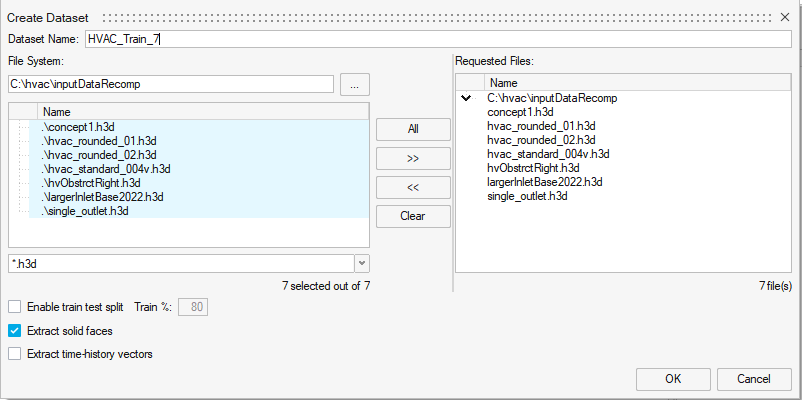
The Create Dataset dialog opens.
- Enter a name for the dataset.Important:
A dataset name should only consist of letters, numbers, and underscores.
- For Directory, click Open and navigate to the project folder.
- Select and transfer all of the necessary result files.
These can be results files with field results, such as an .h3d file. For use cases where the only output is vector data, geometry information can be supplied in mesh file, for example a .fem file.
 Note:
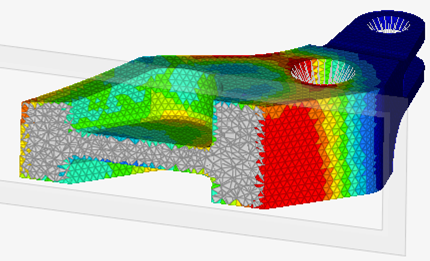
Note:If the solid elements exist in the CAE data, selecting Extract solid faces means the prediction will be made using faces from the outer surfaces, and results will only be visible on the outer surface. The internal 3D elements do not contribute. Extract solid faces is selected by default because it ensures faster prediction time.
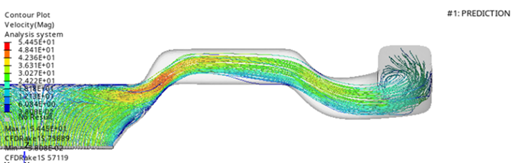
If Extract solid faces is not selected, predictions will be made for (and using) all nodes/elements throughout the interior of the solid body as well.
Extract Solid Faces Selected
Without Extract Solid Faces
- Click OK.
- From the PhysicsAI ribbon, select the Create Dataset
tool.
- Manage Datasets.
- From the PhysicsAI ribbon, select the Manage Datasets
tool.

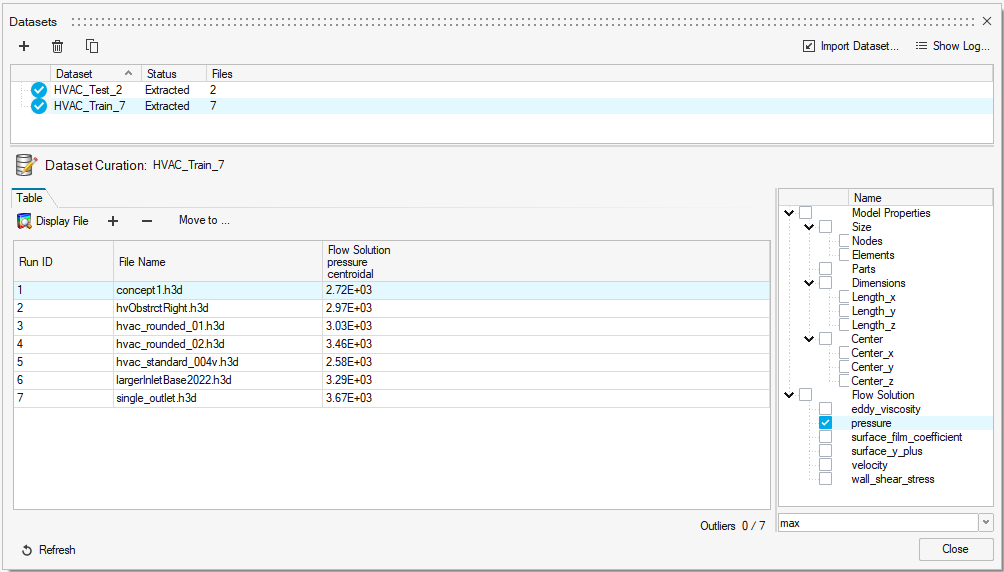
The Datasets dialog opens.
- Create, import, or remove datasets.
- Optional: Select a data file and click
 Display File to preview the selected file.
 Note:
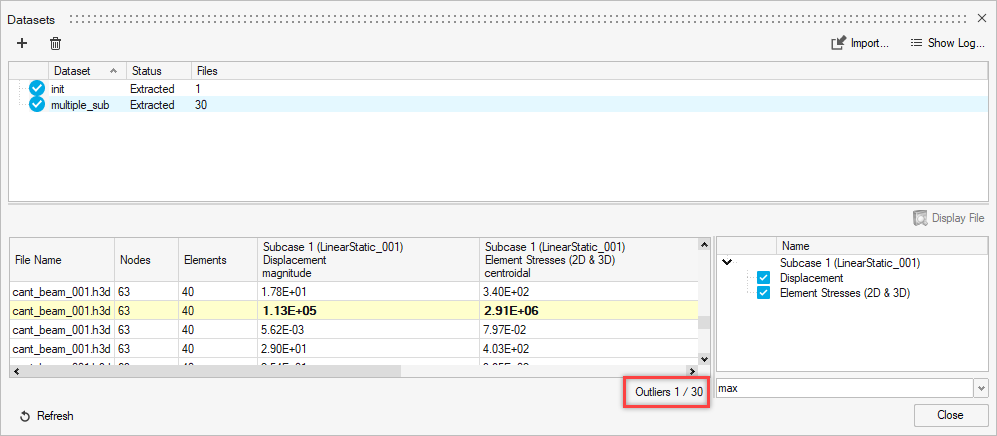
Note:Outliers in the datasets can be detected based on one or more responses. A Z-score distribution is used to highlight the points which fall in 3 sigma tails.
- Click OK.
- From the PhysicsAI ribbon, select the Manage Datasets
tool.