
Train Models
Train models using any physics, any mesh, and without design variable parametrization.
Training times vary significantly depending on various factors, such as:
- Inclusion of a Dataset (number of samples and number of elements and time steps per sample)
- Model specifications (model size, hyperparameters, number of training epochs)
- Hardware (processor speed, RAM, access to GPU)
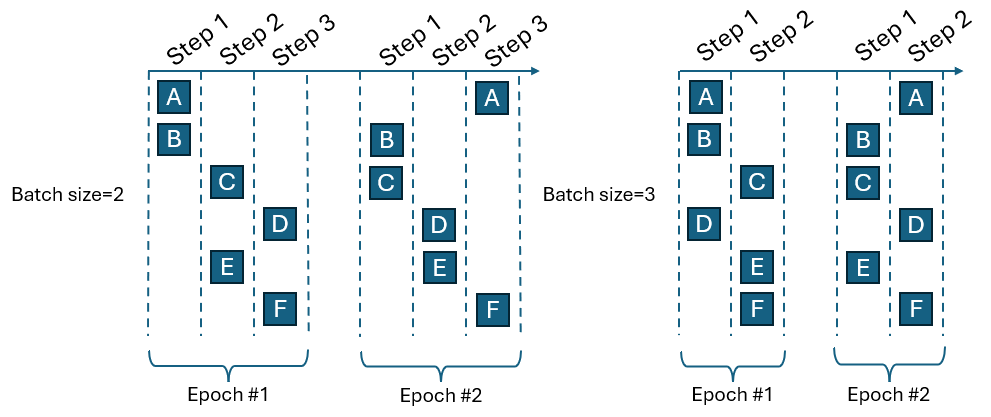
Training is an iterative process. One complete iteration is known as an epoch. Within an epoch, batches of data are passed to the learning model in a series of steps. Each single piece of data will be in one (and only one) step during each epoch. In each epoch, the data is randomly shuffled into steps. Figure 1 illustrates a training with six data points (A-F) to compare the effect of batch size. When batch size is two, each epoch contains three steps and requires six overall steps in the two epochs. In contrast when the batch size is three, each epoch contains two steps and requires four steps in the two epochs. Using batch size of three requires less overall steps, but at the expense of larger memory requirement to load the batch into memory. The optimal batch size depends on the problem being solved and can truly be determined through trial and error.
Figure 1
Training can also be done on an HPC. See Train Remotely on an HPC section below for more information.
| Supported Solvers | File Format |
|---|---|
| Abaqus | .odb |
| AcuSolve | .ensight, .h3d |
| ANSYS | .rst, .rth |
| CCM+ | .ensight |
| Custom/user | .ensight, .unv, .h3d |
| Fluent | .ensight |
| LS-DYNA | .d3plot, .d3eigv |
| Marc | .t16 |
| Nastran | .op2, .h5, .xdb |
| PAM-CRASH | .dsy |
| OptiStruct | .h3d, .op2 |
| Radioss | .h3d, .anim |
| ultraFluidX | .ensight, .h3d, .case |
- From the PhysicsAI ribbon, select the Train an ML Model tool.
 Note: You can also import a previously trained model. See Import Trained Model for more information.
The Train Model dialog opens. See Navigate the Train Model GUI for more information about the Train Model dialog.
- Define the training details and click Train.
- Enter a model name.
- For Training Data, select the created or existing Train Dataset.
- Select Inputs and Outputs.
Multiple responses can be selected for training.
- Select a Training Script.Note:
Options to train using Altair One compute resources will appear when two requirements are met:
- The project is saved to Altair One Drive.
- At least one visible compute appliance in Altair One has an installed version of PhysicsAI that is consistent with the edge client version of PhysicsAI.
- Specify the hyperparameters of the training process, such as the
number of epochs or learning rate.Tip:
If desired, transfer learning can also be enabled.
Transfer learning involves using the knowledge from an existing PhysicsAI model while training a new model. It can be beneficial in cases where too few data points are available for training a new model from scratch. To enable transfer learning, the new PhysicsAI model should have the exact same width, depth, and input features.
Note:You can hover over the hyperparameter names to read their description.
Hyperparameters will affect the quality of a trained model. The optimal set of hyperparameters will vary from problem to problem. Running experiments to the tune the hyperparameters to maximize model performance is an important last step in a complete PhysicsAI process.
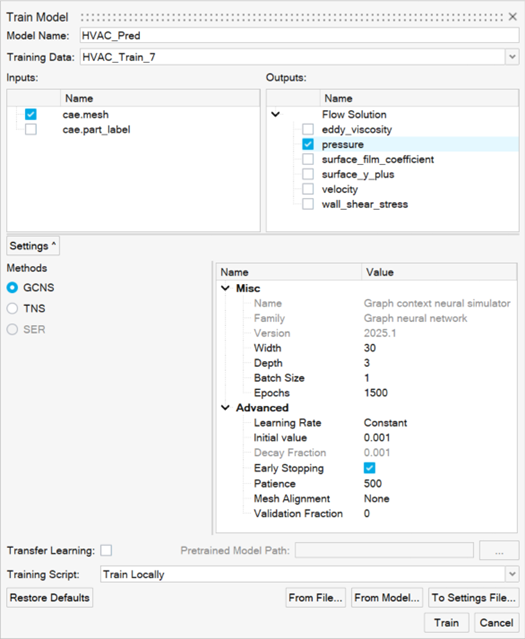
PhysicsAI has three AI methods available for training: Graphical Context Neural Simulator (GCNS), which is the default option, Transformer Neural Simulator (TNS), and Shape Encoding Regressor (SER). For more details, refer to Frequently Asked Questions.
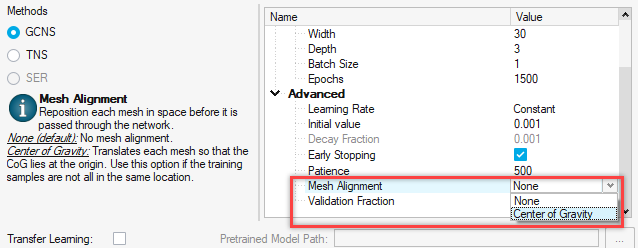
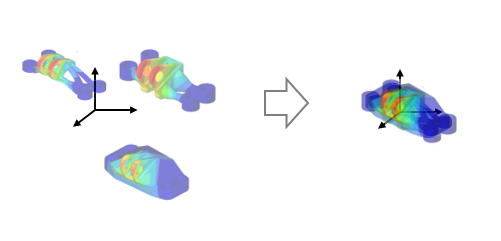
Tip:For meshes which are translated in space, these can be realigned using the Mesh Alignment option during model training.
The Model Training dialog opens.
- Review the status in the Status column.Tip:
Once the status changes to Running, you can view the training logs by clicking Show Log.
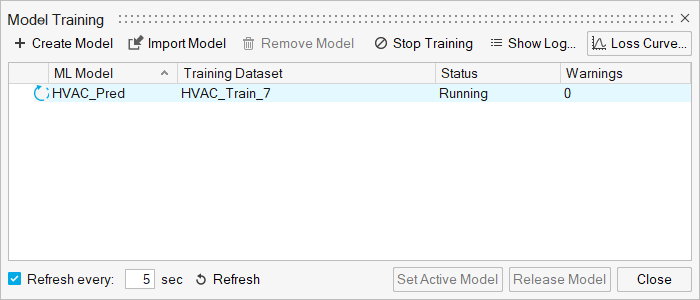
- Optional: Click Loss Curve to view the training of a
validation loss curve.
The curves are useful to visualize the progress of the training process. In a well fit model, the training and validation losses become nearly identical. If validation never approaches the training loss, this is indicative of underfitting; increased training time can leave files d to improved model performance. A validation loss that approaches the training loss but diverges higher likely indicates overfitting; the point of low validation loss is the ideal model to avoid loss of generalization. For more information, see Best Practices for PhysicsAI.
Note: The validation curve only appears if there are at least 15 samples.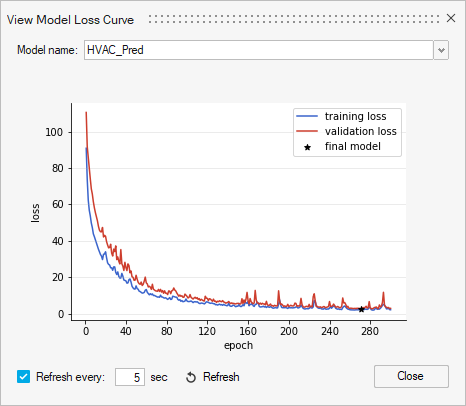
Train Remotely on an HPC
Train a PhysicsAI model on a remotely on a different machine than the one running the PhysicsAI GUI.
To train models remotely, you will need:
- Access to a remote machine with the Engineering Data Science (EDS) application installed
- PuTTY installed on your local machine
- A training script (details below)
- A mapped drive which can be accessed by both your local machine and the HPC. This is required so that your locally created datasets are visible to the HPC during training.
A common reason for remote training is to harness an HPC with a GPU, which can accelerate training significantly.
- Install the EDS application from the Altair One Marketplace to your HPC.
- Create an SSH connection.
- Launch PuTTY on your local machine and connect to the HPC via SSH.
- Save the connection, for example:
my_PhysicsAI_hpc.
Important:If you are required to enter a password while logging in via PuTTY, you will need to setup RSA keys before continuing. Once you can login via PuTTY without entering a password, you may continue.
- Write a training script for your HPC using the following template.
This example uses the qsub command from PBS on Windows. For Windows, the script should have the .bat extension. If your local machine is running Linux, you will need to write a script with equivalent functionality on Linux with a .sh extension.
@echo off

SETLOCAL
REM ------------------------------------------------------------------------------
REM Copyright (c) 2021 - 2021 Altair Engineering Inc.  All Rights Reserved
REM Contains trade secrets of Altair Engineering, Inc.  Copyright notice
REM does not imply publication.  Decompilation or disassembly of this
REM software is strictly prohibited.
REM ------------------------------------------------------------------------------

REM ------------------------------------------------------------------------------
REM USER SETTINGS
REM ------------------------------------------------------------------------------

REM HPC Setup
set sess=<<HOST NAME>>
set user=<<USER NAME>>

REM PBS Requests
set pbs_requests=-q a100 -N PhysicsAI_shape  -j oe -l select=1:ncpus=8:mem=257940mb:ngpus=1

REM Windows -> Unix Mapping
set win_map=\\<<SERVER IP>>\data\ds
set unix_map=/data/ds

REM PhysicsAI Installation Settings
set install_loc=<<HW or SL INSTALL LOCATION>>common/eds/bin/linux64/edspy.sh

REM PBS Install Location
set sub_cmd=/altair/pbsworks/pbs/exec/bin/qsub


REM ------------------------------------------------------------------------------
REM SCRIPT START
REM ------------------------------------------------------------------------------
REM Get whole input line
set line=%*


REM Map windows paths to unix
set unixmap=%win_map%=%unix_map%
set unixmap=%unixmap:\=/%
set submit_line=%line:\=/%
setlocal EnableExtensions EnableDelayedExpansion
set submit_line=!submit_line:%unixmap%!
echo %line%


echo ---UNIXMAP---
IF ["%unixmap%"] == [""] GOTO :RUN
setlocal EnableExtensions EnableDelayedExpansion

:RUN
echo ---PLINK SETTINGS---
echo user = %user%
echo sess = %sess%


echo ---PAI-SHAPE SETTINGS--
echo install_loc = %install_loc%
echo submit_line = %submit_line%


REM -----------------
REM Run QSUB
REM -----------------
set qsub_command_string='%install_loc% %submit_line%'

REM Write File for submission
echo plink -batch -load %sess% -l %user% -batch "echo %qsub_command_string% > pai_qsub.txt"
plink -batch  -load %sess% -l %user% -batch "echo %qsub_command_string% > pai_qsub.txt"

REM Submit file
plink -batch  -load %sess% -l %user% -batch "%sub_cmd% %pbs_requests% pai_qsub.txt"
echo plink -batch -load %sess% -l %user% -batch "qsub %pbs_requests% pai_qsub.txt"

ENDLOCAL
Below is a Linux example. This example script is setup under the assumption that you can already submit from your command terminal.
#!/bin/tcsh # ------------------------------------------------------------------------------ # USER SETTINGS # ------------------------------------------------------------------------------ set pbs_requests="-q a100 -N PhysicsAI_shape -j oe -l select=1:ncpus=8:mem=250000mb:ngpus=1" echo ${pbs_requests} # Hyperworks Install Location set install_loc="/stage/hw/2024" echo ${install_loc} # PBS qsub install location set sub_cmd="/opt/pbs/bin/qsub" # ------------------------------------------------------------------------------ # SCRIPT START # ------------------------------------------------------------------------------ set submit_line="$*" echo submit_line = ${submit_line} set edspy=\$'{'install_loc'}'"/altair/common /eds/bin/linux64/edspy.sh" set qsub_command_string="export INSTALL_LOCATION=${install_loc};export install_loc=${install_loc}; ${edspy} ${submit_line}" echo qsub_command_string = ${qsub_command_string}; # Write the qsub sumbmission script. # If your home directory is not seen by the HPC, modify the location to be visible on the HPC or run command via ssh. echo "${qsub_command_string}" > ~/pai_qsub.txt; # Submit the qsub sumbmission script. # If you cannot directly submit to pbs, run this command via ssh. echo "qsub ${pbs_requests} pai_qsub.txt"; qsub ${pbs_requests} ~/pai_qsub.txt - Register the training script.
- From the PhysicsAI ribbon, select the Train an ML
Model tool.
The Train Model dialog opens.
- For Training Script, select Register Training Script.
The Add Training Script dialog opens.
- Click
 and browse and select your training
script.
and browse and select your training
script. - Enter a name for your script and click OK.
- Close the Train Model dialog.
Your preferences are saved and the physicsai_solver_prefs.json file in your user directory has been updated.
- From the PhysicsAI ribbon, select the Train an ML
Model tool.
- Launch a remote training.
- Create a PhysicsAI project and dataset.
See Create and Load Projects and Create and Manage Datasets for more information.
Note:Ensure the project is located on a mapped drive that can be accessed by both your local machine and HPC.
- Repeat step 4.a to open to the Train Model dialog.
- Define the training details.
- For Training Script, select the training script you registered.
- Click Train.
Your training script is invoked with the specified training dataset and model settings.
A training will begin running on your HPC.
- Create a PhysicsAI project and dataset.
Train Using a GPU
Training a PhysicsAI model on a GPU is significantly faster.
If supported, the GPU will automatically be used for training. For more information about using a GPU for training, see Computing and Resources in Frequently Asked Questions.
Import Trained Model
Import a previously trained model.
- From the PhysicsAI ribbon, select the Model Training tool.

The Model Training dialog opens.
- Click Import Model.
The Import Model dialog opens.
- Enter a name for the model.
- Select a model to import by completing one of the following options:
- Click to browse and select a model from
disk.
The trained model file (.psmdl) is mandatory. If the associated log files are in the same directory, the log file can also be used.
- Click
 to import a model from Altair
Drive.
to import a model from Altair
Drive.After authenticating, select the model from the list of available model files visible on Altair Drive.
- Click
- Click OK.
Navigate the Train Model GUI
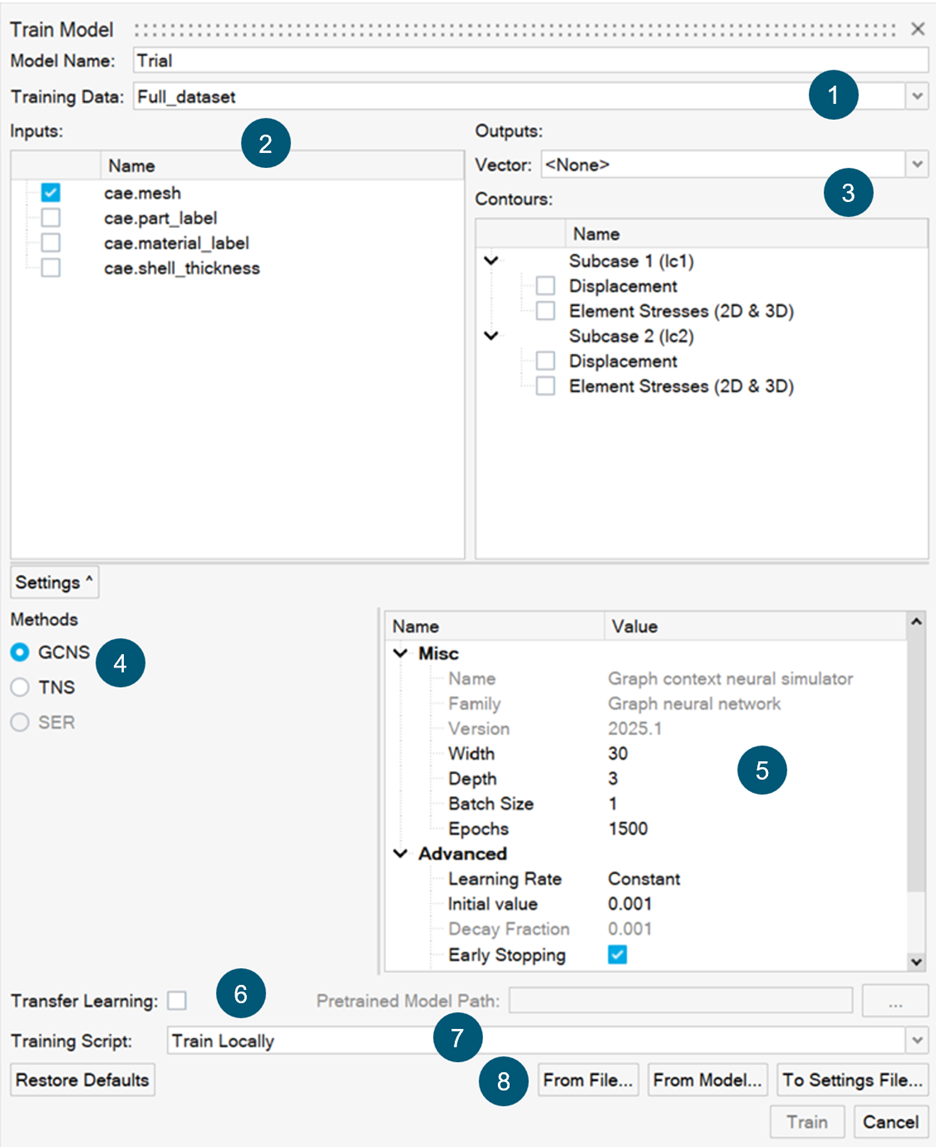
- Drop-down menu to select from available datasets.
- Inputs selection based on available inputs from the dataset. Both native and
custom inputs are displayed here.
Table 2. Input Feature Description cae.coord Spatial coordinates used as a predictor of behavior. It is recommended to always keep it on. cae.part_label Part name is used as a predictor of behavior. This is valuable when working with large assemblies. In most cases, it is recommended to keep it on. However, it may make sense to turn it off in cases with inconsistent part names. - Outputs selection based on the possible outputs contained within the
dataset. KPI and curve outputs are contained in a drop-down menu while field
outputs are shown in a tree chart.
When vector data is available, a vector prediction option displays under Outputs. Vector data is provided alongside the primary files selected during dataset creation. The vector data should have the same basename as the primary data file, but with a .json extension. An example of the .json schema is shown below:
[ { "label": "Scalar1", "type": "vector", "data": [ 0.5667 ] }, { "label": "List1", "type": "vector", "data": [ 0.00000, 0.58778, 0.95105, 0.95105, 0.58778, 0.00000 ] } ] - Architecture/method to be used for training. PhysicsAI has three architectures: Graph Context Neural Simulator (GCNS), Transformer Neural Simulator (TNS), and Shape Encoding Regressor (SER) (for KPI/curves predictions only, no field predictions). For more information on these architectures, see Frequently Asked Questions or Best Practices for PhysicsAI.
- Hyperparameters or training settings to be used. Five hyperparameters are common to all architectures: width, depth, batch size, epochs, and learning rate. Others are specific to each architecture. Click on the labels for a description and recommended values. For additional information refer to the Hyperparameters section in Best Practices for PhysicsAI.
- Transfer Learning enables the use of a previously trained PhysicsAI model as a starting point, effectively transferring the knowledge from the previously trained PhysicsAI model to the new PhysicsAI model which is being trained. To use transfer learning, the inputs must be the same as the previously trained model. For more information, see Best Practices for PhysicsAI.
- Training Script is for specifying the execution location for the training.
- The specifications toolbar can be used to read the hyperparameter, inputs, and output choices from an existing PhysicsAI configuration file (.pscfg) or a PhysicsAI model file (.psmdl). It can also be used to export the current settings as a configuration file (.pscfg). This feature is useful to ensure that settings can be kept consistent between different training rounds while eliminating errors from manual operations.