
Using Command - Batch
Without opening SimLab, SimLab script can be executed through console window. After script execution, all output files will be generated automatically in corresponding folders specified in script.
Step 3.1: Command Window
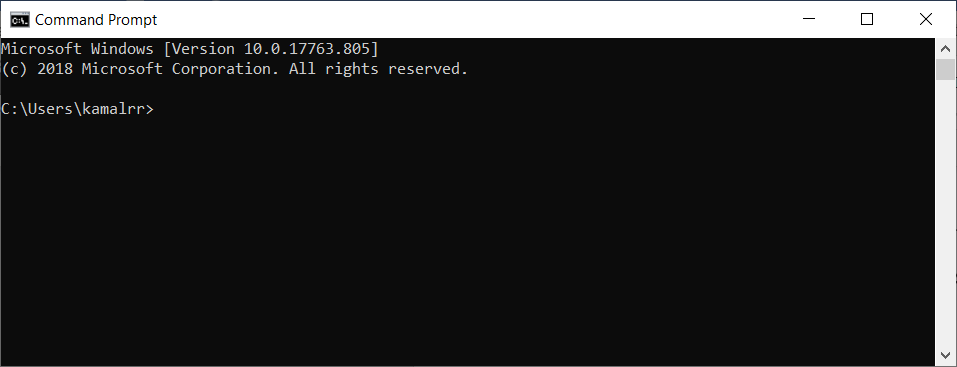
- Open console.
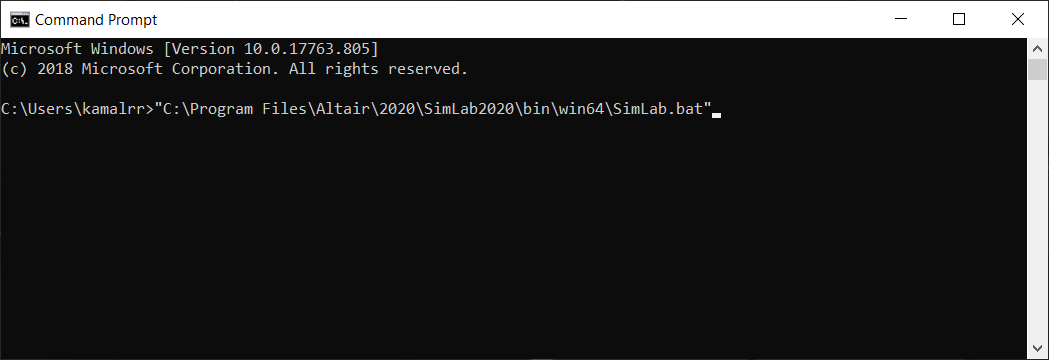
- Go to SimLab installation location and copy the SimLab.bat file path along with the
file name, then paste it console.
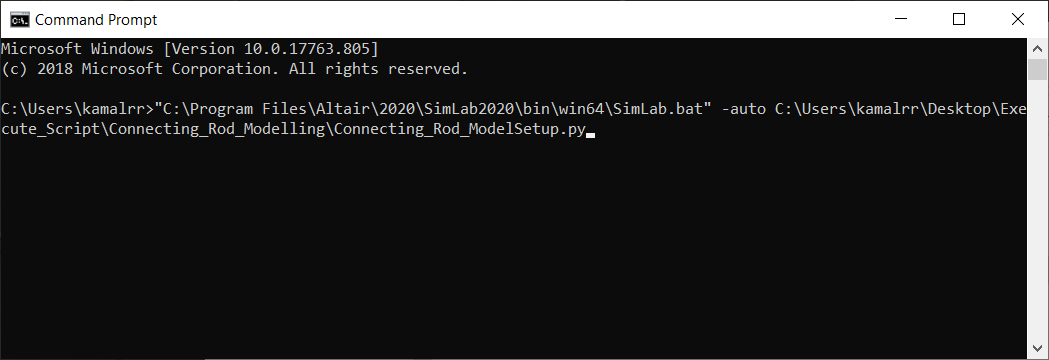
- Enter a space and type "-auto" and then copy the SimLab script file path along with
file name. Then past it in console, as shown below.
- Then press Enter button. It automatically launches SimLab and start executing the script automatically.
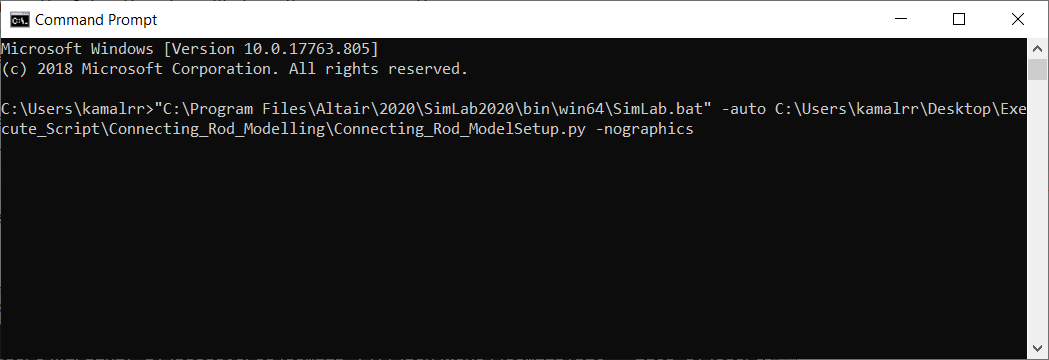
- The script also can be executed without launching SimLab by using the command
"-nographics". Add this command before pressing enter.
Note: Below are the commands that can be used for SimLab script execution through batch mode.
| Argument | Description |
|---|---|
| -auto (or) -sp | To specify the script file and the path. |
| -param | To specify the parameter file (*.xml or *.CSV) and path. |
| -response | To specify the response file and path. |
| -nographics | To hide the SimLab GUI. |
| -headless | To run scripts on servers without any need for a dedicated display or graphics. If there are any GUI functions in the script, those functions will be ignored. |
| -nowait | To release the command prompt during script execution. |
| -doe | To specify the design of experiments file. |