
Import
Import materials
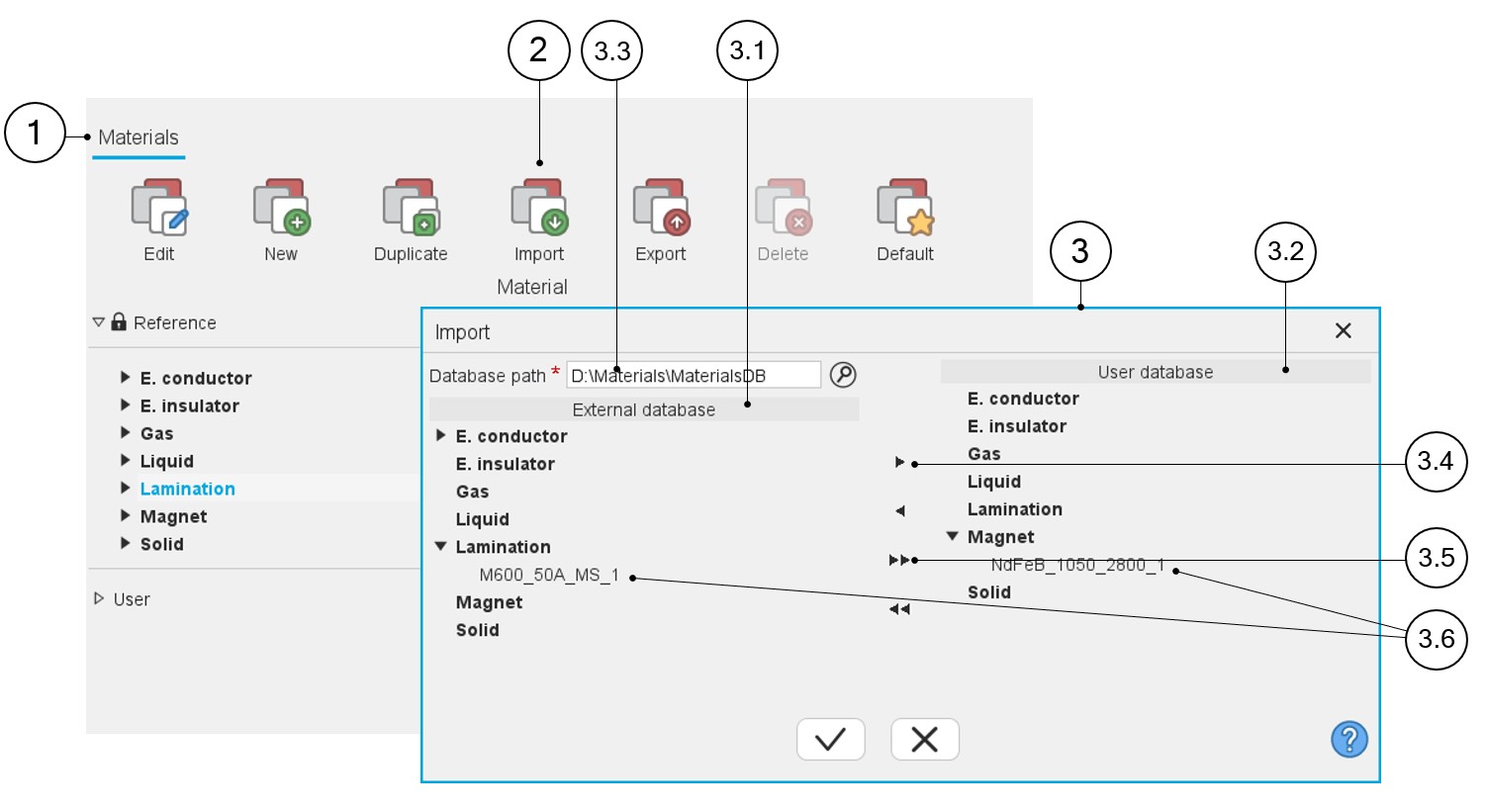
It is possible to import materials from an external material database built by another user of FluxMotor. All the imported materials will be stored in the user material database. Here is the way below to import materials.
 |
|
|---|---|
| 1 | The application “Materials” is opened. |
| 2 | Import is the button to open the dialog box for importing materials. |
| 3 | Dialog box for importing materials from each material family.
Note: Imported materials will be stored in
the user material database. |
| 3.1 | External materials database in which materials to be imported are stored. |
| 3.2 | User materials database to which materials must be exported. |
| 3.3 | Select the path from which the materials must be imported. Note: This selection is mandatory to continue
the process of exporting. |
| 3.4 | Choose to import the materials one by one. |
| 3.5 | Choose to import all the materials at the same time. |
| 3.6 | Displaying of the materials that are chosen for import (before and after exporting). |