
New
New material
New material can be created and is stored only in the User material database.
If you select a material from the reference materials database, the resulting new material is stored in the user’s material database with a new name.
 |
|
|---|---|
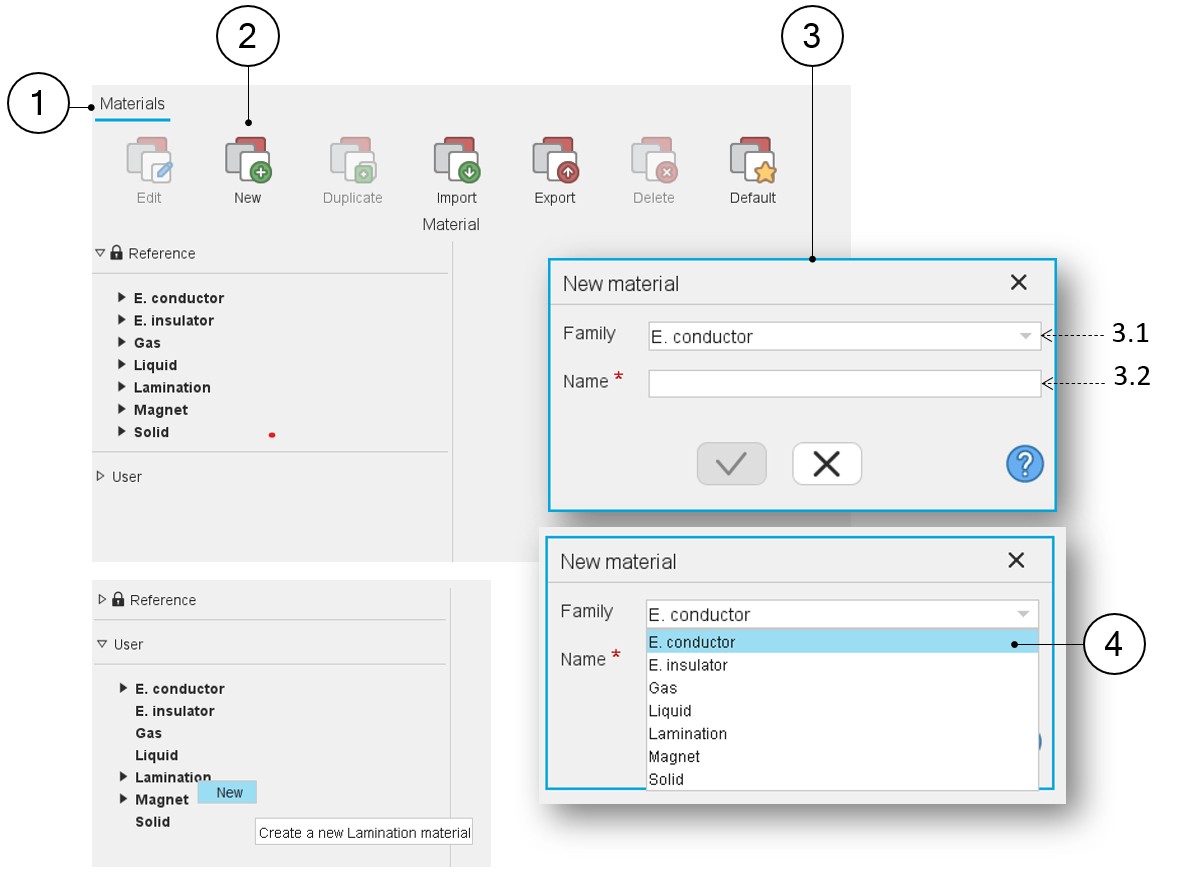
| 1 | The application “Materials” is opened. |
| 2 | Create New material by clicking on the icon “New” in the “Material” menu or by using the right mouse button on one family of the user material database. |
| 3 | Once clicking on the icon New material, a dialog box is opened to select the associated family and the name. |
| 3.1 | Select the family to which the new material belongs (Electrical conductor, Electrical insulator, Gas, Liquid, Lamination, Magnet and Solid). |
| 3.2 | Give a name to the new material. |
| 4 | Select the family and the name of the new material in the dialog
box. Family is preselected when material is created using option 2. |
Note: Physical properties of the newly created material will have
by default values. One must edit the material to update them.