
Units
How to get into Units?
Units is a dedicated application to allow effective management of units with FluxMotor.
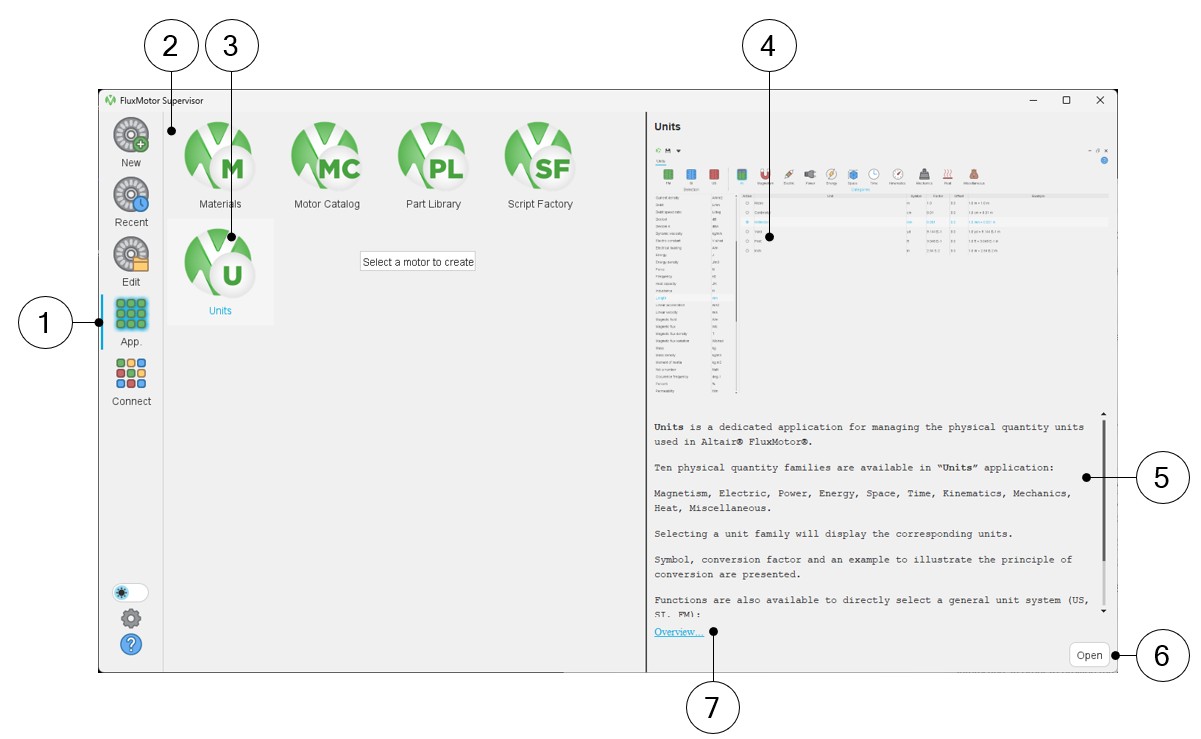
One can get into the Units environment from the supervisor by clicking on the icon “App”, allowing access to FluxMotorapplications.
 |
|
|---|---|
| 1 | Select the button to access FluxMotor applications. |
| 2 | Icons of FluxMotor applications (Materials, Motor Catalog, Part Library, Script Factory, Units). |
| 3 | Selection of the application “Units”. |
| 4 | Picture of the selected application: Units in our example. |
| 5 | A short description of the selected application. |
| 6 | Once selected, the application can be opened either by double clicking on the corresponding icon or by clicking on the button “Open”. |
| 7 | A link “Overview” to reach the online user help guide, which described the selected application. |
Main areas
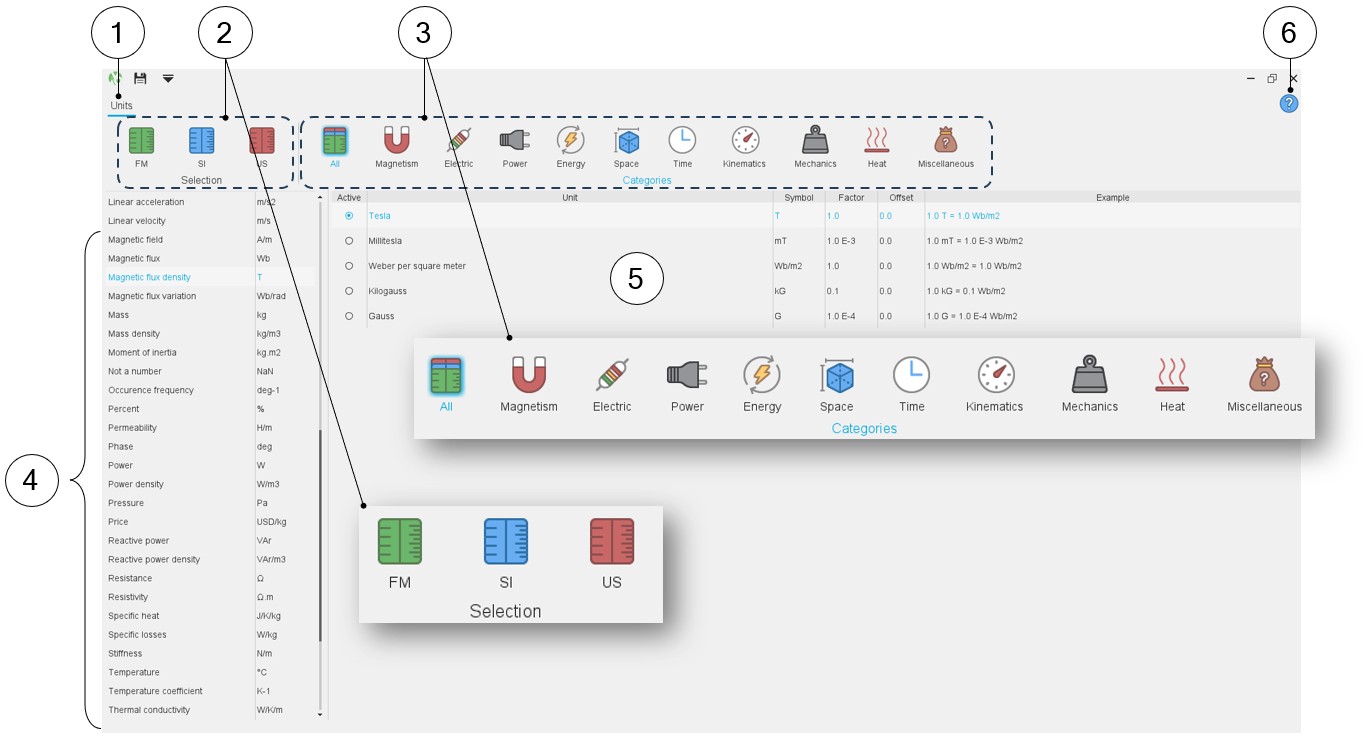
Here are the main zones that compose the “Units” environment of the application Units:
 |
|
|---|---|
| 1 | The application Units is opened. One environment is available. |
| 2 |
Selection of the unit system to be applied:
|
| 3 |
Presentation of the ten quantities of families is available in the “Units” application (Magnetism, Electric, Power, Energy, Space, Time, Kinematics, Mechanics, Heat, Miscellaneous). “All” means that all the families are considered and displayed altogether. Selecting an icon will display the units belonging to the selected family. |
| 4 | Once one family of units is selected, all the corresponding quantities are displayed on the left side of the Units environment. |
| 5 | When a quantity is selected in the list (4), the corresponding
available units are displayed. Symbol, conversion factor and an example to illustrate the principle of conversion are presented. |
| 6 | Access to the online user help guide dedicated to the usage of the application Units. |
 |
|
|---|---|
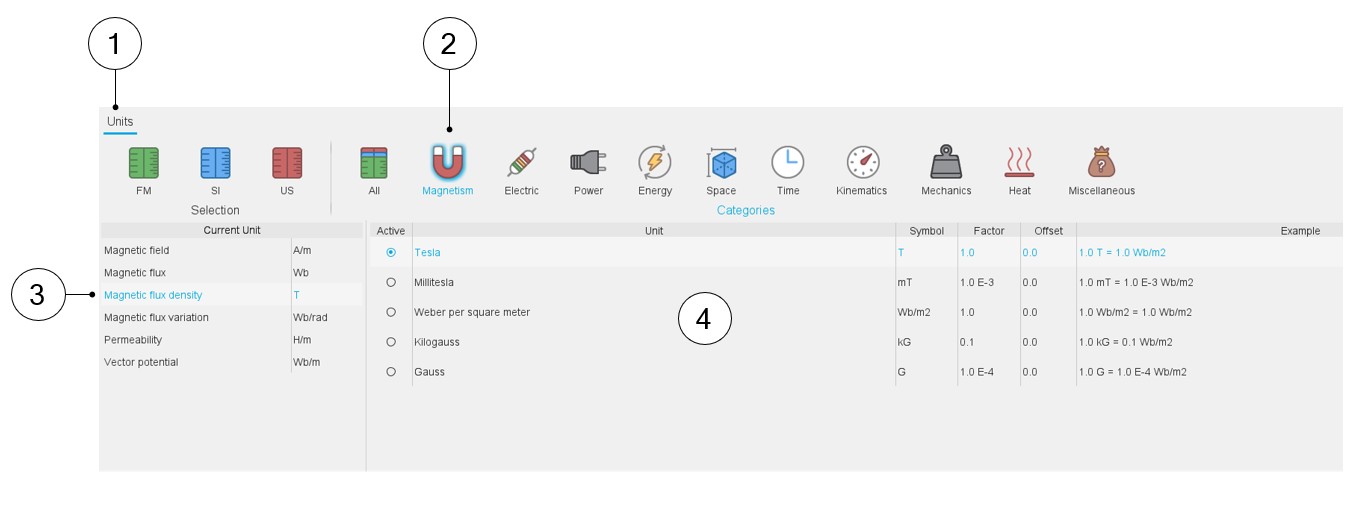
| 1 | The application Units is opened. One environment is available. |
| 2 | Selection of one family of units. In our example, Magnetism is selected. |
| 3 | All the units dealing with the field of Magnetism are displayed.
In our example one has Magnetic field, Magnetic flux, Magnetic flux
density, Magnetic flux variation, Permeability, and Vector
potential. Among these quantities, Magnetic flux density is selected (highlighted in blue), allowing the corresponding unit to be considered in FluxMotor. |
| 4 | Area where all the units corresponding to the selected quantity
are displayed and where they can be selected. In our example the
Tesla unit is selected for the magnetic flux density. Note: additional information is displayed on
the right part of this area, like symbol, factor and offset
and an example to illustrate the conversion of units
corresponding to the selection. |
How to choose and save a unit?
 |
|
|---|---|
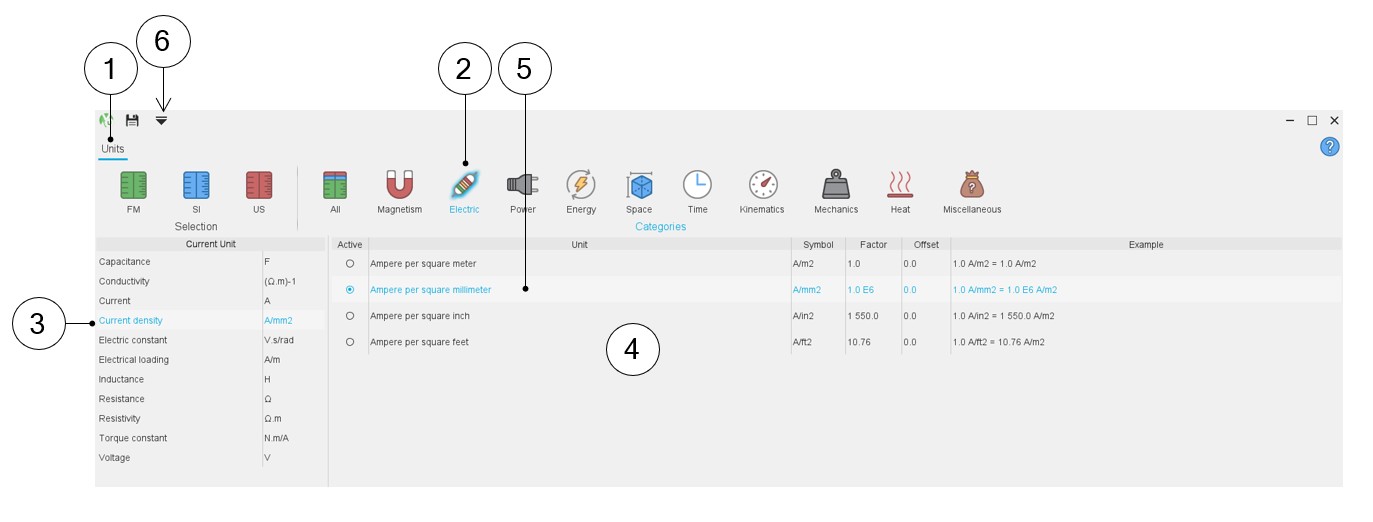
| 1 | The application Units is opened. One environment is available. |
| 2 | Selection of one family of units. In our example, Electric is selected. |
| 3 | All the units dealing with the field of Electric are displayed.
In our example one has Capacitance, Current, Current density,
Electric constant, Electrical loading, Inductance, Resistance,
Resistivity, Torque constant, and Voltage. Among these quantities, Current density is selected (highlighted in blue), allowing the corresponding unit to be considered in FluxMotor. |
| 4 | Area where all the units corresponding to the selected quantity are displayed and where they can be selected. |
| 5 |
Selection of the new unit. In our example the “Ampere per square
millimeter” unit is selected for the Current density.
Note: additional information is displayed on
the right part of this area like, symbol, factor and offset
and an example to illustrate the conversion of units
corresponding to the selection. |
| 6 |
Save unit changes.
Note: The new unit is
saved in FluxMotor system of units (FM)
i.e., the units dedicated to FluxMotor. It is possible to select one of the two international systems of units (SI or US). These other two unit systems are fixed and cannot be modified. |
Expanding the menu in Units
This menu gives access to system functions like help and exit.
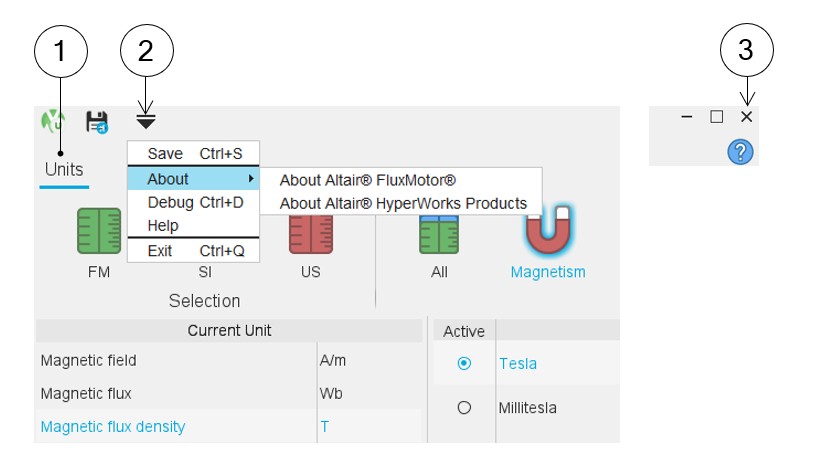 |
|
|---|---|
| 1 | The application Units is opened. One environment is available. |
| 2 | Expand the menu on the top left part of Units. List of actions
available:
|
| 3 | Closing Units dialog box is also possible by using this icon on the top right corner of the Units dialog box. |