
Script Factory
How to get into Script Factory?
- From the supervisor
One can get into Script Factory from the supervisor by clicking on the icon App allowing access to FluxMotor applications.
Table 1. FluxMotor – Supervisor – Open Script Factory 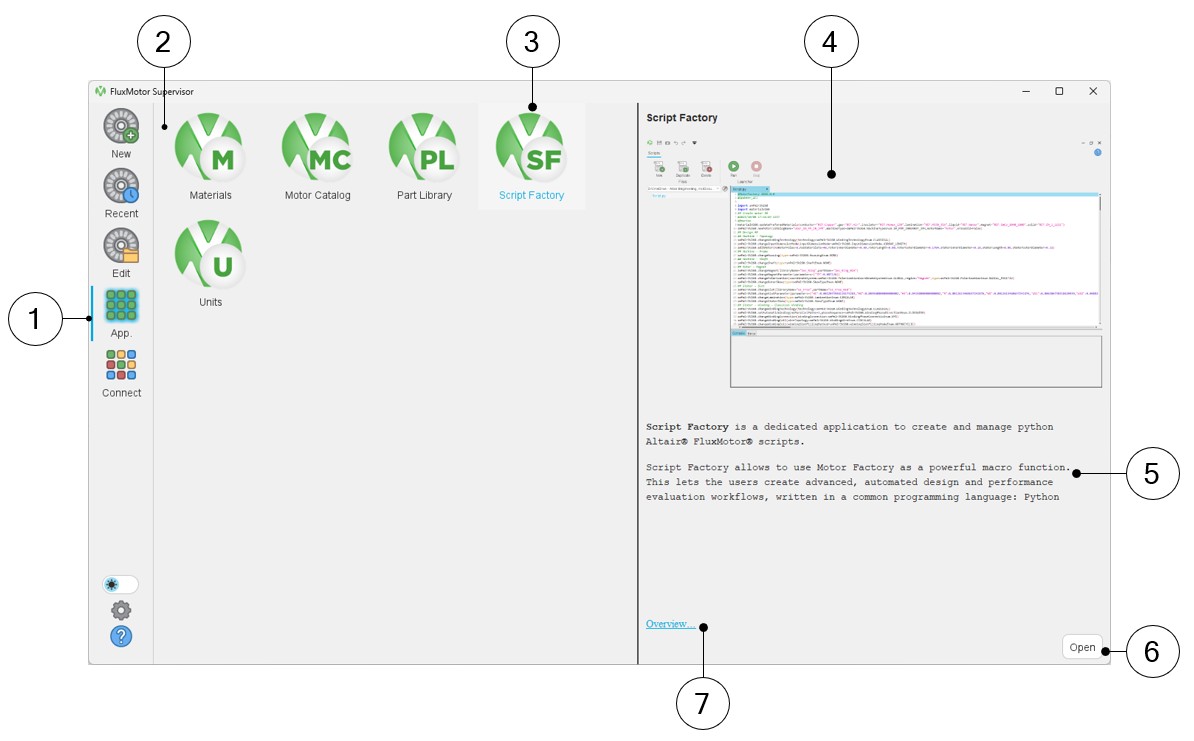
1 Select the button to access FluxMotor applications. 2 Icons of FluxMotor applications (Materials, Motor Catalog, Part Library, Script Factory, Units). 3 Selection of the application “Script Factory”. 4 Picture of the selected application: Script Factory in our example. 5 A short description of the selected application. 6 Once selected, the application can be opened either by double clicking on the corresponding icon or by clicking on the button “Open”. 7 A link “Overview” to reach the online user help guide, which described the selected application. - From Motor Factory / Export environment / Script
It is possible to open the python script of a current motor with all the needed commands defining it.
Table 2. How to get into “Script Factory” from Motor Factory? 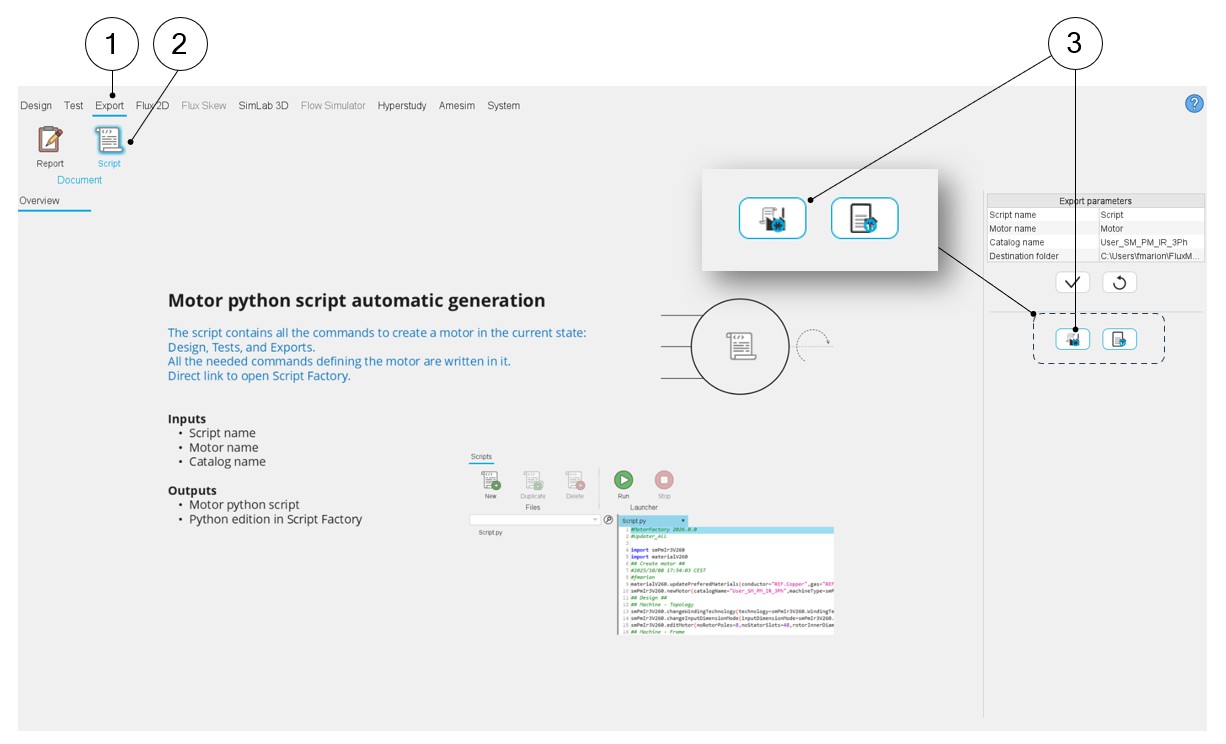
1 In Motor Factory, select EXPORT environment. 2 In the EXPORT environment, select SCRIPT in the DOCUMENT menu. 3 In the “SCRIPT” panel of Motor Factory, open the python script of the current motor by clicking on this button.
Main areas of Script Factory
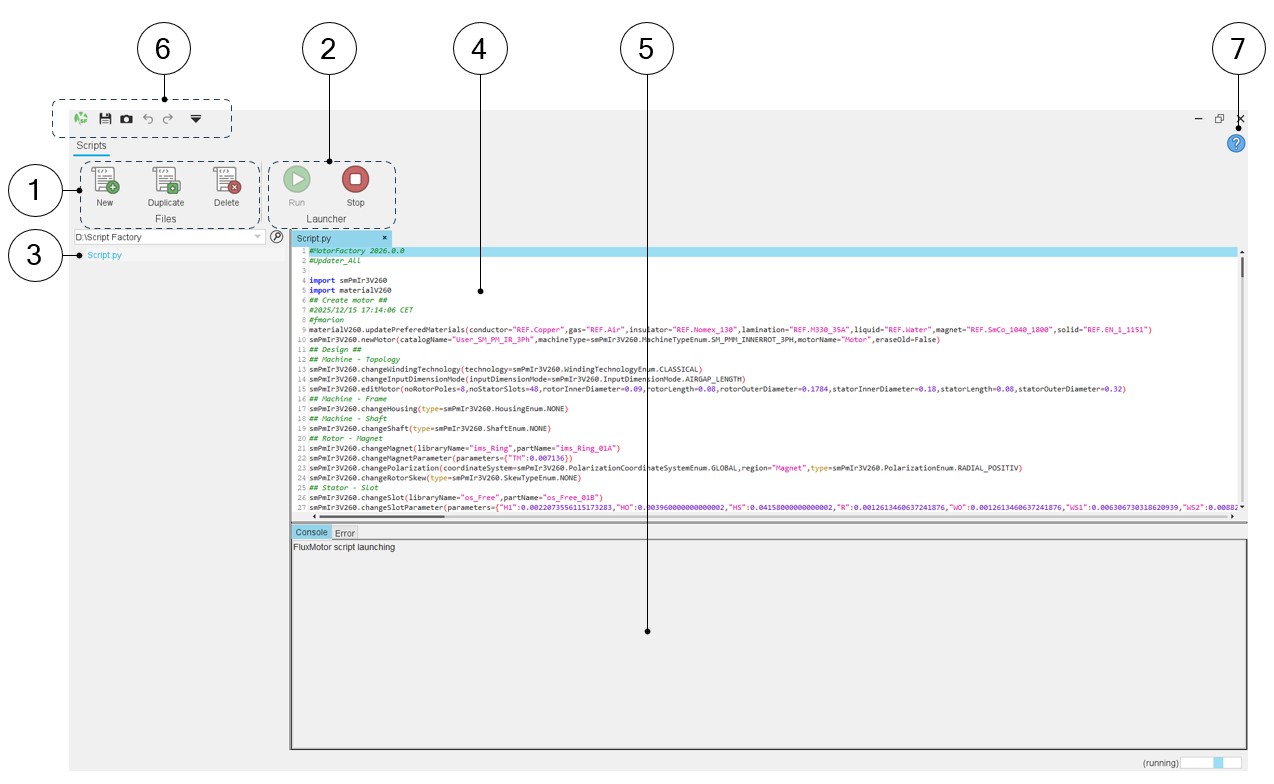
“Script Factory” is a dedicated application to create and manage python FluxMotor scripts.
- Workspace in tree format
- Script files functionality as “New, Duplicate and Delete”.
- Launcher of python script with “Run and Stop” functions.
Classical functions such as “Save, Undo, Redo and Store” are also available.
 |
|
|---|---|
| 1 | Functions dedicated to the python file management: “New, Duplicate and Delete”. |
| 2 | Launcher of python script with “Run and Stop” functions. |
| 3 | Area where one can browse to reach and to select the python files. |
| 4 | The python script is edited in the editor. |
| 5 | The LOG folder scrolls during the run and a ping-pong bar appears. |
| 6 | System functions such as “Save, Undo, Redo and Store”. |
| 7 | Access to the online user help guide dedicated to the usage of Script Factory. |
Expanding the menu in Script Factory
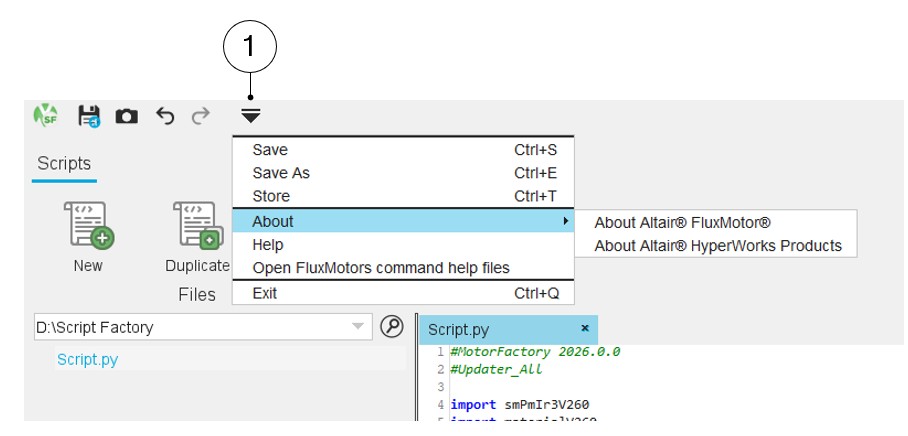
This menu gives access to system functions like help and exit.
 |
|
|---|---|
| 1 | Expand the menu on the top left part of Script Factory. List of
actions available:
Note: Close Script Factory is also
possible by using the icon × on the top right part of the Script
Factory panel. Close Script Factory is also possible by using the shortcut CTRL+Q defined in the user preferences. |
Advice for use
FluxMotor is a dedicated platform, which can be used for the predesign of electrical motors. The target of FluxMotor is to get a quick overview of the technical and economic potential of motors.
The motive of the Script Factory is to give the possibility to automate some study, such as lunch serial tests or serial design winding configurations.