
Part Library
How to get into Part Library
- Full access to Part LibraryOne can get into Part Library environment from the supervisor by clicking on the icon App, allowing access to FluxMotorapplications.
Table 1. FluxMotor – Supervisor – Open Part Library and directly get into the part manager 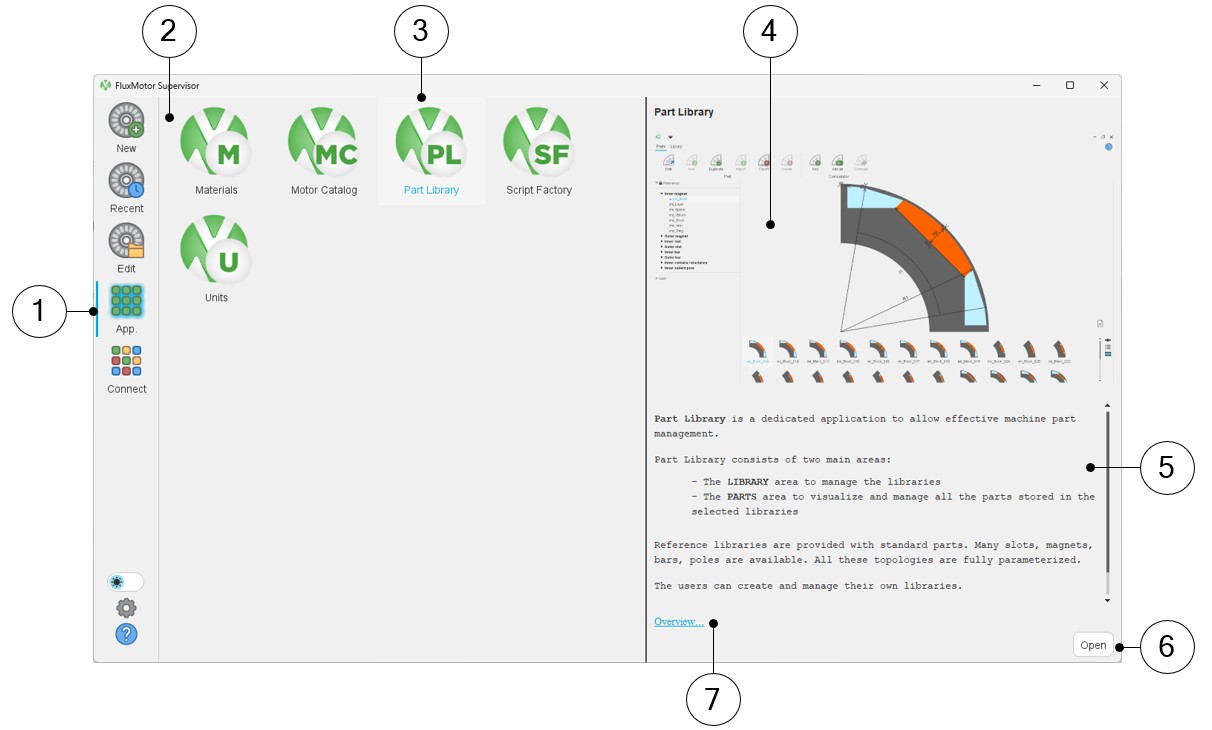
1 Select the button to access FluxMotor applications. 2 Icons of FluxMotor applications (Materials, Motor Catalog, Part Library, Script Factory, Units). 3 Selection of the application “Part Library”. 4 Picture of the selected application: Part Library in our example. 5 A short description of the selected application. 6 Once selected, the application can be opened either by double clicking on the corresponding icon or by clicking on the button “Open”. 7 A link “Overview” to reach the online user help guide, which described the selected application. - Partial access to Part Library
From Motor Factory, in the Slot area, bar area or the Magnet area of the DESIGN environment, it is possible to get into the Part Library using a Read Only mode to visualize, compare, choose, and import part topology to modify the current stator design or the rotor design.
Here is an example below to illustrate how to access the Part Library from Motor Factory. This illustration is based on the slot area of the Motor Factory dedicated to the synchronous machine with permanent magnets.
The same principle is used for all types of components, like magnet, bar, saliency, poles for inner or outer rotor.
Table 2. 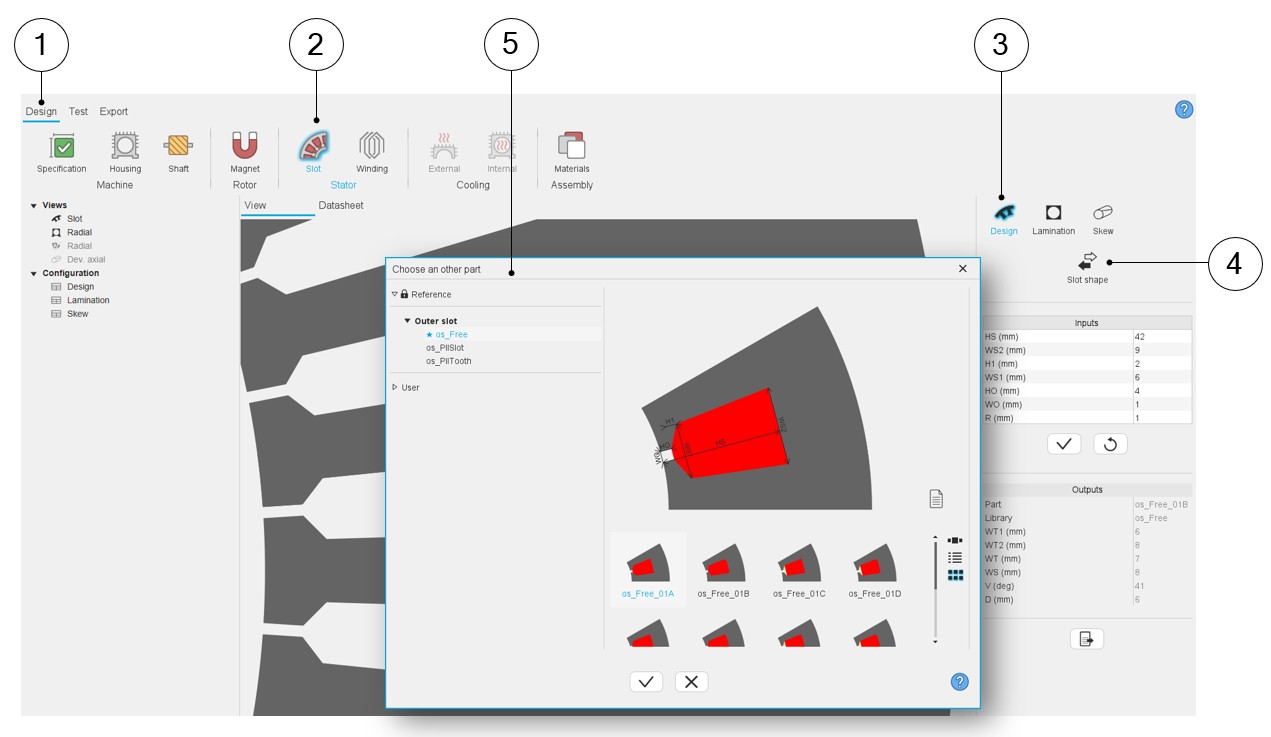
1 Select the label “Design” to access the Motor Factory - Design area 2 Selection of the Slot subset in the design area of Motor Factory. 3 Selection of the design section dedicated to the Slot subset in the design area of Motor Factory 4 "Slot shape" button allows accessing the slot libraries (in the Part Library application) to change the slot topology. 5 Clicking on the "Slot shape" button opens a dialog box, allowing access to the slot libraries via a selection tree which allows visualizing the part and selecting it in a user-friendly way.
It allows us to visualize, compare, choose and import another slot topology to modify the current stator design.
Note: This access to the Part Library is in Read only mode and is limited to the considered part.In our example only slot parts are visible since access to the Part Library is done from the slot area of the Motor Factory.
Note: This access to the Part Library is in Read only mode and is limited to the considered part. For instance, in the illustration below, only slot parts are visible since the access to the Part Library is done from the slot area of the Motor Factory.It is not possible to manage either the parts or the libraries via partial access. Only the visualization and the selection of libraries and parts is possible.
Main areas of Part Library
Part Library is a dedicated application to allow effective machine part management.
Libraries are provided with standard parts. Many slots and magnets are available. All the topologies are parameterized.
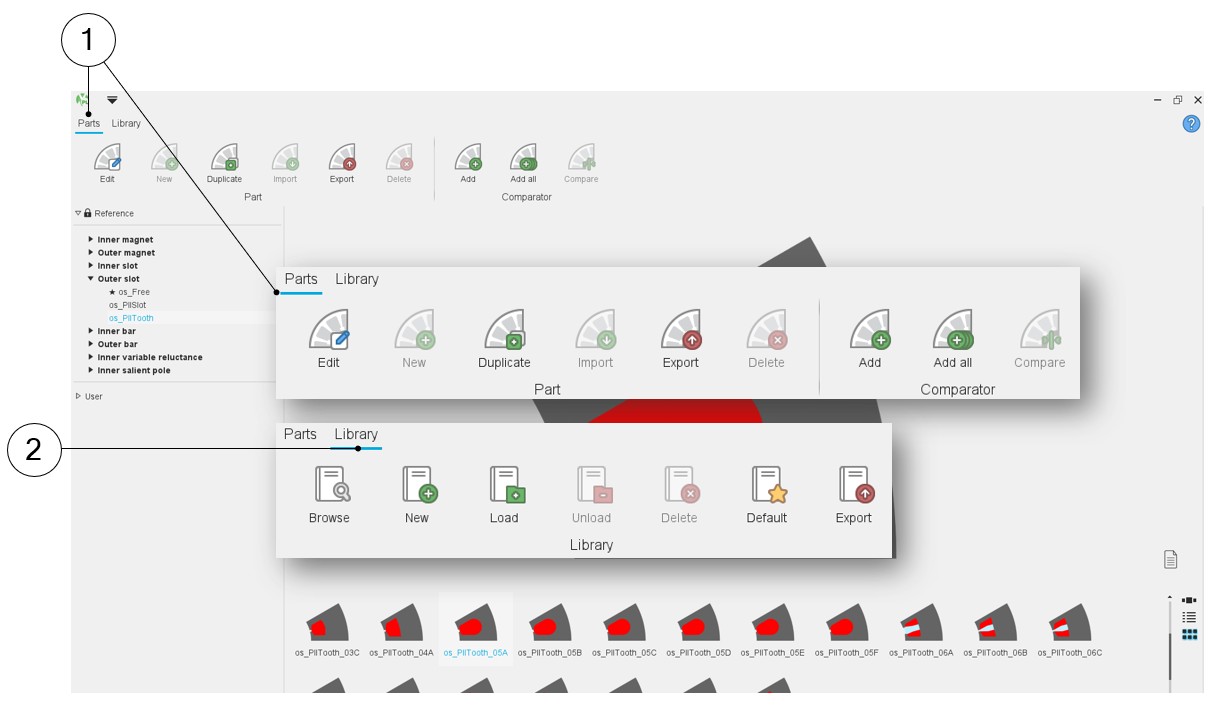
- The “Library” area to manage the libraries
- The Parts area to visualize and manage all the parts stored in the selected libraries
 |
|
|---|---|
| 1 | Get into the Parts area. List of functions available for the management of parts. |
| 2 | Get into the Library area. List of functions available for the management of libraries. |
 |
|
|---|---|
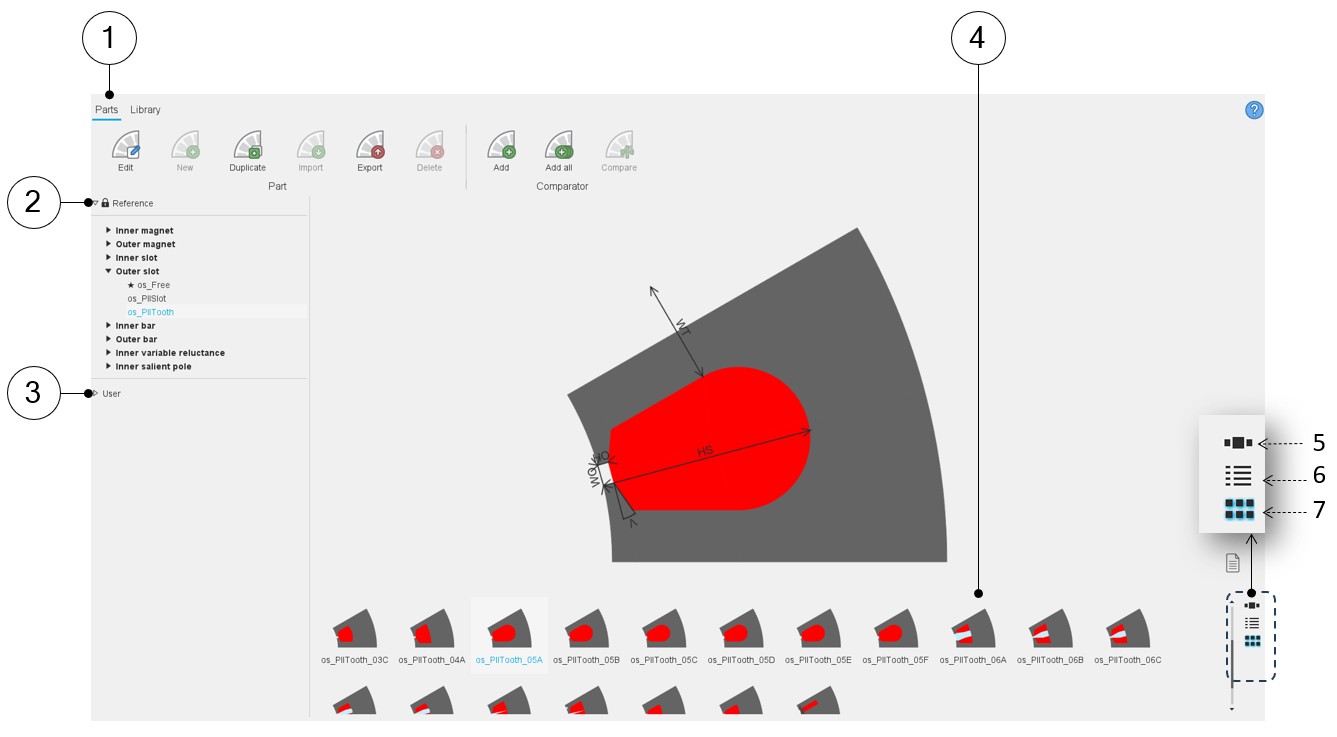
| 1 | Selection of the parts area of the Part Library |
| 2 | Reference libraries available with FluxMotor. |
| 3 | User’s libraries. |
| 4 | All the parts of the selected library are displayed in this area. Three ways are proposed to display and visualize the parts: Slide show, list, and matrix view of pictures. |
| 5 | Button to display thumbnails as a slide show:  |
| 6 | Button to display thumbnails as a list: |
| 7 | Button to display thumbnails as a matrix view of pictures as
illustrated in our example. |