
Library management
Main area
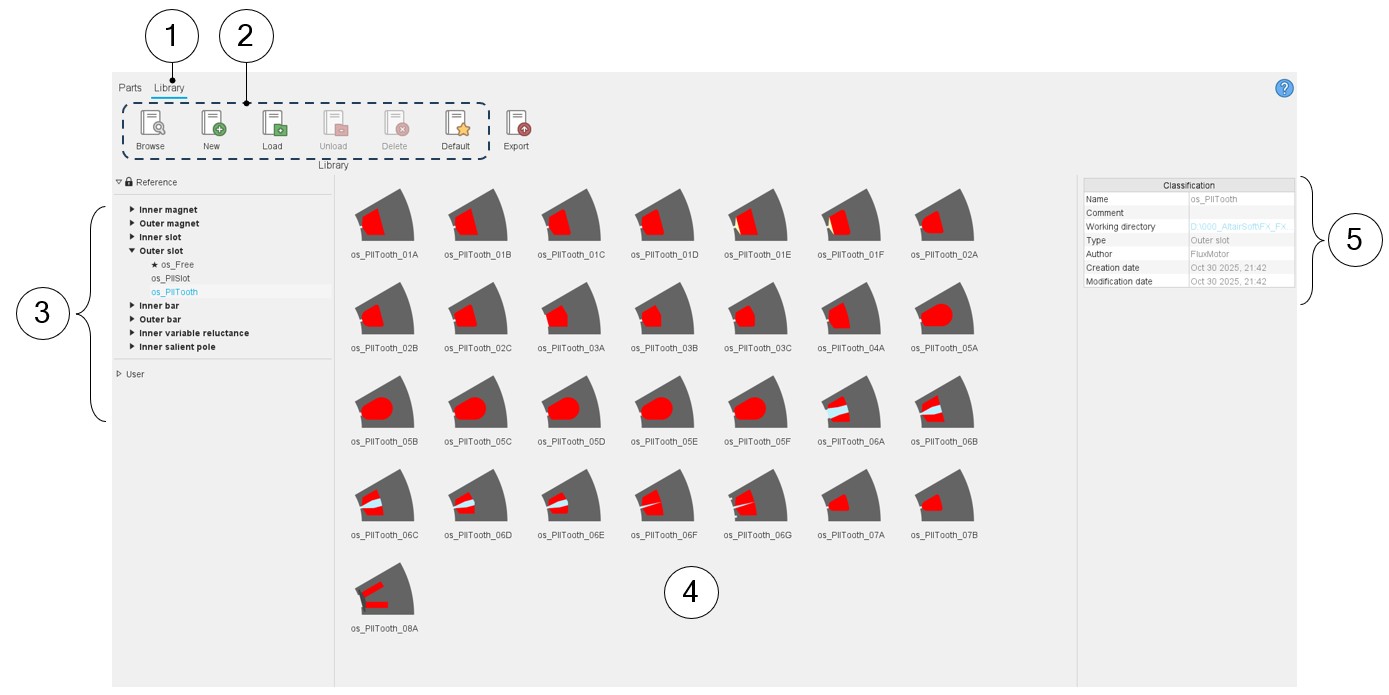
Here are the main zones that compose the “Library” environment of the Part Library:
 |
|
|---|---|
| 1 | Selection of the catalog area of the Part Library application |
| 2 | Libraries can be managed in this area:
|
| 3 | Reference libraries are available. Parts of these libraries are ready only. However, they can be copied and moved into user’s libraries. User’s libraries The users can create new libraries. See the process in the chapter “Reference commands”. |
| 4 | Visualization of all the parts (thumbnails) are stored in the selected library. |
| 5 | Information relating to the selected library. |
Expanding the menu in Part Library
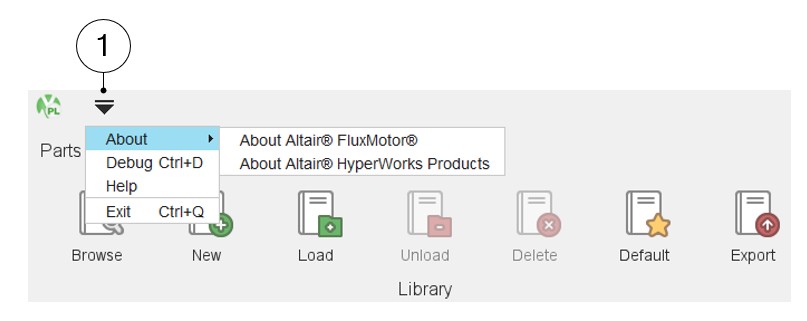
This menu gives access to system functions like help and exit.
 |
|
|---|---|
| 1 | Expand the menu on the top left part of the Part Library in both
areas: Library or Parts List of actions available:
Note: Close Part Library is also
possible by using the icon × on the top right part of the
Part Library panel. Close Part Library is also possible by using the shortcut CTRL+Q defined in the user preferences. |