
Motor Catalog
How to get into Motor Catalog?
Access to the Motor Catalog is possible from the supervisor. Two types of access are possible: partial access and full access.
- Partial access to Motor Catalog:
One can edit an existing motor via Motor Catalog from the supervisor.
Table 1. FluxMotor – Supervisor – Edit a motor from catalogs 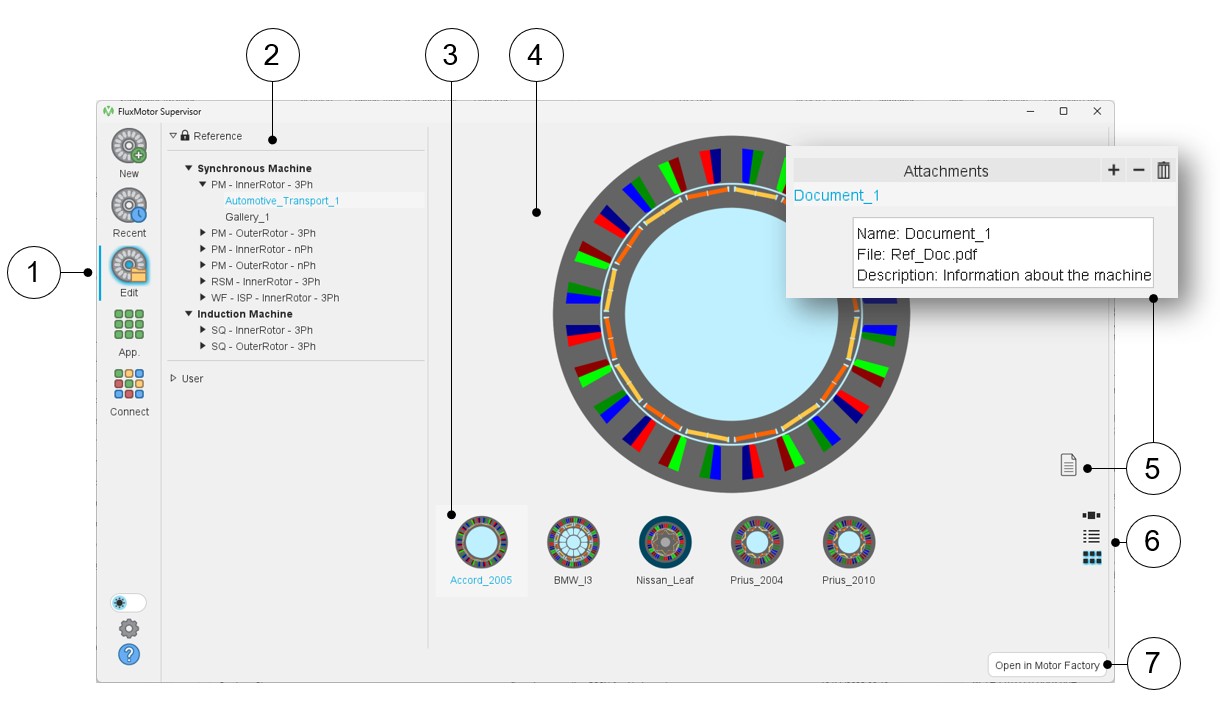
1 Select the button “Edit an existing motor via Motor Catalog”. 2 Selection of the catalog type: Reference or User catalog in which are available catalogs of motors. 3 List of motors stored in the selected catalog. 4 Picture of the selected motor. 5 Button to visualize the attached documents (if there are any). Note: Documents can be attached only from the Motor Catalog application and for the user catalogs.6 Button to display thumbnails as a slide show, as a list or as a matrix view of pictures. 7 Once selected the motor can be opened in Motor Factory either by double clicking on the corresponding line or by clicking on the button “Open in Motor Factory”. A selection tree allows visualizing the machines and selecting them in a more user-friendly way.
Hence, once the type of catalog is selected, either Reference or User, the user can display all the available catalogs in the whole area for more visibility, as illustrated below.Note: It is not possible to manage either the motors, the catalogs or projects via partial access. Only the visualization and the selection of catalogs and then the edition of motors is possible.Table 2. FluxMotor – Supervisor – Edit a motor from catalogs - Selection tree dedicated to either Reference or User catalogs 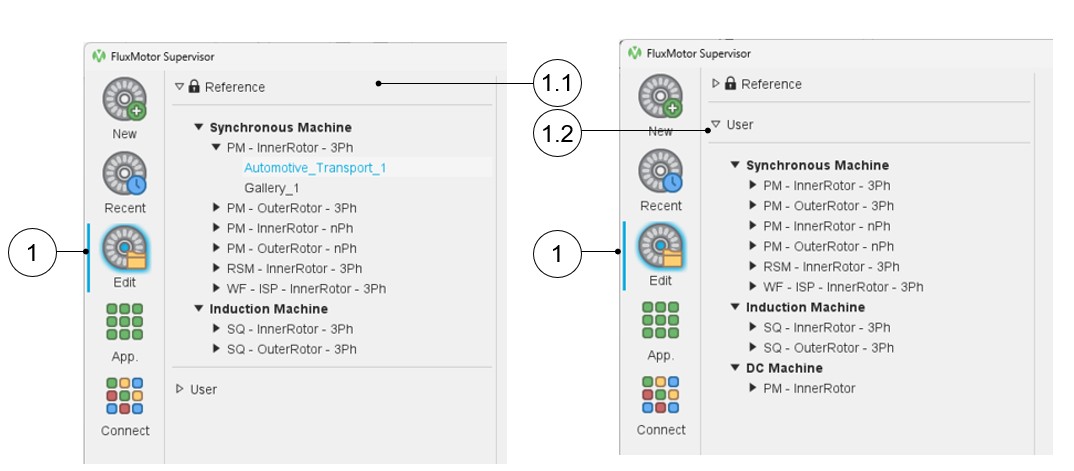
1 “Edit”: To select and edit a project from the catalogs, standard and user catalogs, like what can be done when using Motor Catalog. 1.1 The reference catalogs have been selected and are deployed, and others (User) are folded. 1.2 The user catalogs have been selected and are deployed, and others (Reference) are folded. - Full access to Motor Catalog:
One can get into the Motor catalog environment to manage either the motors, the catalogs or projects.
Table 3. FluxMotor – Supervisor – Edit a motor from catalogs 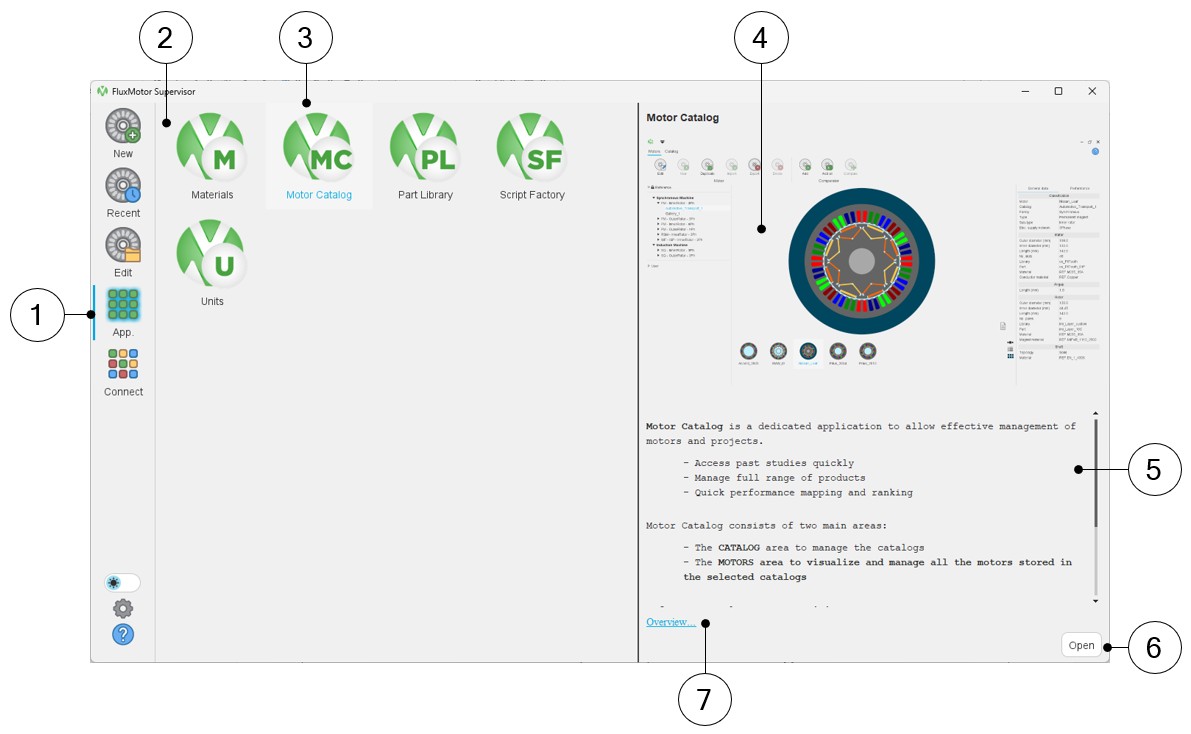
1 Select the button to access FluxMotor applications. 2 Icons of FluxMotor applications (Materials, Motor Catalog, Part Library, Script Factory, Units). 3 Selection of the application “Motor Catalog”. 4 Picture of the selected application: Motor Catalog in our example. 5 A short description of the selected application. 6 Once selected, the application can be opened either by double clicking on the corresponding icon or by clicking on the button “Open”. 7 A link “Overview” to reach the online user help guide, which described the selected application.
Main area of Motor Catalog
Motor Catalog is a dedicated application to allow easy management of motors and
projects.
- Reference catalogs are available:
- For instance, catalogs in which a few motors for automotive applications are stored. All these motors are characterized by general data and performance.
- There are also catalogs like “Gallery” of motors characterized by their general data.
- Motor Catalog consists of two main areas:
- The “Catalog” area to manage the catalogs
- The “Motors” area to visualize and manage all the motors stored in the selected catalogs
To reach one of these areas, just click on the corresponding label, “Catalog” or “Motor”.
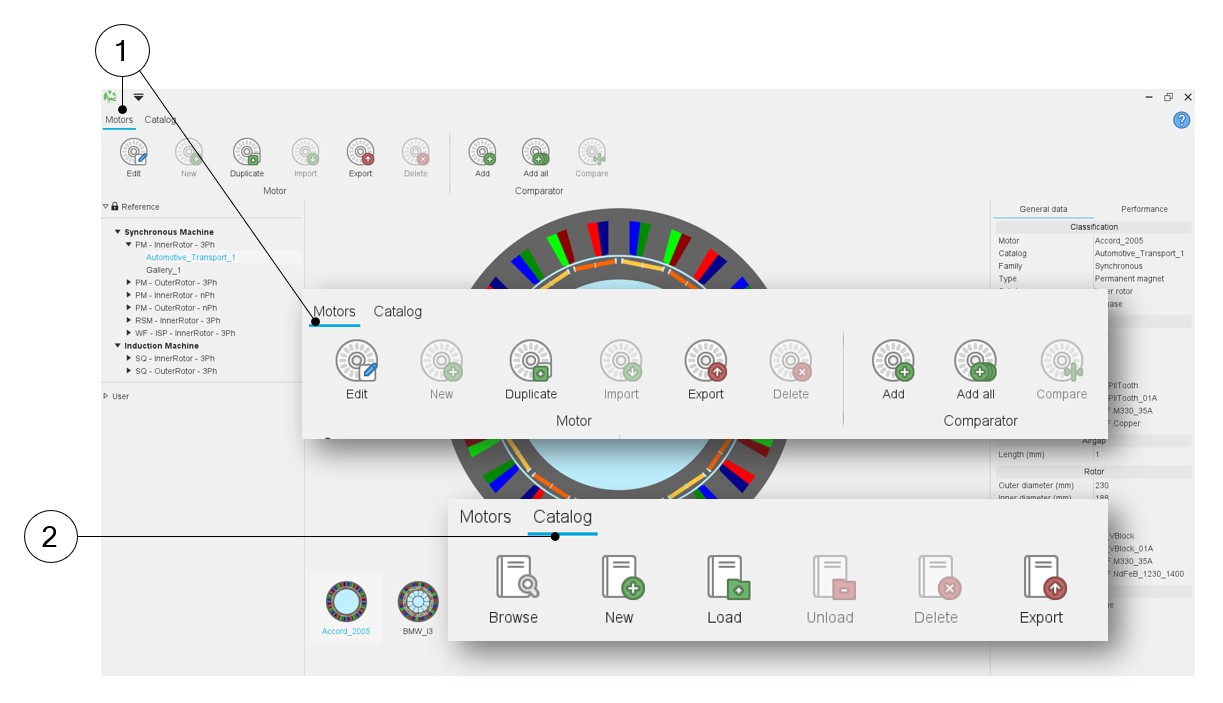 |
|
|---|---|
| 1 | Get into the Motors area. List of functions available for the management of motors. |
| 2 | Get into the Catalog area. List of functions available for the management of catalogs. |
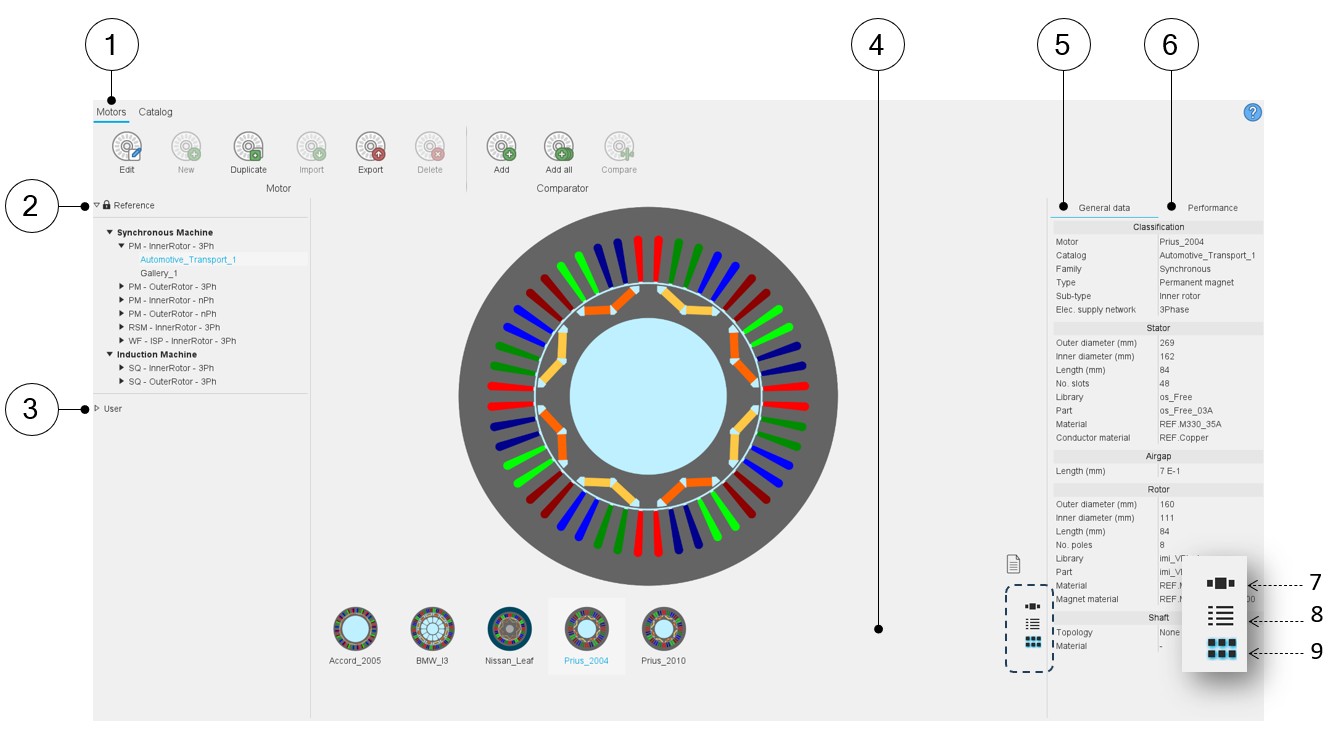
Note: In the motor areas of the Motor Catalog application, three
different ways are proposed to display and visualize the motors. They are
illustrated below:
 |
|
|---|---|
| 1 | Selection of the motor area of the Motor Catalog application. |
| 2 | Reference catalogs available with FluxMotor. |
| 3 | User’s catalogs. |
| 4 | All the motors of the selected catalog are displayed in this area. Three ways are proposed to display and visualize the motors: slide show, list, and matrix view of pictures. |
| 5 | General data of the selected motor is displayed. |
| 6 | Performance of the selected motor is displayed. Note: Performance is displayed only if the
datasheet test has been performed. |
| 7 | Button to display thumbnails as a slide show  |
| 8 | Button to display thumbnails as a list |
| 9 | Button to display thumbnails as a matrix view of pictures is
illustrated in our example. |