
Motor Factory
Introduction
Motor Factory is the main application of FluxMotor. It is dedicated to the design and the testing of the rotating electrical machines.
Here is the list of machines that can be designed and tested with the current version
of FluxMotor Motor Factory:
- SM_PM_IR_3PH: 3-Phase Synchronous Machine with Permanent Magnets - Inner Rotor
- SM_PM_OR_3PH: 3-Phase Synchronous Machine with Permanent Magnets - Outer Rotor
- SM_PM_IR_nPH: Polyphase Synchronous Machine with Permanent Magnets - Inner Rotor
- SM_PM_OR_nPH: Polyphase Synchronous Machine with Permanent Magnets - Outer Rotor
- SM_RSM_IR_3PH: 3-Phase Reluctance Synchronous Machine - Inner Rotor
- SM_WF_ISP_IR_3PH: 3-Phase Wound Field Synchronous Machine Inner Salient Pole – Inner Rotor
- IM_SQ_IR_3PH: 3-Phase Induction Machine with Squirrel cage - Inner Rotor
- IM_SQ_OR_3PH: 3-Phase Induction Machine with Squirrel cage - Outer Rotor
- DC_PM_IR: Permanent Magnet DC machine
Whatever the type of machine studied is, the workflow always keeps the same
principles. The Motor Factory consists of three main areas:
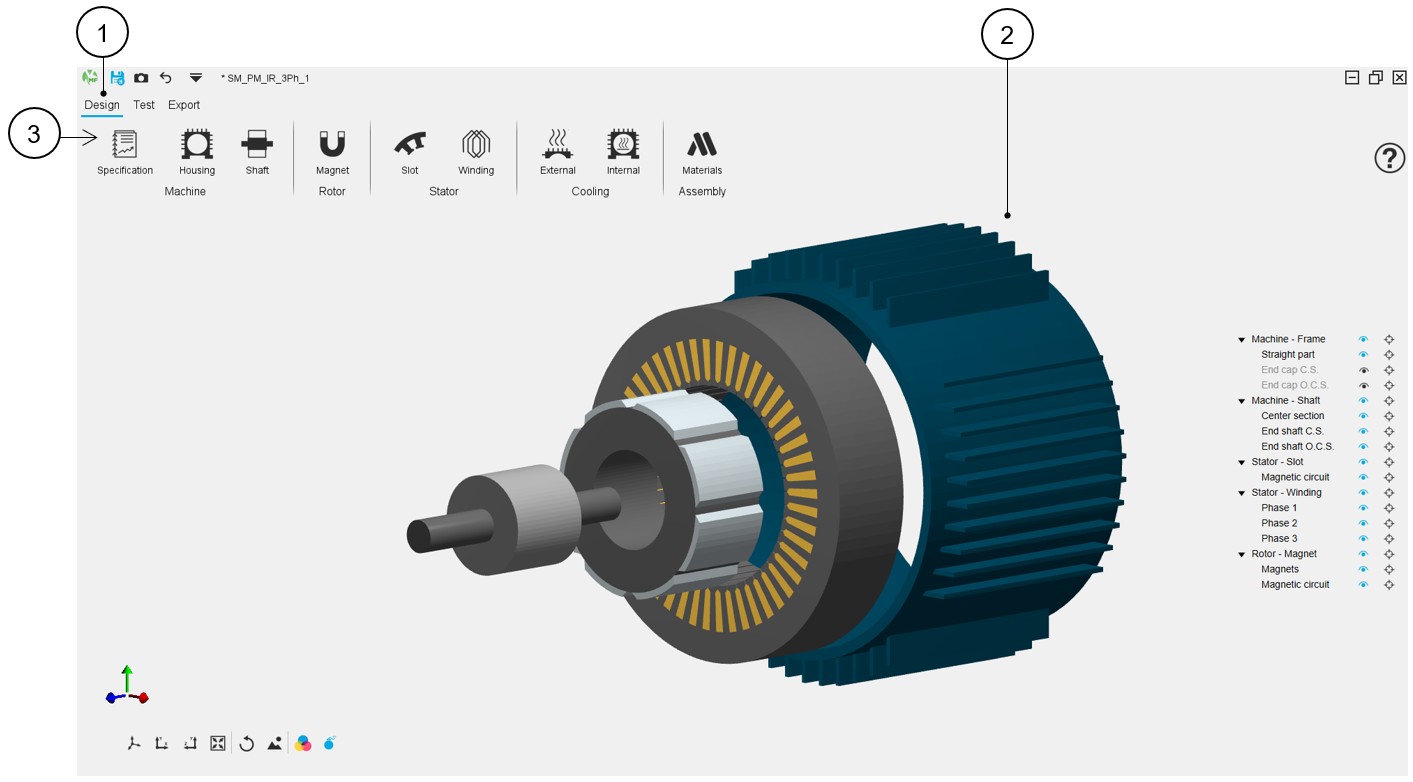
- The DESIGN area to design the motor (topology, winding, materials etc.).
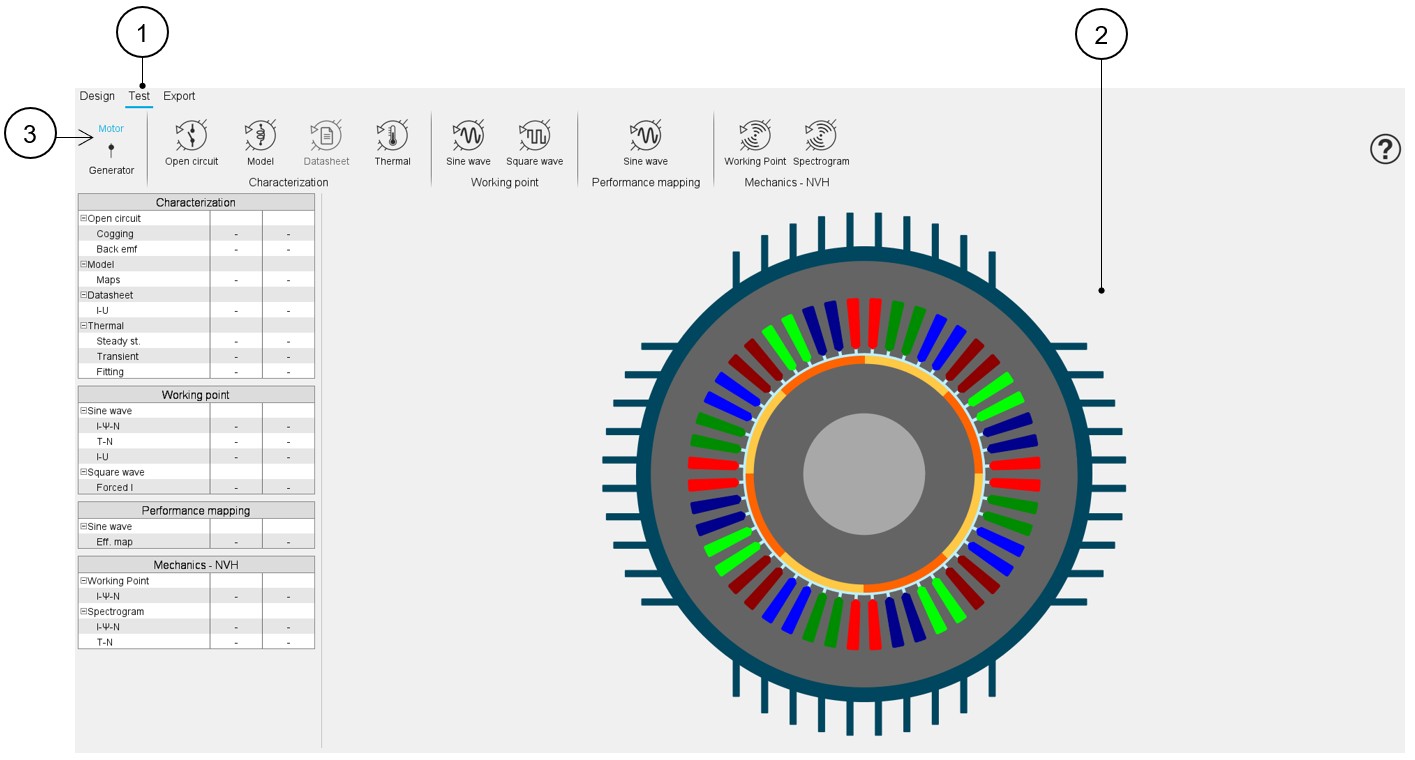
- The TEST area to perform tests and performance analysis of motors.
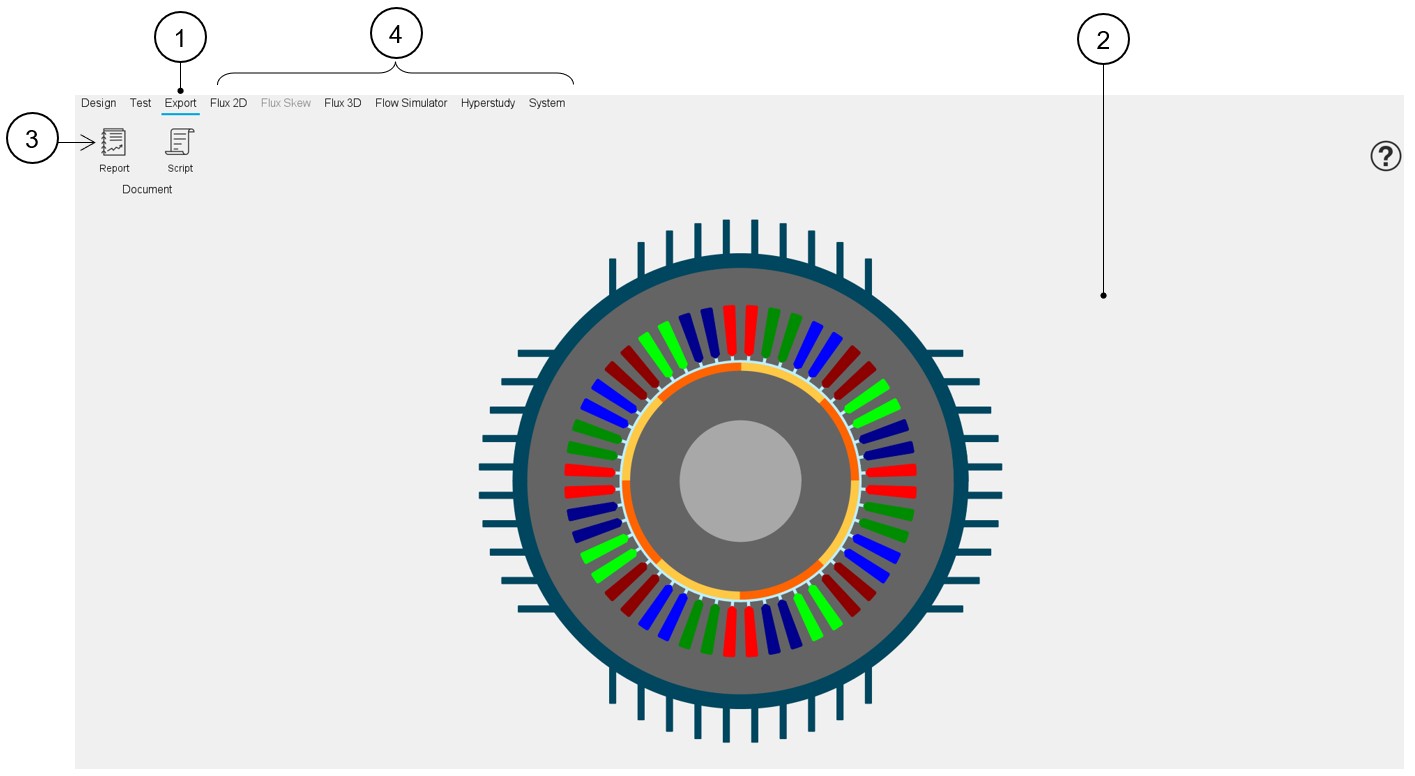
- The EXPORT area to export documents or models to perform advanced studies with other solutions like Flux, Flow Simulator, HyperStudy, SimLab, Amesim, PSIM, Twin Activate, …
 |
|
|---|---|
| 1 | Select the Design area (click on the Design label, which is
underlined in blue once selected). Note: By
default, the Design area is selected when Motor Factory is
opened. |
| 2 | A 3D view illustrates the machine considered. |
| 3 | Access to a series of design cells to build the machine step by step. |
 |
|
|---|---|
| 1 | Select the Test area (click on the Test label, which is underlined in blue once selected). |
| 2 | A 2D view illustrates the considered machine. The list of tests is displayed on the left part of the screen (Tree selection). A checklist indicates what tests are performed and how many test results are saved. |
| 3 | A portfolio of standard test ready to be performed is available. |
 |
|
|---|---|
| 1 | Select the Export area (click on the Export label, which is underlined in blue once selected). |
| 2 | A 2D view illustrates the considered machine. |
| 3 | Report and script can be exported directly from this area. |
| 4 |
Connection with other solutions like Flux, Flow Simulator, HyperStudy, SimLab, Amesim, PSIM, Twin Activate, … Can be done to perform advanced studies. |
How to get into Motor Factory?
Several ways are possible to get into Motor Factory:
- From the supervisor:
- Create a new machine
- Open the recent motor
- Open the motor to be designed by editing a motor in a catalog (from Motor Catalog).
- From the application Motor Catalog
- Edit a motor from the motor environment or from the comparator area
The illustrations below show the different ways to access the Motor Factory:
- From the supervisor, select the machine family (Synchronous, Induction, DC) and
then the motor type to be designed
- Synchronous machines
- Synchronous machine with permanent magnets (inner and outer rotor) – 3-phase or n-Phase,
- Reluctance synchronous machine (inner rotor),
- Wound field synchronous machine (inner rotor)
- Induction machines
- Induction machine with squirrel cage (inner and outer rotor)
- DC machines
- DC permanent magnet machines (inner rotor)
Once selected, the motor can be opened in Motor Factory either by clicking on the corresponding icon or by clicking on the button “Open in Motor Factory”.
Table 4. How to get into Motor Factory from the supervisor? – Edit a new machine in Motor Factory 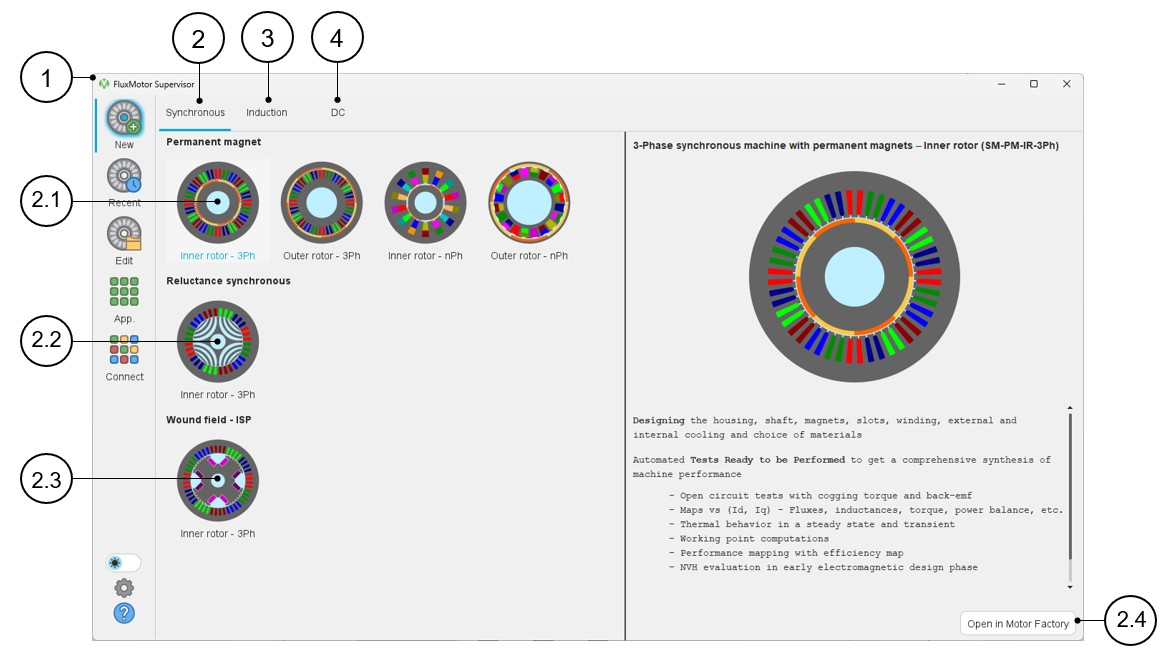
1 Open the supervisor 2 Selection of the targeted machine family – Synchronous, Induction (3), DC (4) 2.1 In the synchronous machine family, one can access the 3-Phase synchronous machine with permanent magnets (inner and outer rotor) – and the n-Phase machine as well. 2.2 In the synchronous machine family, one can access the 3-Phase reluctance synchronous machine (inner rotor). 2.3 In the synchronous machine family, one can access the 3-Phase wound field synchronous machine (inner rotor). 2.4 Once selected, the motor can be opened in Motor Factory either by clicking on the corresponding icon or by clicking on the button “Open in Motor Factory”. 3 Selection of the induction machine family 4 Selection of the DC machine family - Synchronous machines
- From the supervisor, open the recent motor to be designed
Table 5. How to get into Motor Factory from the supervisor? – Edit a recent machine in Motor Factory 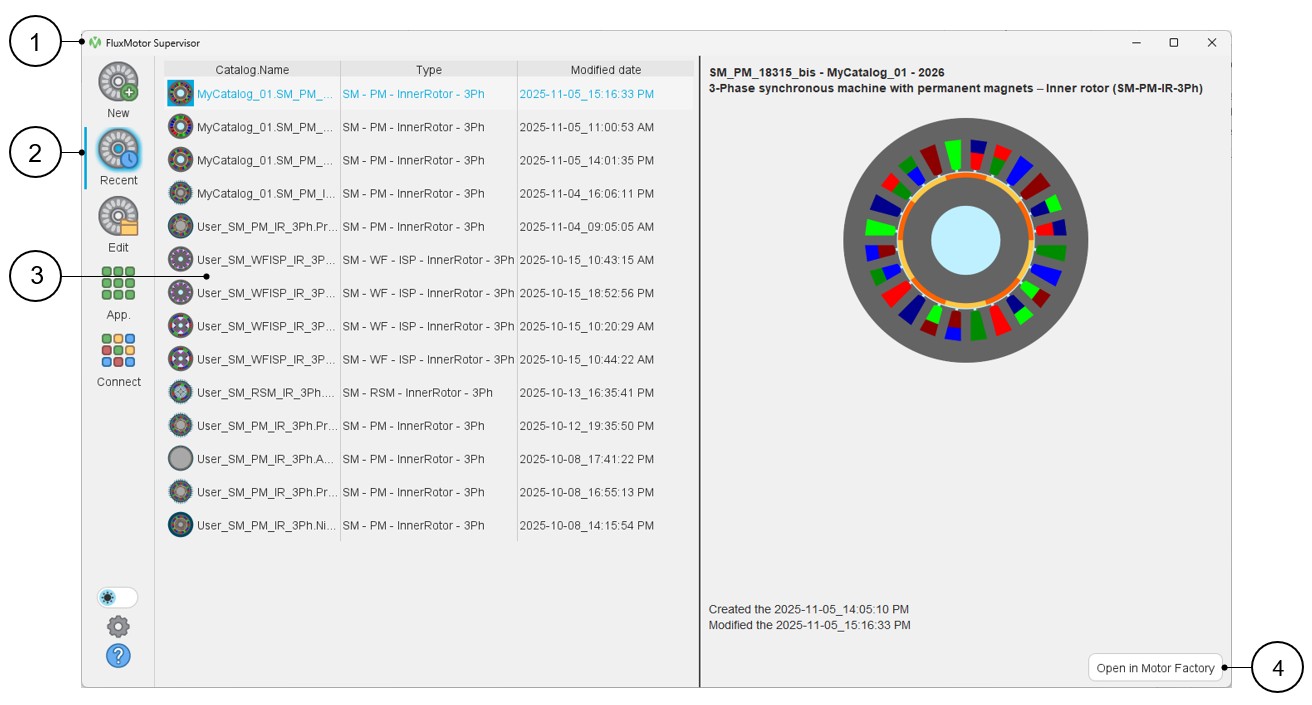
1 Open the supervisor 2 Selection of the recent motor list 3 Select the targeted recent motor. Once selected the recent motor can be opened in Motor Factory by double clicking on the corresponding line. 4 Once selected, the recent motor can be opened in Motor Factory by clicking on the button “Open in Motor Factory”. Note: Up to 100 projects can be stored on this list. - From the supervisor, open the motor to be designed by editing a motor in a
catalog (From Motor Catalog).
Table 6. How to get into Motor Factory from the supervisor? – Edit a motor in a catalog (From Motor Catalog). 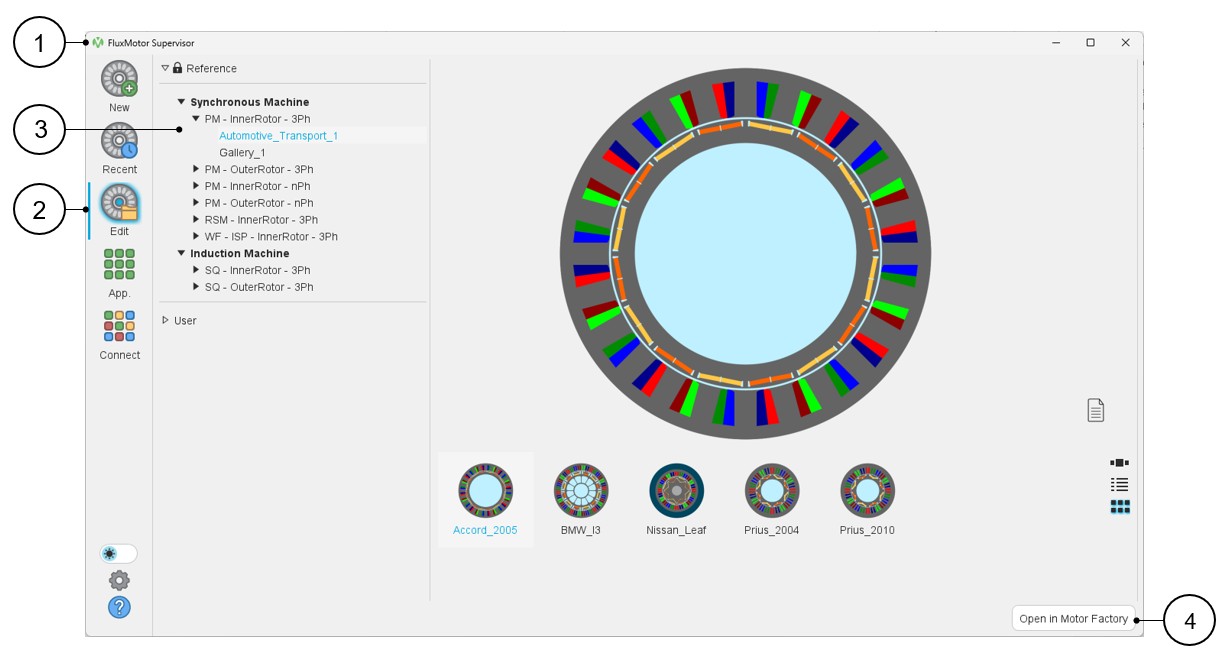
1 Open the supervisor 2 Select and edit a project from the catalogs. 3 Select a machine from standard and user catalogs, like what can be done when using Motor Catalog 4 Once selected, the motor can be opened in Motor Factory by clicking on the button “Open in Motor Factory”. - Edit a motor from Motor Catalog
Table 7. How to get into Motor Factory from the Motor Catalog? 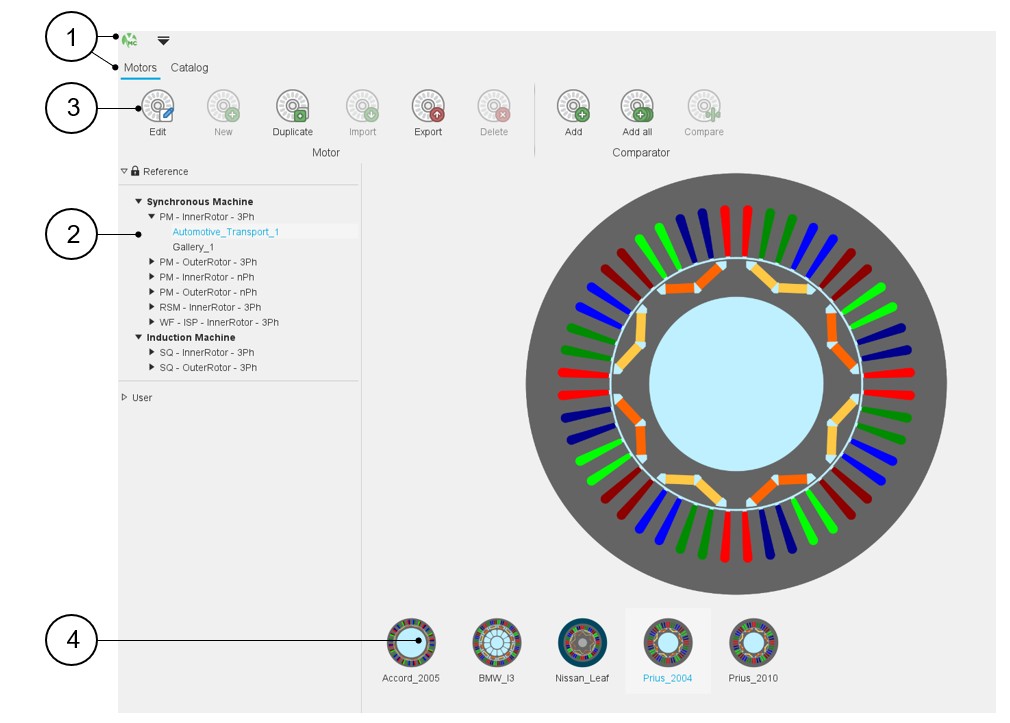
1 Open the application Motor Catalog in the motor environment. 2 Select a catalog (standard and user catalog) 3 Edit the selected machine in Motor Factory 4 Edit the selected machine in Motor Factory either by double clicking on the icon or via the right mouse button. Table 8. How to get into Motor Factory from the comparator area of the Motor Catalog? 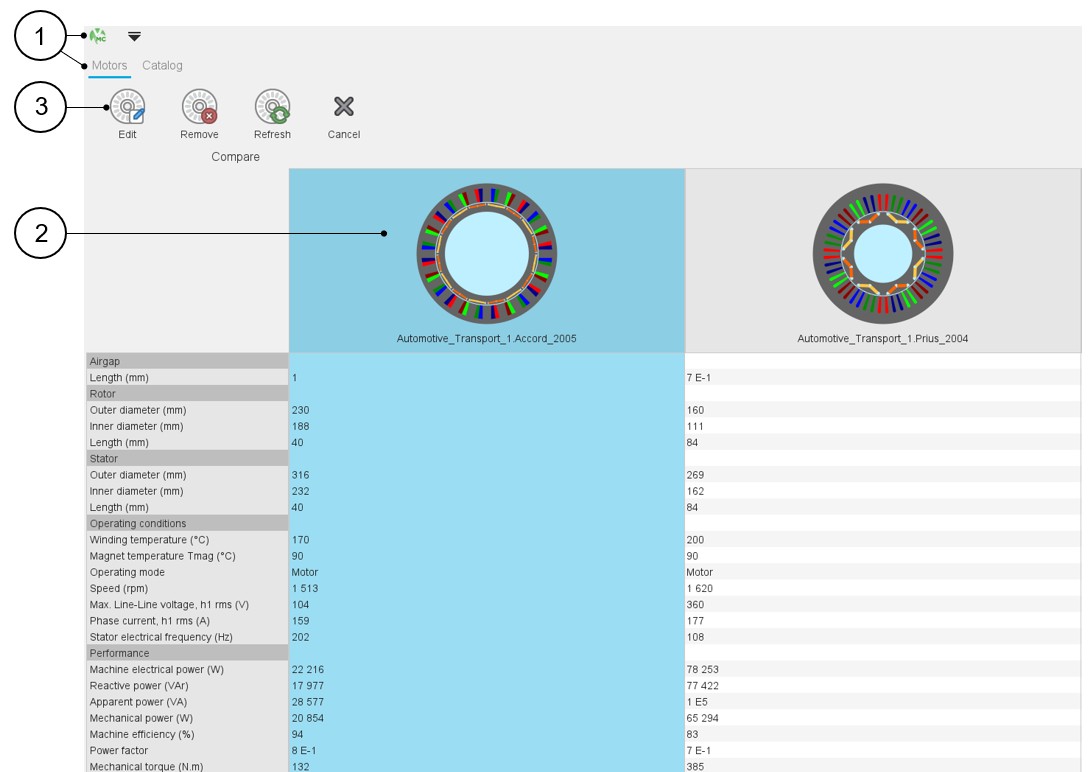
1 Open the application Motor Catalog in the motor environment. Add the motors to be compared and select the motor. 2 Select the machine to be edited in Motor Factory 3 Edit the selected machine in Motor Factory
For additional information, please see “Motor Catalog” application.