
Attachments
Introduction
Documents can be attached to the user’s motors. It allows quickly reaching the
available additional information for describing these motors.
Note: Documents can be attached only to the user’s
motors.
Note: Documents can be linked to motors as
well as to catalogs. See chapter Management of catalogs.
How to create an attachment?
 |
|
|---|---|
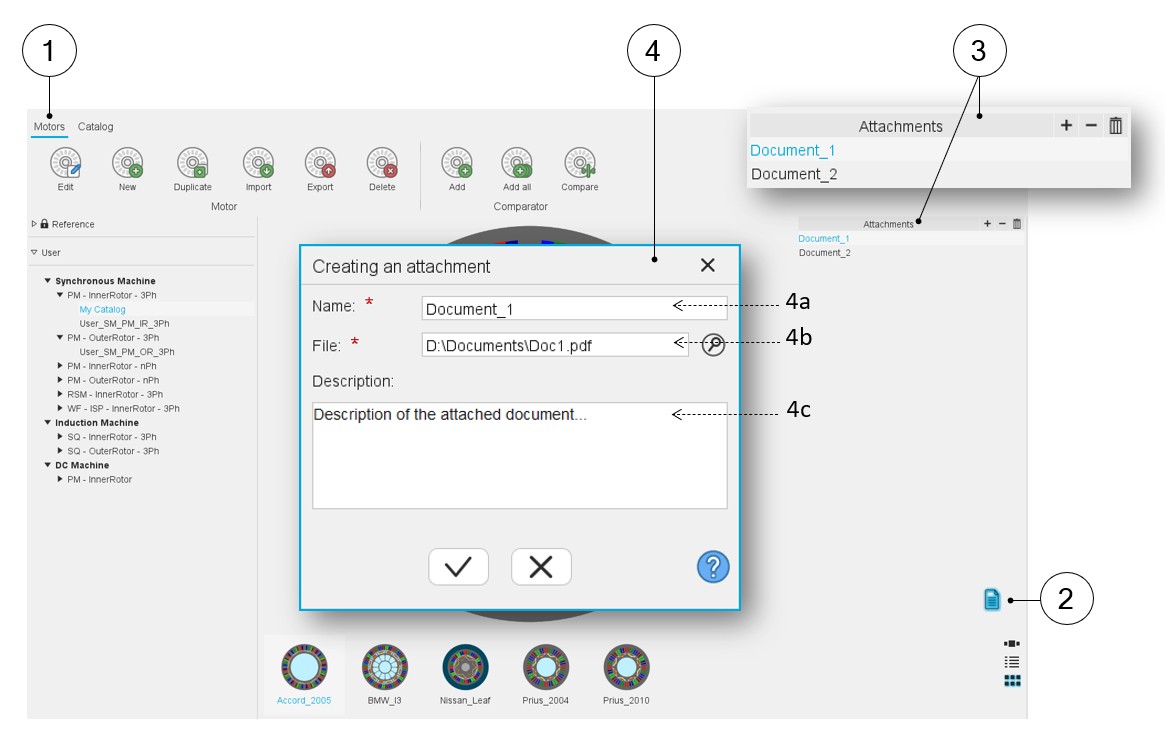
| 1 | Selection of the motors area of the Motor Catalog application. |
| 2 | Icon to display the attachment box just above. |
| 3 | Attachments box to manage the attached documents. Button (+)
allows adding documents. Button (-) allows removing selected
documents. Note: This box is disabled
when motors from reference catalogs are
considered. |
| 4 | A dedicated dialog box allows adding a new attached
document. All kinds of documents can be attached (like Word, Excel, PDF or text files, pictures, etc.). |
| 4a | Give the attached document name. |
| 4b | Select the folder in which the document to be attached is stored. |
| 4c | It is possible to write a reminder dealing with the attached document. |
Management of attachments
 |
|
|---|---|
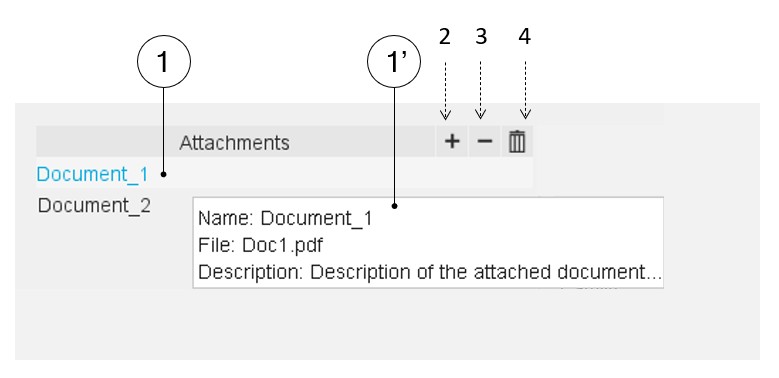
| 1 | Selection of an attached document. Once selected, a tooltip (1’) reminds the name and the description of the selected document. |
| 2 | Button (+) to add an attachment. |
| 3 | Button (-) to remove one or several attachments. |
| 4 | Button for removing all the attached files. |