
Commands
Management of materials
Main areas
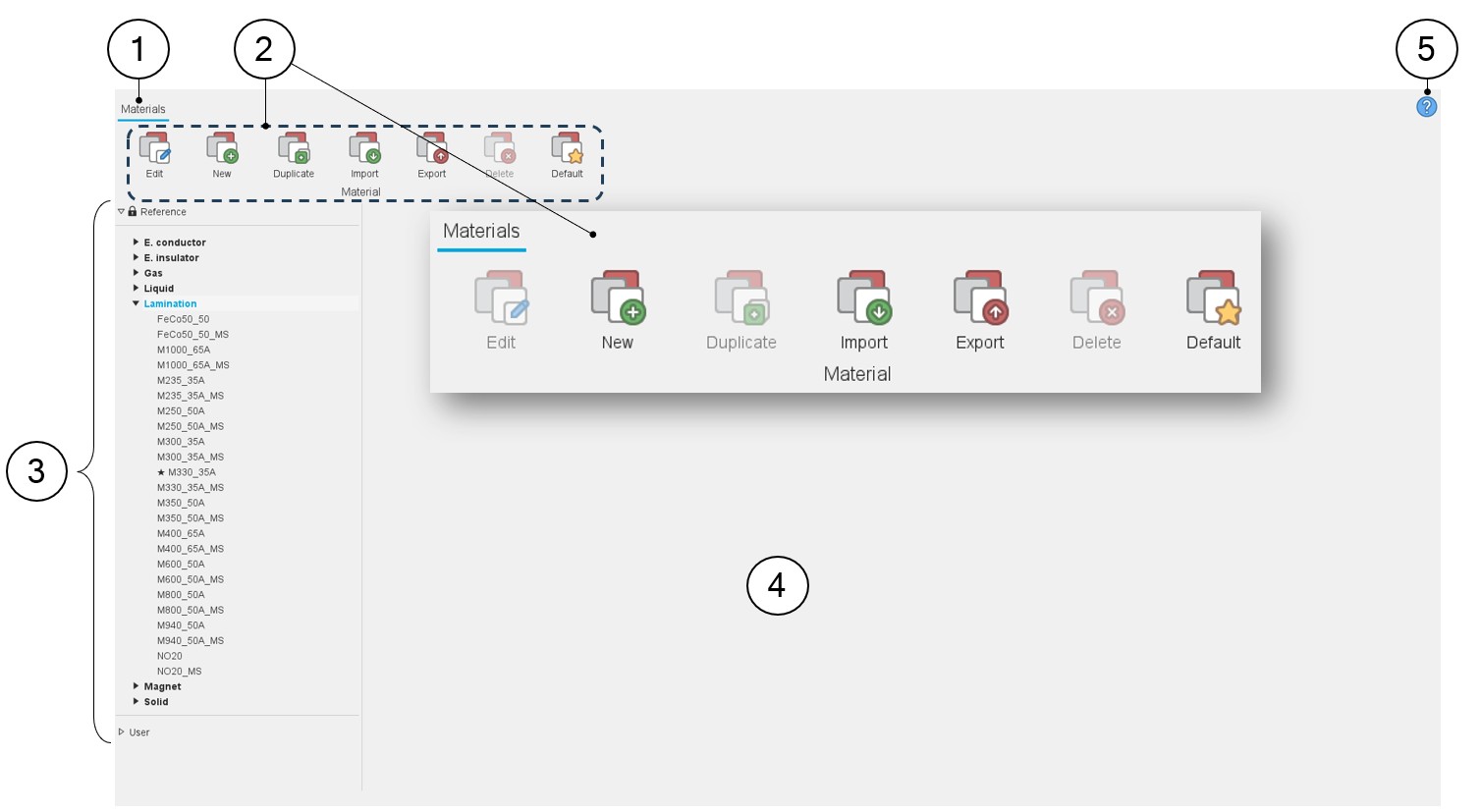
Here are the main areas of the “Materials” application.
 |
|
|---|---|
| 1 | The application “Materials” is opened. One environment is available. |
| 2 | Materials can be managed in this area:
|
| 3 | Reference materials databases are available. Materials in these databases are read only. However, they can be copied and moved into user’s databases. In each material family there are some materials that are proposed by FluxMotor to cover the basic needs. User’s materials databases... The users can create new databases. See the process in the chapter “Reference commands”. |
| 4 | Empty area where no material is selected. |
| 5 | Access to the online user help guide dedicated to the usage of Materials. |
 |
|
|---|---|
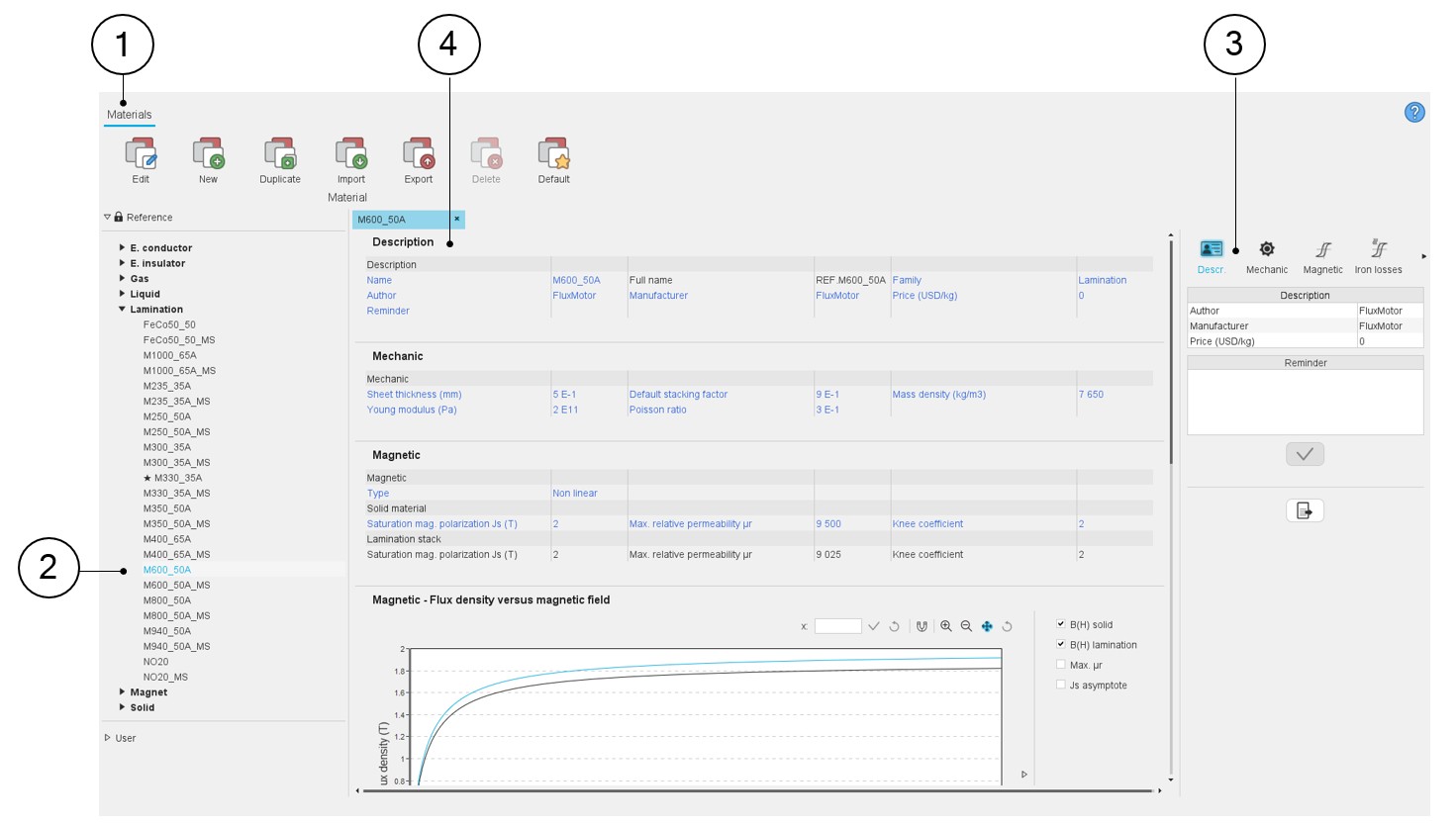
| 1 | The application “Materials” is opened. |
| 2 | One material is selected among different types of databases. |
| 3 | A scrolling selection bar allows us to reach and to display
the main properties of the selected material type. These properties are classified according to their physical domain and the material family. Material properties can be modified only for materials in the User database. To edit a material in the Reference database it should be copied to the User database using “duplicate” option. As illustrated above, when considering lamination, one can define the general data for the mechanic, magnetic, iron losses and thermic section. |
| 4 | All the properties (inputs in blue and output in black) are displayed in the central area. |
Expanding the menu in Materials
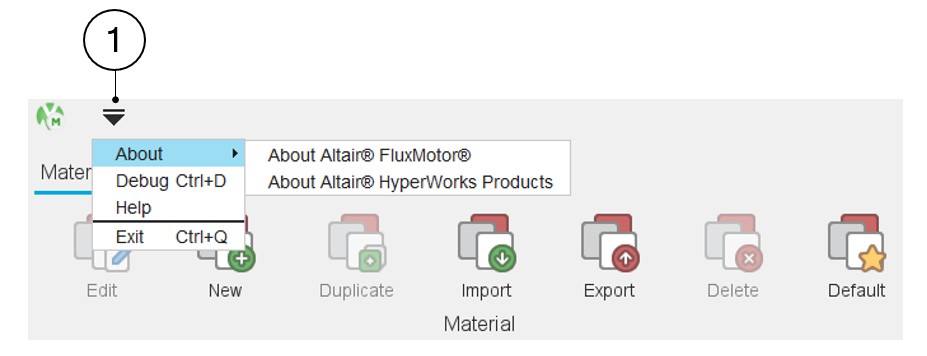
This menu gives access to system functions like help and exit.
 |
|
|---|---|
| 1 | List of actions available:
|
Export datasheet
 |
|
|---|---|
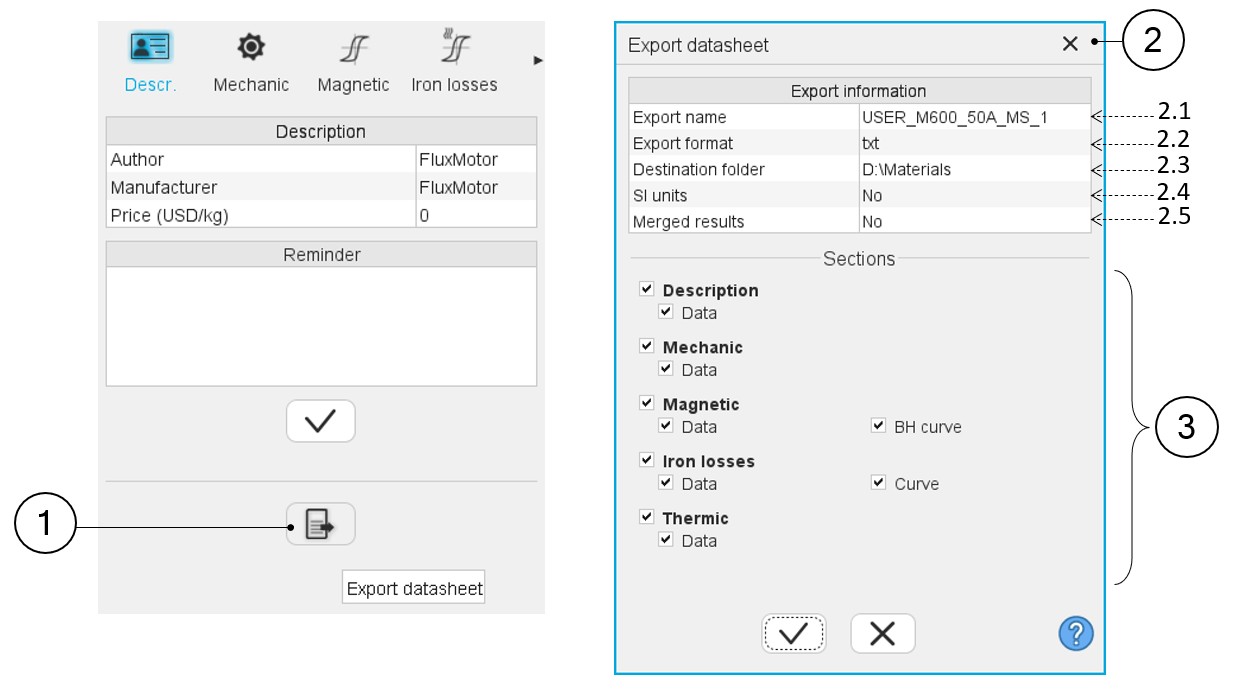
| 1 | Button to open a dialog box to define and export datasheets dealing with the considered material. |
| 2 | Example of a dialog box to export a datasheet |
| 2.1 | Name of the exported text file. |
| 2.2 | Choice for exporting data into *.txt or *.xlsx files. |
| 2.3 | Folder in which the exported file will be stored. |
| 2.4 | A system of units for numerical data can be given using SI
Units (Units based on the International System of Units) When the answer is “No”, the default units used in FluxMotor are considered. |
| 2.5 | Merged results means the results are written in one text
file. When the answer is no, a text file is provided for
each category of result (Description, Mechanic, Magnetic,
Iron losses and Thermic). Note: When
the datasheet is exported in a *.xlsx file, a tab is
dedicated to each category of result. |
| 3 | List of sections to be selected (or not) for exporting the datasheet. |