
Close
Close the material datasheet
“Close a material” consists of removing the material datasheet (i.e. the tab of the material) from the display area (output area). Several materials can be edited at the same time; therefore, editing new material does not automatically close the others.
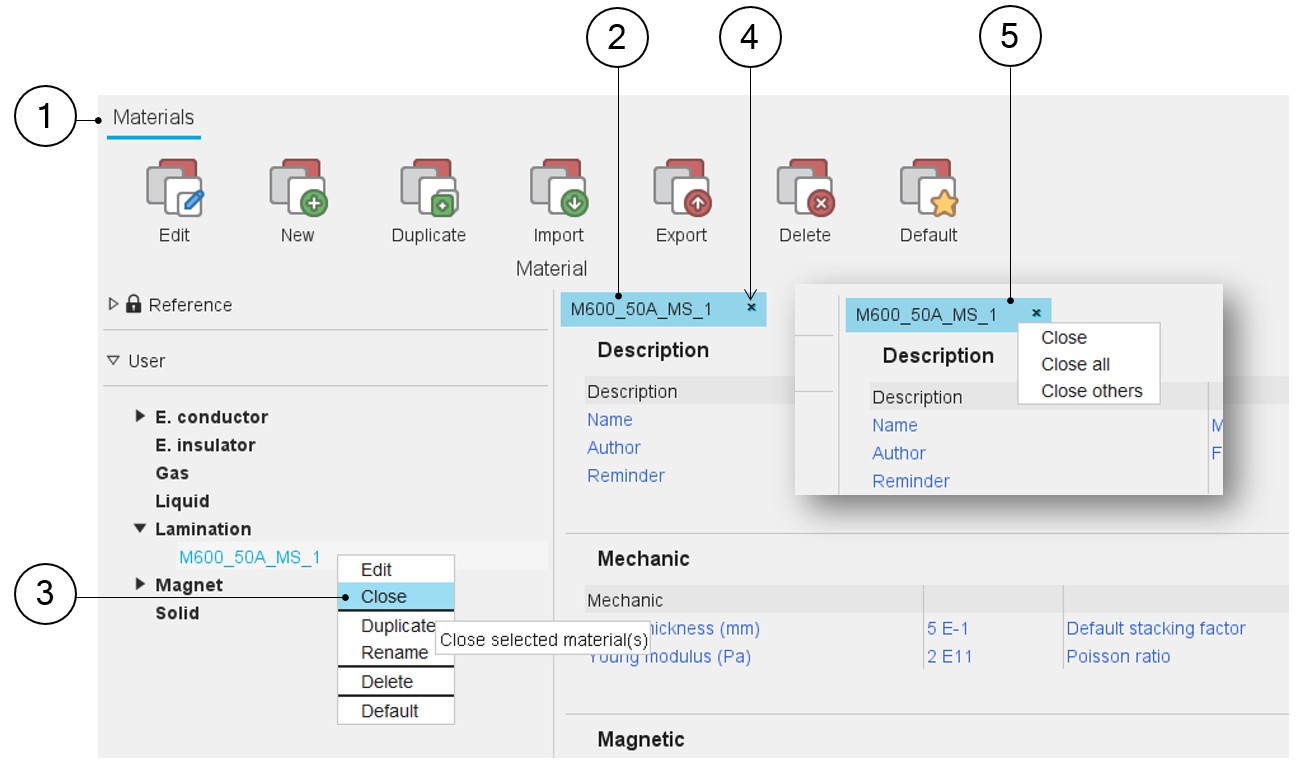
Two ways are possible to close a material. These are shown below.
Note: The properties of the materials are hidden, but the material
still exists in the material database.
 |
|
|---|---|
| 1 | By selecting the material, clicking the right mouse button, and selecting the close option. |
| 2 | The material datasheet is displayed in a tab in the display area
of the application Materials. Note: Several
materials can be edited at the same time. |
| 3 | A technical data sheet can be removed from the display area by right-clicking on the name of the material whose technical data sheet is to be closed. A drop-down menu appears with functions such as Edit, Close, Duplicate, Rename, Delete, and Default. Select Close. |
| 4 | A material datasheet can be removed from the display area by clicking on the cross of the material datasheet tab. |
| 5 | A material datasheet can be removed by selecting the material datasheet tab (above the display area), clicking the right mouse button and selecting one of the proposed options: close only the selected material, close all the materials or close all the materials except the selected one. |