
PhysicsAI-T: 3000 Custom Inputs with a Global Hook
Tutorial Level: Advanced
In this tutorial, you will use custom global input variables (such as varying material properties, global boundary conditions, and so on) for training.
In SimLab version 2025.1 and later:
-
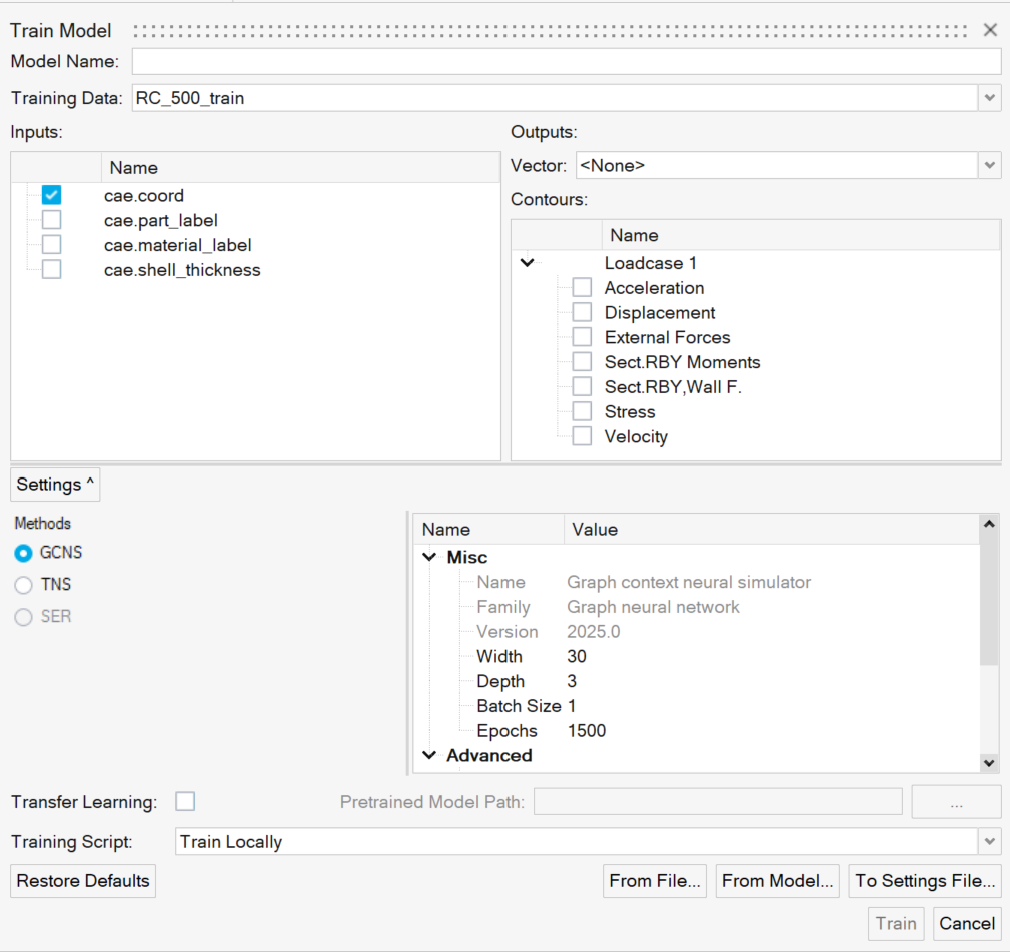
The nodal coordinates and part IDs are ready automatically from the .h3d (or equivalent result) files provided. The coordinates are default inputs to the PhysicsAIs model. The part IDs can be enabled by selecting the box next to it.
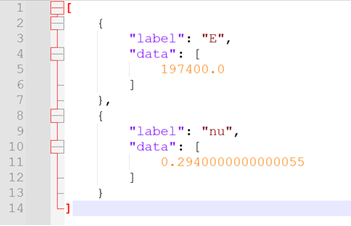
- A global property associated with all nodes in a model such as varying material properties (Young’s Modulus, Poisson’s ratio), global boundary conditions, and so on can be supplied through a .json file with the same name and in the same location as each of the .h3d files. A custom python script, global_hook.py, is needed to read the .json files.
The detailed instructions for each of these cases are provided in this tutorial.
Before you begin, copy the file(s) used in this tutorial to your working directory.
Unzip the project file custom_inputs.zip and review its contents. Inside the global_input folder, you will find two subfolders:
- json_with_inp_naming
- json_with_role_attributed
These represent two possible JSON structures for the global hook:
- Simple JSON structure
- The JSON file name follows the convention *_inp.json.
-
Use the script global_inputs_hook.py for this format.
- Combined input-output JSON structure
- A single JSON file contains both custom inputs and outputs.
- Each entry includes an attribute named "role".
- Use the script global_inputs_hook_with_role.py for this case.
- For further details, refer to PhysicsAI-T: 3020 — Hook for Global Input and Output Vectors.
Default Inputs Imported from h3d
If only .h3d files are provided, the nodal coordinates and part ID are imported by default. Only the nodal coordinates are enabled by default.
Default
Step 1. Use Global Hook
For properties which are applied at the same value to every node in a model, like global properties, the global hook should be used.
- Open the global_inputs folder.
Inside the training_files folder, there are seven .h3d files named run__000X_m_1_fillet_cantilever_2.h3d and seven .json files named run__000X_m_1_fillet_cantilever_2_inp.json. Each .json file contains exactly two material properties, Young’s modulus and Poisson ratio with different values. It is necessary to have consistent labels and number of properties across all the samples.
Global Property Inputs
- Create a new project called global_inputs.
- Open SimLab.
-
From the menu bar, click File > Extension > PhysicsAI to open the PhysicsAI ribbon.
- From the PhysicsAI ribbon, select the Create
Project tool.

-
In the Create Project dialog, enter global_inputs for Project Name.
-
For Location, click Choose and select a save location for the project.
Note:The save location for the project contains all files created by PhysicsAI, but the original files used for training do not need to reside in the project folder.
- Click OK.
- Copy the global_inputs_hook.py file into the _hooks folder inside the project folder.
-
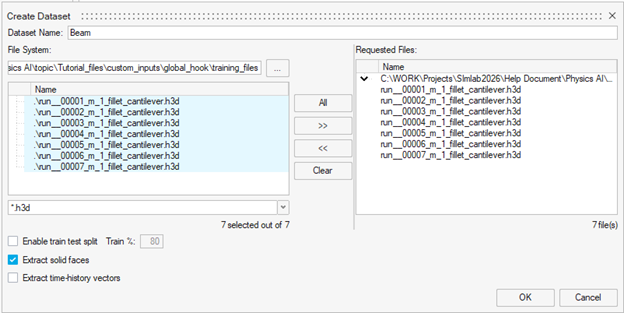
Create a new dataset using all seven samples and name it Beam.
- From the PhysicsAI ribbon, select the Create
Dataset tool.

The Create Dataset dialog opens.
- For Dataset Name, enter Beam.
- For File System, click
 and navigate to the training_files
folder.
and navigate to the training_files
folder.The labels E and nu are now selectable inputs to the training.
- Select and transfer all of the .h3d files.
-
Click OK.
The dataset is extracted and the Datasets dialog opens.
- From the PhysicsAI ribbon, select the Create
Dataset tool.
-
Visualizing Dataset Results: Follow these steps to visualize data from your dataset:
- Select data from the Train or Test dataset
- Click "Display file" to load the visualization
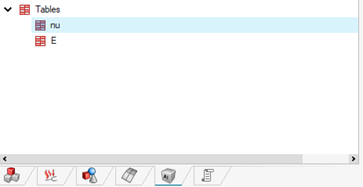
If custom inputs were defined during dataset extraction, these values are automatically stored as tables in the Material and Property Browser purely for visualization.
-
To display custom input values as contours:
-
Select the body in the modeling window
-
In the Material and Property Browser, select your custom input variable under the Tables
-
Right-click on the custom input variable
-
Select "Plot Contour"
The custom input values will now display as contours on the model.
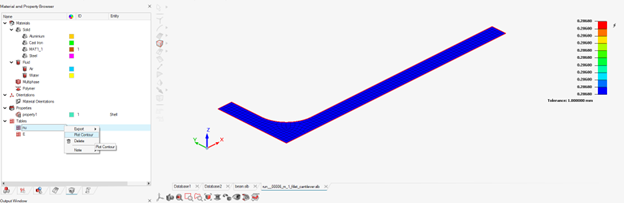
In the above figure shown, "nu" is a global input variable where all nodes in the model share the same value. For the selected dataset, the nu value is 0.28660, which is displayed uniformly across the entire geometry as shown in the contour visualization.
-
- Train the model.
- From the PhysicsAI ribbon, select the Train an ML
Model tool.

The Train Model dialog opens.
-
For Model Name, enter Displacement.
- For Training Data, verify Beam is selected.
- For Inputs, select cae.coord, cae.model_data.nu, and cae.model_data.E.
- For Outputs, select Displacement.
- Click Train.
Global Property Inputs
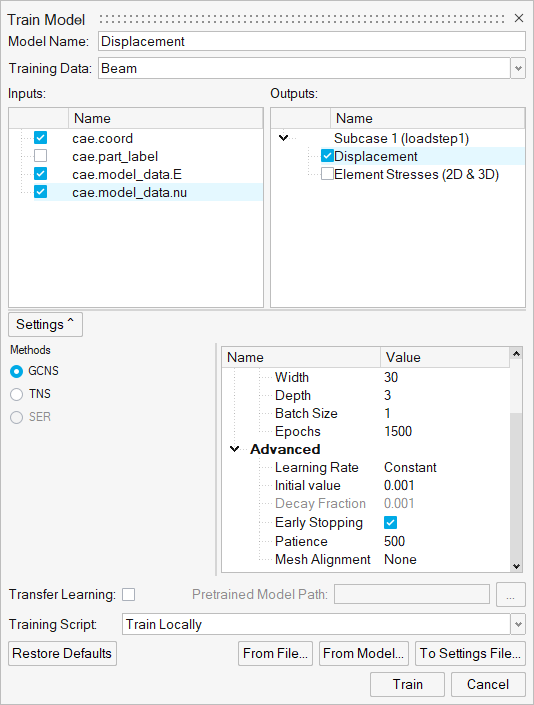
The Model Training dialog opens.
Note:Once the status changes to Running, you can click Show Log view the training logs.
- From the PhysicsAI ribbon, select the Train an ML
Model tool.
- Test the model.
-
From the PhysicsAI ribbon, select the Test ML Model tool.

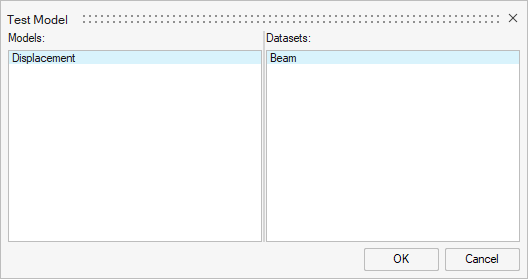
The Test Model dialog opens.
- In the Models area, select Displacement.
- In the Datasets area, select Beam and click
OK.
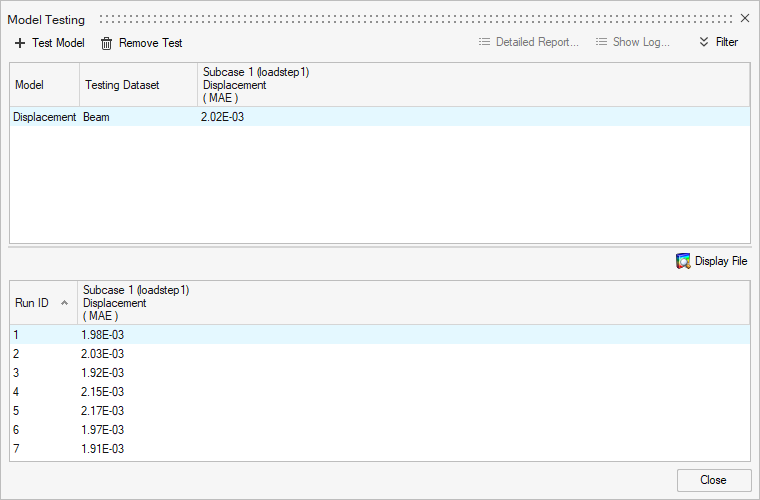
The Model Testing dialog opens.
-
In the Model Testing dialog, select Displacement, and click Display File to view the results in the modeling window.
-
Close the Model Testing dialog.
New samples can be generated by copying and renaming one or more training files. Ensure that the associated .json files are also present with different values of E and nu while creating the test dataset.
-
-
Once the testing is complete, set the model to active.
Important:Setting a model as active will checkout a stacking license until the model is deactivated.
- From the PhysicsAI ribbon, select the Manage
ML Models tool.

The Model Training dialog opens.
-
Click Set Active Model.
- From the PhysicsAI ribbon, select the Manage
ML Models tool.
Currently, the prediction feature for a model is available through the Simlab GUI and in batch mode. The CAD or solver deck to be used for prediction should have an associated .json file named _predict_inp.json which should be saved in the _hooks folder.