
Test
Overview
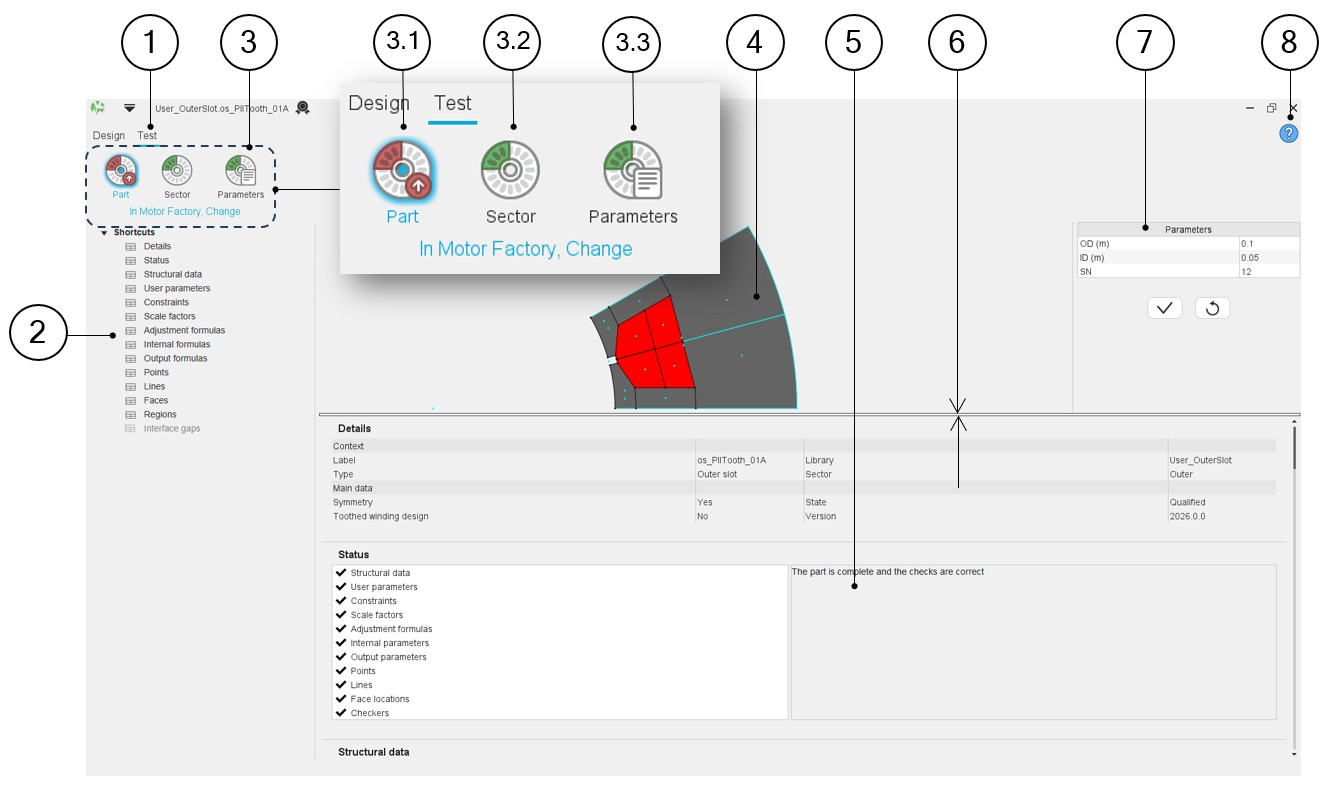
Here are the main zones that compose the “Test” environment of the Part Factory:
 |
|
|---|---|
| 1 | Select the Test environment of Part Factory. Note: When Test is selected, it is underlined,
and it is possible to test the behavior of the considered
part. |
| 2 | Shortcuts for displaying the corresponding chapter of the part properties. |
| 3 | Three main functions allow testing the behavior that the part will have in the Motor Factory by considering the properties described in the associated Excel file. See the description of these three main functions below. |
| 3.1 | Icon to get into the environment to simulate the import of a Part into the Motor Factory |
| 3.2 | Icon to get into the environment to modify the structural data and see the impact on the considered part. |
| 3.3 | Icon to get into the environment to Modify user input parameters and see the impact on the considered part. |
| 4 | The sector that represents the part is displayed on the central screen of the design environment of Part Factory. |
| 5 | Visualization of the part characteristics (part data described in
chapters above etc.) is possible. Scrollbars allow browsing the whole document rapidly and having an overview of all the results. Using scrollbars, complete data can be accessed and visualized. |
| 6 | Dimensions of screens can be adjusted by moving the separator line between the drawing and the table of results. |
| 7 | User input parameters to test the three main behaviors of the
considered part. See more information below. |
| 8 | Access to the online user help guide dedicated to the usage of the Test environment of Part Factory. |
Simulate the change of part in Motor Factory
The parts are built to be used in the Motor Factory.
In Motor Factory, in the Design environment, whatever the type of part is (Slot, Magnet, Bar, Pole, Saliency) it is possible to modify the topology (the shape). This corresponds to the importation of a part in the Motor Factory from the “Part Library”.
In Part Factory, the Part function of the test area allows testing the capability of the considered part to be imported in Motor Factory and by considering the sector defined with specific structural data.
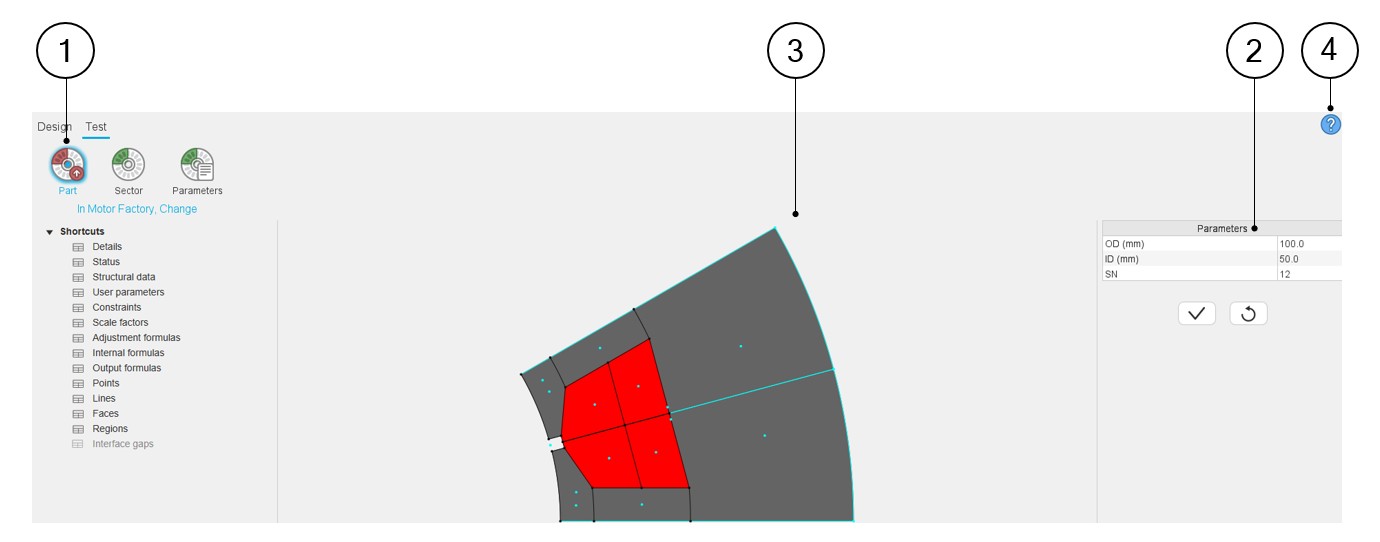
Below is the illustration of the Test environment and import Part function.
 |
|
|---|---|
| 1 | Section of the first test function: Function to simulate the
change of part in Motor Factory. It allows testing the capability to import the part in a sector, whose three main dimensions are defined in zone 2. |
| 2 | User input parameters to define the three main dimensions of the reference sector (structural data). |
| 3 | The sector that represents the part is displayed on the central
screen of the design environment of Part Factory. In Part
Factory, intersection of lines can be viewed. Note: A right click on the mouse allows
resetting the zoom if the part becomes invisible. This
allows to export a picture in a *.png
format. |
| 4 | Access to the online user help guide dedicated to the usage of the Test environment of Part Factory. |
Simulate the change of the sector in Motor Factory
In Motor Factory, in the Design environment, it is possible to modify the structural data of the machine.
The modification of the structural data has an impact on the position of the part in the reference sector.
The compatibility of the new position of the part in the sector must be checked.
In Part Factory, the Sector function of the test area allows to test how the considered part interacts with the structural data of the reference sector in which it is defined.
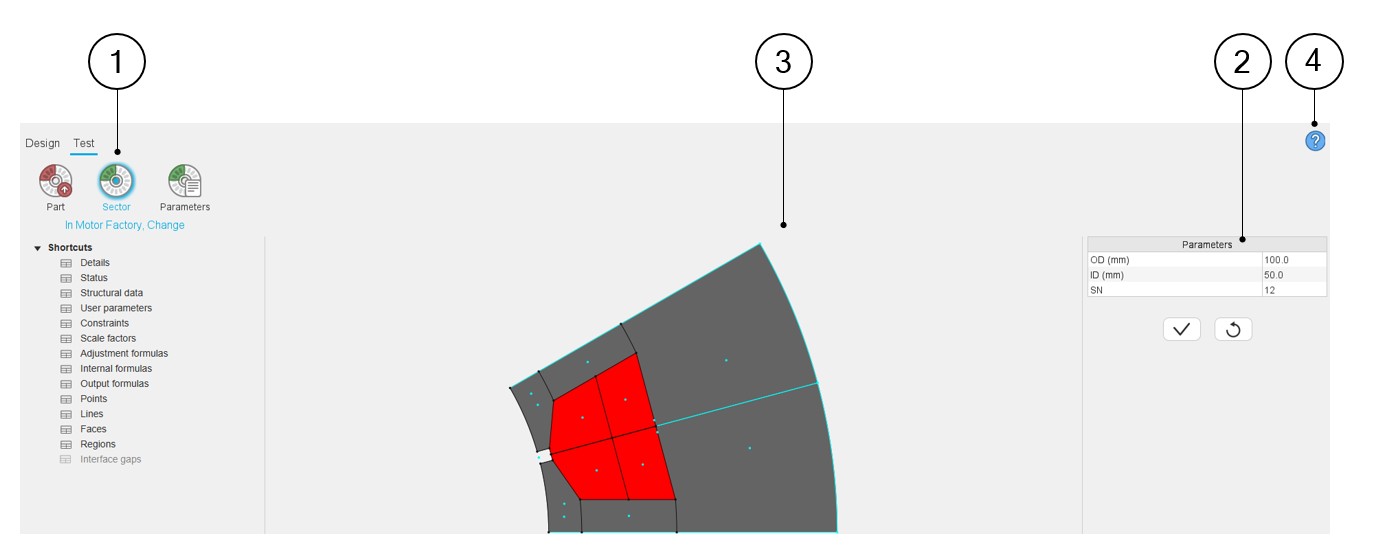
Below is the illustration of the Test environment and the “SECTOR” modification function.
 |
|
|---|---|
| 1 | Section of the second test function: Function to simulate the
change of the sector in the Motor Factory. It allows testing how the considered part interacts with the structural data of the reference sector in which it is defined. The user input parameters are the main three dimensions of the sector defined in zone 2. |
| 2 | User input parameters define the three main dimensions of the reference sector (structural data). |
| 3 | The sector that represents the part is displayed on the central
screen of the design environment of Part Factory. In Part
Factory, intersection of lines can be viewed. Note: A right click on the mouse allows
resetting the zoom if the part becomes invisible. This
allows to export a picture in a *.png
format. |
| 4 | Access to the online user help guide dedicated to the usage of the Test environment of Part Factory. |
Simulate the change of the parameters in Motor Factory
The robustness of the parameterized part topology must be checked.
In Part Factory, the Parameters function of the test environment allows testing the robustness of the part when all its user input parameters are changed.
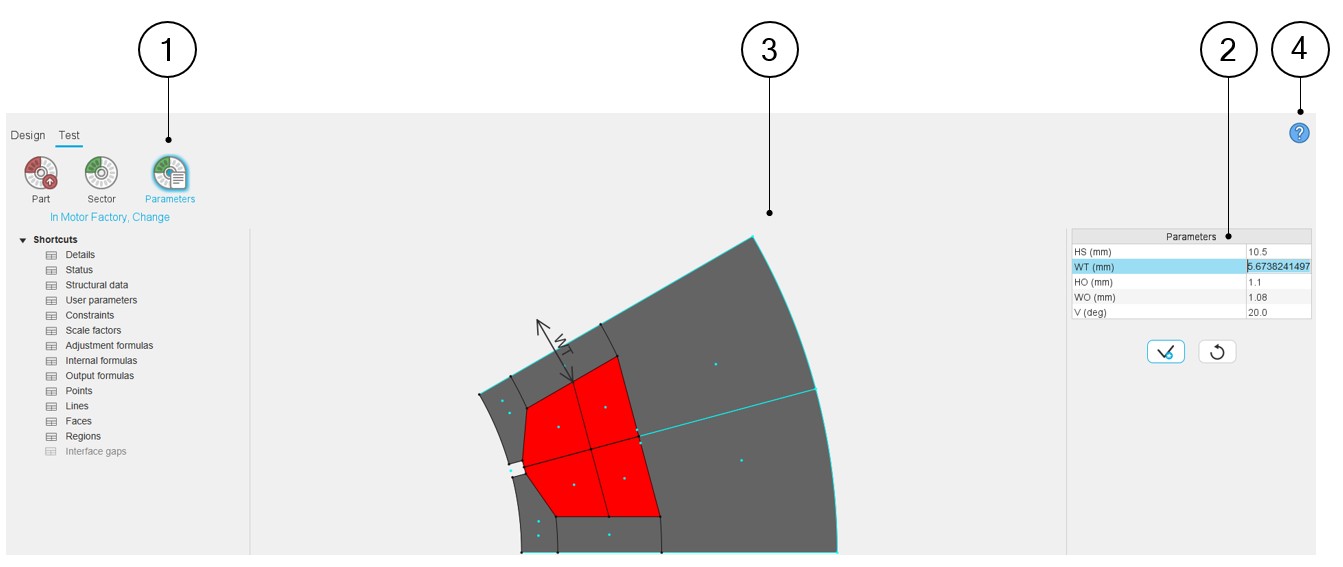
Below is the illustration of the Test environment and the “Parameters” modification function.
 |
|
|---|---|
| 1 | Section of the first test function: Part to simulate the change
of the parameters in Motor Factory. It allows testing the robustness of the part when all its user input parameters are changed. The user input parameter corresponds to the input parameter of the considered part to test. |
| 2 | User input parameters define the dimensions of the considered part to be tested. |
| 3 | The sector that represents the part is displayed on the central
screen of the design environment of Part Factory. In Part
Factory, intersection of lines can be viewed. Note: A right click on the mouse allows
resetting the zoom if the part becomes invisible. This
allows to export a picture in a *.png
format. |
| 4 | Access to the online user help guide dedicated to the usage of the Test environment of Part Factory. |