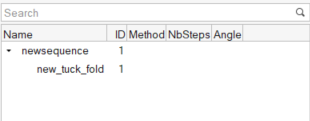
Create a Tuck Fold
Warning: The tuck fold must be the first fold in
the sequence. Only one tuck is allowed in a folding sequence.
-
From the Airbag ribbon, click the
Tuck tool.
Figure 1. 
-
On the guide bar, click
 .
.
- Fold running time: In ms, the time during which the fold is computed.
- Initial opening: The maximum height of the airbag opening during the simulation.
- Final opening: The end height from which the airbag is “open”.
- Double tuck: Select if a double tuck is required. Selecting this option
activates the following option:
- Double fold size (in percentage of the fold).
- Diagonal double tuck: Select this option if the double tuck is not
aligned with the first tuck. Selecting this option activates the following
option:
- Angle (in degrees): Provides the angle between the first and second tuck.
Figure 2. 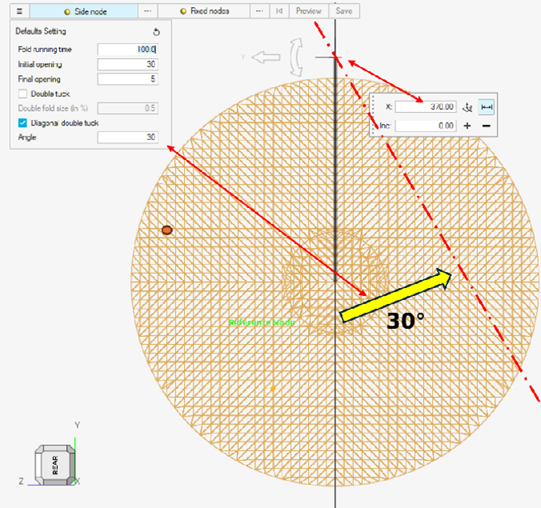
Figure 3. 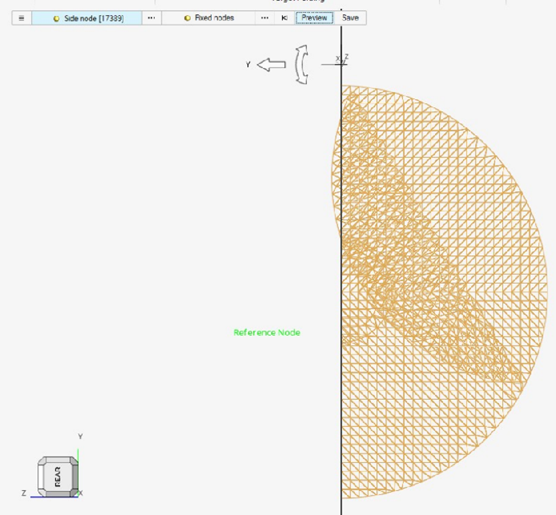
-
Set advanced selections as necessary by clicking
 on the guide bar.
Figure 4. . The folding line appears for you to position. Use the white arrows of the Move tool 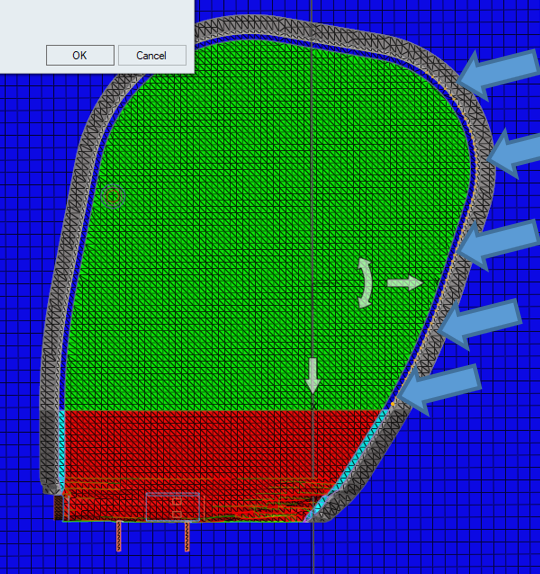
- On the guide bar, click Side node. The node selected must be on the side to fold.
- On the guide bar, click Fixed nodes to select nodes that will be unaffected by the fold.
- On the guide bar, click Preview to visualize the result of the fold.
-
On the guide bar, click Save if
the preview is satisfactory.
The fold definition is saved and the tuck fold is displayed in the Airbag Solution Browser.
Figure 5.