Since version 2026, Flux 3D and Flux PEEC are no longer available.
Please use SimLab to create a new 3D project or to import an existing Flux 3D project.
Please use SimLab to create a new PEEC project (not possible to import an existing Flux PEEC project).
/!\ Documentation updates are in progress – some mentions of 3D may still appear.
Assign relaxation to lines / faces / volumes
Assigning a relaxation
To assign a Line, Face, Volume Relaxation to the corresponding geometric entities:
| Stage | Action | |
|---|---|---|
| 1 | Activate the command Assign relaxation to lines / faces / volumes (see next block) | |
| → | An assignment box is opened. | |
| 2 |
Complete the assignment box:
|
|
| → | The relaxation has been assigned to the selected geometric entities. | |
| → | An assignment box is opened. | |
| 3 |
Continue the sequence of assignment:
|
Quit the sequence of assignment:
|
Activate the command
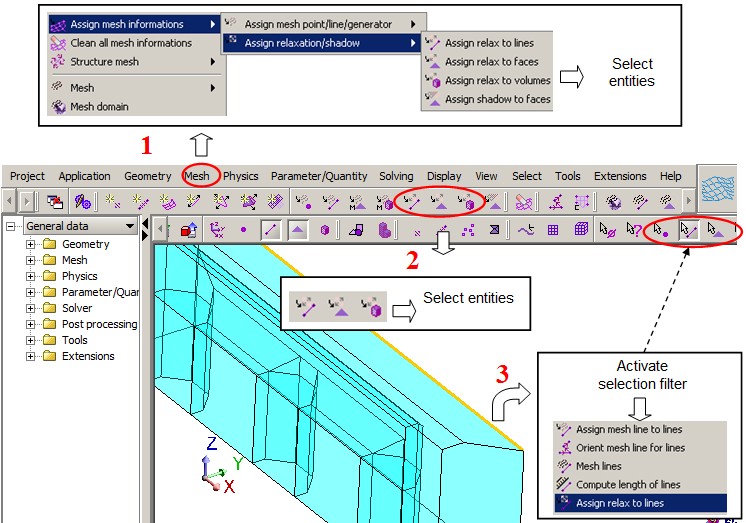
To activate the command Assign relaxation to lines / faces / volumes, requires the selection of data. Choose one of the methods in the following figure: