
Export
How to export parts?
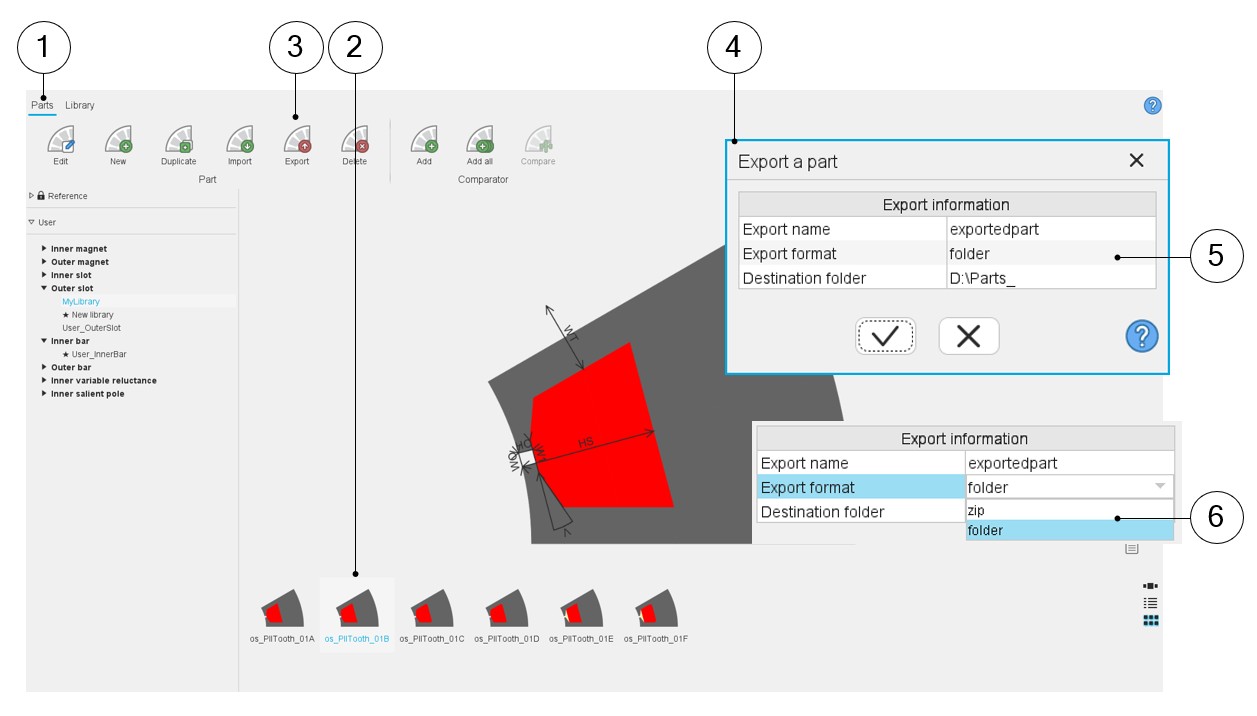
It is possible to export one or several parts from the Part Library in a folder or in a zip file.
 |
|
|---|---|
| 1 | Selection of the motors area of the Part Library application. |
| 2 | Select one or several part(s) to be exported. |
| 3 | Clicking on the icon “Export” opens a dialog box to export parts stored in a folder or in a zip file. |
| 4 | Dialog box to give “Export information” for exporting the parts. |
| 5 | Export information is:
|
| 6 | The selected part(s) can be stored either inside a folder or in a zip file before being exported. |