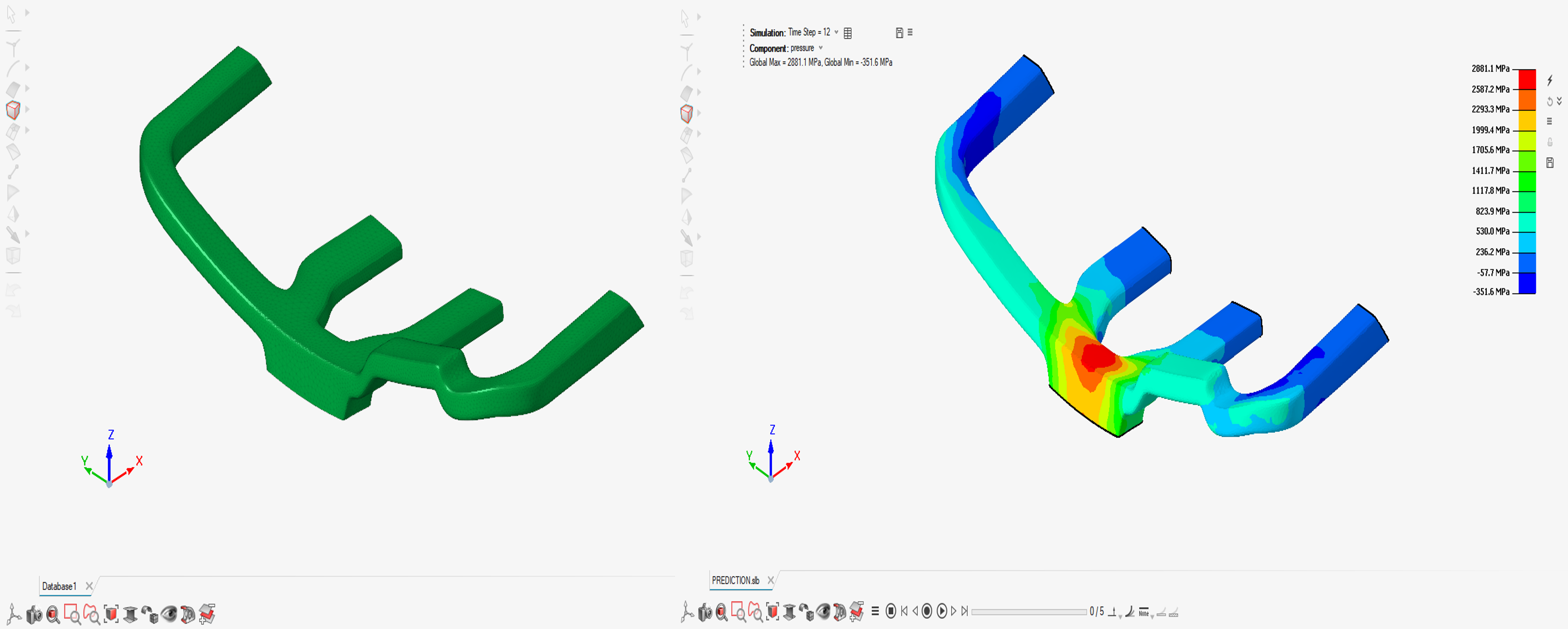
PhysicsAI-T: 1000 Simple Project Overview
Tutorial Level: Beginner
In this tutorial, you will use PhysicsAI to train your own model.
Before you begin, copy the file(s) used in this tutorial to your working directory.
The Model Unit system is MMKNMS.
Unzip the project hvac.zip and inspect the contents:
inputDataRecompcontains seven results in h3d format (Training files)testDataRecompcontains two results in h3d format (Testing files)newDesignscontains two files (for Prediction)
In this tutorial you will:
- Open SimLab and create a project using the PhysicsAI toolbar.
- Create two datasets separately for training and testing.
- Train the ML model using the training dataset and view the logs.
- Test the ML model on HVAC_Test_2 and view the results and detailed score report.
- Predict the results on new designs HVAC_concept2_rnd.fem, HVAC_Duct_v3.x_b.
Step 1. Create Project
In this step, you will open Simlab and create a project using the PhysicsAI toolbar.
- Open SimLab.
- From the menu bar, click File > Extension > PhysicsAI to open the PhysicsAI ribbon.
- From the PhysicsAI ribbon, select the Create Project
tool.

The Create Project dialog opens.
- For Project Name, enter
Traintestdemo. - For Location, click Choose and select a save location for the project.Note:
The save location for the project contains all files created by PhysicsAI, but the original files used for training do not need to reside in the project folder.
- Click OK.
Step 2. Create Datasets
In this step, you will create two datasets for training and testing.
- From the PhysicsAI ribbon, select the Create Dataset
tool.

The Create Dataset dialog opens.
- For Dataset Name, enter
HVAC_Train_7. - For File System, click
 and navigate to the inputDataRecomp
folder.
and navigate to the inputDataRecomp
folder. - Select and transfer all of the .h3d files.
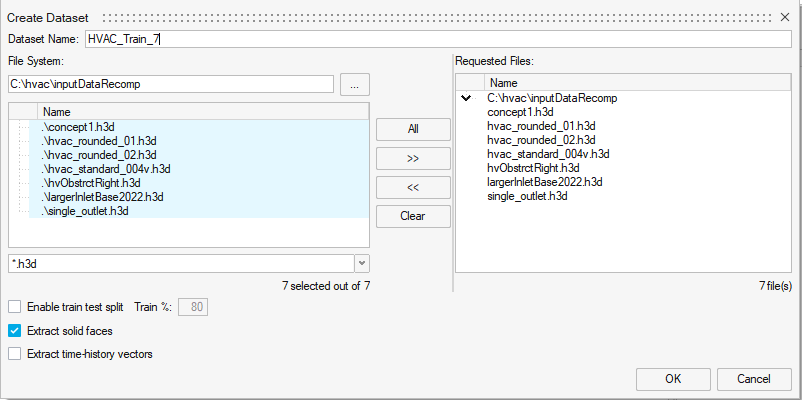
- Click OK.
The dataset is extracted, and the Datasets dialog opens.
- Create a second dataset.
-
Click
 to reopen the Create
Dataset dialog.
to reopen the Create
Dataset dialog. -
For name, enter
HVAC_Test_2. -
For File System, click
and navigate to the
testDataRecompfolder. -
Select and transfer all of the .h3d files.
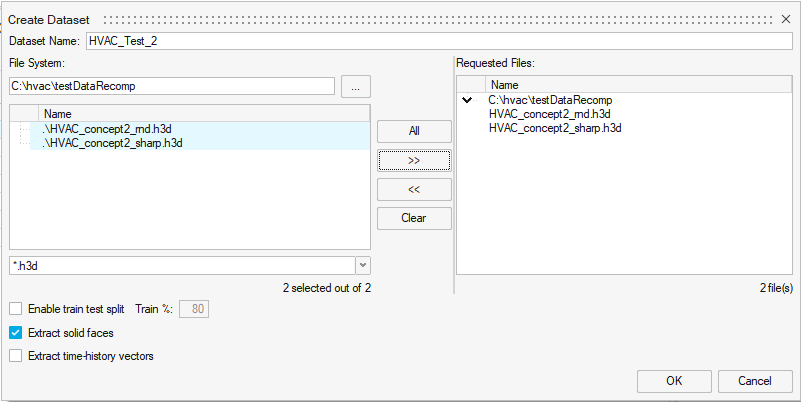
- Click OK.
The dataset is extracted, and the Datasets dialog opens.
-
- Select datasets to see the extracted datasets.
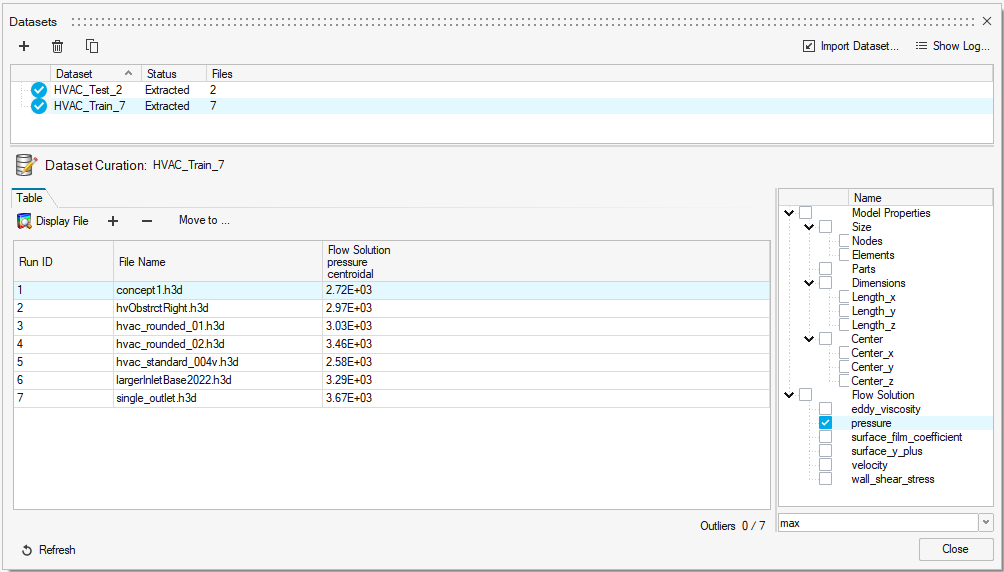
- Click Close.
Step 3. Train Machine Learning ML Model
In this step, you will train a Machine Learning (ML) model on the training dataset and view the logs.
- From the PhysicsAI ribbon, select the Train an ML Model
tool.
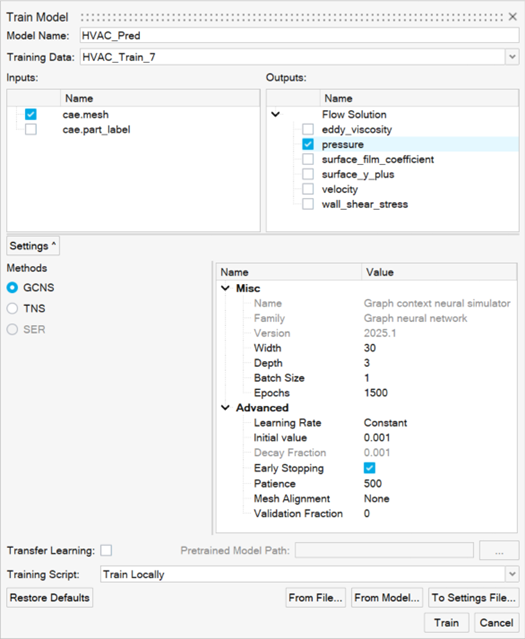
The Train Model dialog opens.
- Define the following details and click Train.
- For Model Name, enter
HVAC_Pred. - For Training Data, select HVAC_Train_7.
- For Inputs, select cae.coord and cae.part_label.
- For Outputs, select pressure.
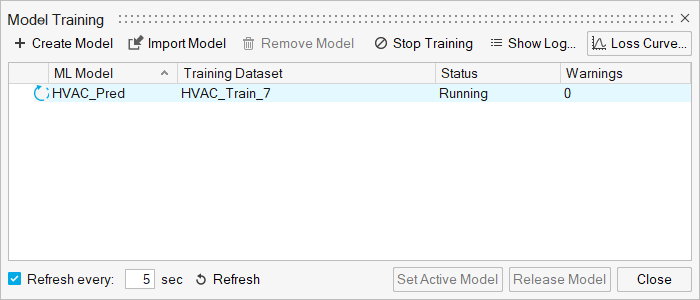
The Model Training dialog opens.
 Tip:
Tip:Once the status changes to Running, you can click Show Log view the training logs.
- For Model Name, enter
Step 4. Test ML Models
In this step, you will use the trained model and test this ML models on HVAC_Test_2. You will also view the results and detailed score report.
- From the PhysicsAI ribbon, select the Test ML Model
tool.

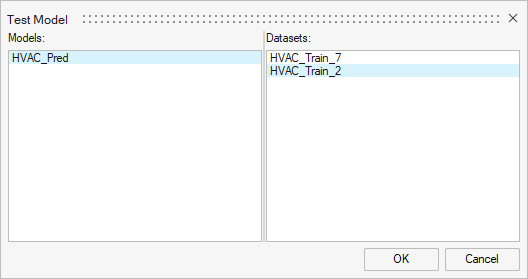
The Test Model dialog opens.
- In the Models area, select HVAC_Pred.
- In the Datasets area, select HVAC_Test_2 and click
OK.
The Model Testing dialog opens.
- In the Model Testing dialog, select a Run ID and click Display File to view the results in the modeling window.
- Close the Model Testing dialog.
Step 5. Set Model as Active
In this step you will set the model as active.
Setting a model as active will checkout a stacking license until the model is deactivated.
- From the PhysicsAI ribbon, select the Manage ML Models
tool.

The Model Training dialog opens.
- Click Set Active Model.
Step 6. Use Models
In this step, you will predict the results using
HVAC_concept2_rnd.fem.
- From the newDesigns folder, drag-and-drop the
HVAC_concept2_rnd.femfile into the modeling window. - In the Load File dialog, verify New model is selected and
click OK.
 Note:
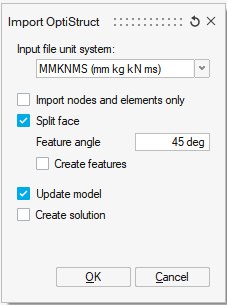
Note:Selecting New model ensures
- In the Import Options dialog, click Open.
The model opens in the modeling window.
- From the PhysicsAI ribbon, select the Predict tool.