Once you have set up the model, learn how to run fast and efficient simulations using
EDEM Simulator.
To run the simulation:
Click the
icon on the toolbar to open EDEM Simulator.
Set the Time and Grid options
The first step in running the simulation is to set the Time Step. The Time Step is
the amount of time between iterations (calculations).
To set the Time Step:
In this simulation, ensure that the Auto Time Step
checkbox is cleared.
Set the Fixed Time Step to 4e-6
s.
Set the simulation time and data write-out frequency.
The simulation time is the amount of real time your simulation represents.
In the Simulation Time section, set the
Total Time to 1
s.
Set the Target Save Interval to 0.01
s to specify the write-out frequency.
Enure that Simulator Grid Cell Size is set to
3 Rmin (~2890 cells).
Run the Simulation
The last step is to run the simulation.
To run the simulation:
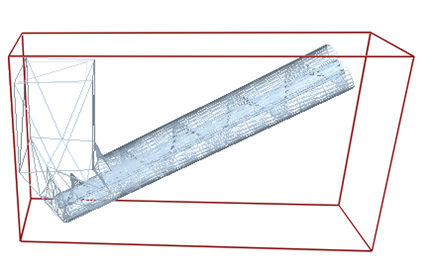
In the Toolbar, set the Display Mode to Mesh and
Opacity to 0.7 to clearly view
your simulation.
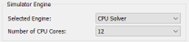
Select the appropriate number of CPU cores for your simulation.
The total number available depends on your license and hardware. This
simulation can also be run using the GPU Engine which will typically be 10-100
times faster than the CPU solver. However, the GPU solver is recommended for
simulations with a greater numbers of particles.
Click the Start Progress icon in the Simulation window.
In the Viewer Controls, click the Refresh Viewer
icon or the enable Auto Update
icon at any point to update the Viewer to view the progress of the simulation.
Note:
During simulation, Query_ID_0.csv will be written
to the same folder as the saved simulation files.
The torque query will be automatically written to this file and
updated during the simulation run.

 icon on the toolbar to open EDEM Simulator.
 icon in the Simulation window.
 icon or the enable Auto Update
  icon at any point to update the Viewer to view the progress of the simulation.
Note:
icon at any point to update the Viewer to view the progress of the simulation.
Note: