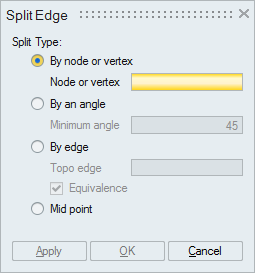
Split Edge

Introduction
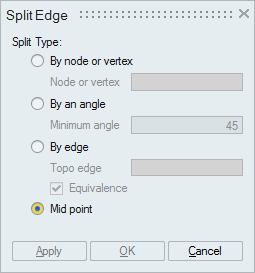
This tool is used to split an edge into two or more edges. Splitting an edge is useful when creating four sided faces or when applying loads to specific segment of the edge.
Splitting the edges can be done using any one of the split types given below.
- By node or vertex
- By an angle
- By body/face/edge
- Mid point
By node or vertex
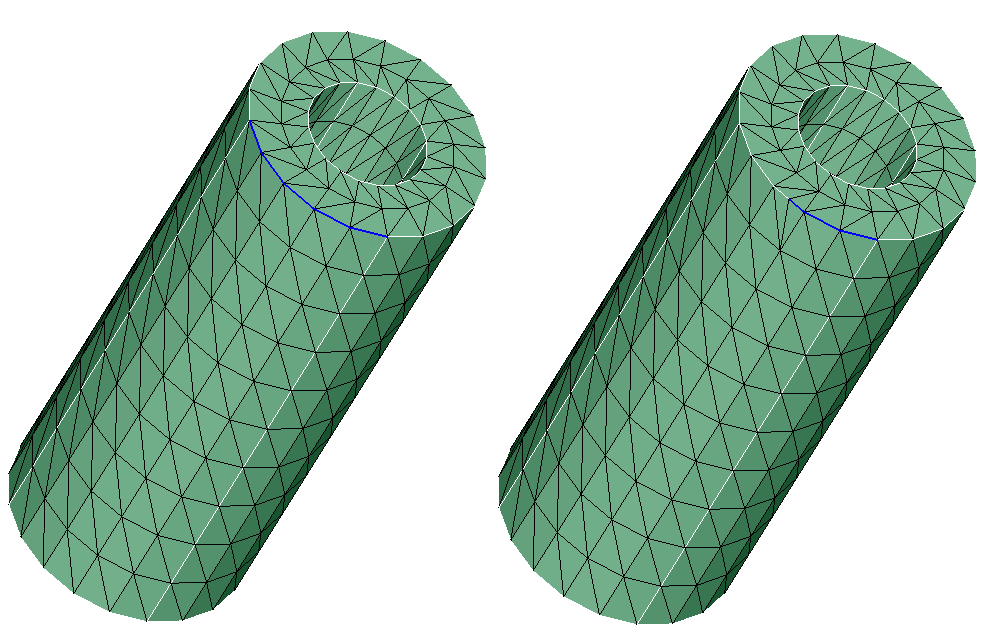
This option is used to split an edge into multiple edges by selecting nodes or vertex at which the edge is to be split. The user can either select one vertex or one or more nodes to split the edge.
Example
The edge is split into two edges at the selected node or vertex.
By an angle
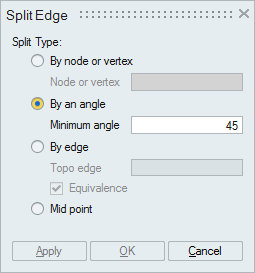
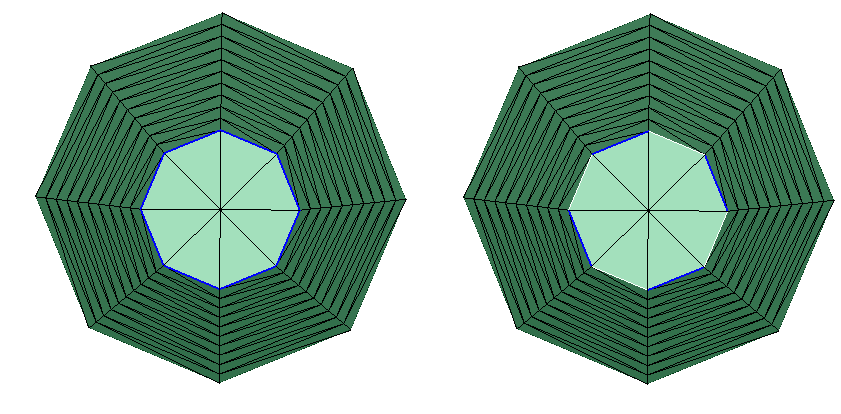
This option is used to split an edge based on the angle. The minimum angle is set by the user (default: 45 degrees) and edges whose included angle exceeds the input angle are split. Edges in a body or face or an individual edge can be split using this method.
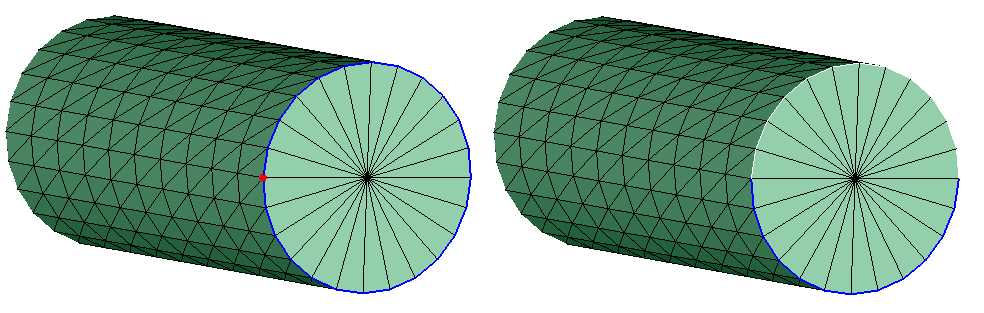
Example
A single edge is split into several edges at an angle of 35°.
By body/face/edge
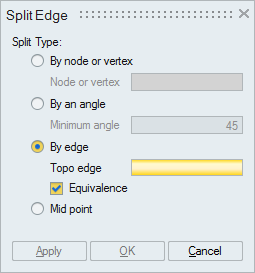
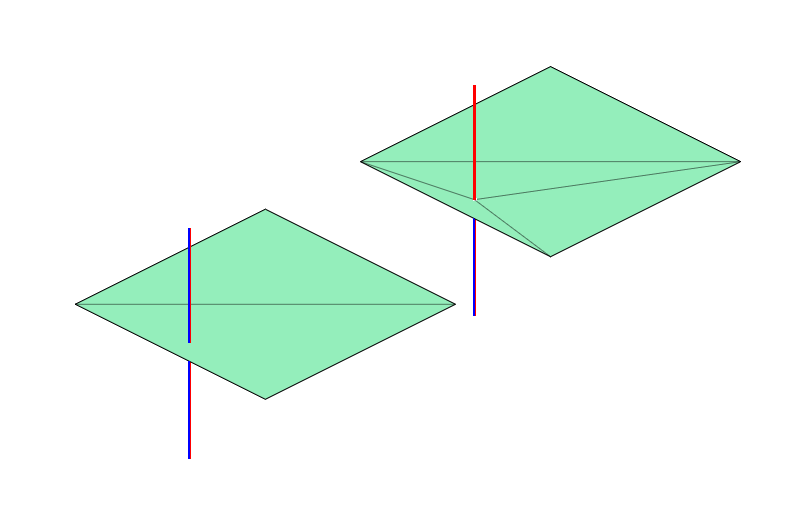
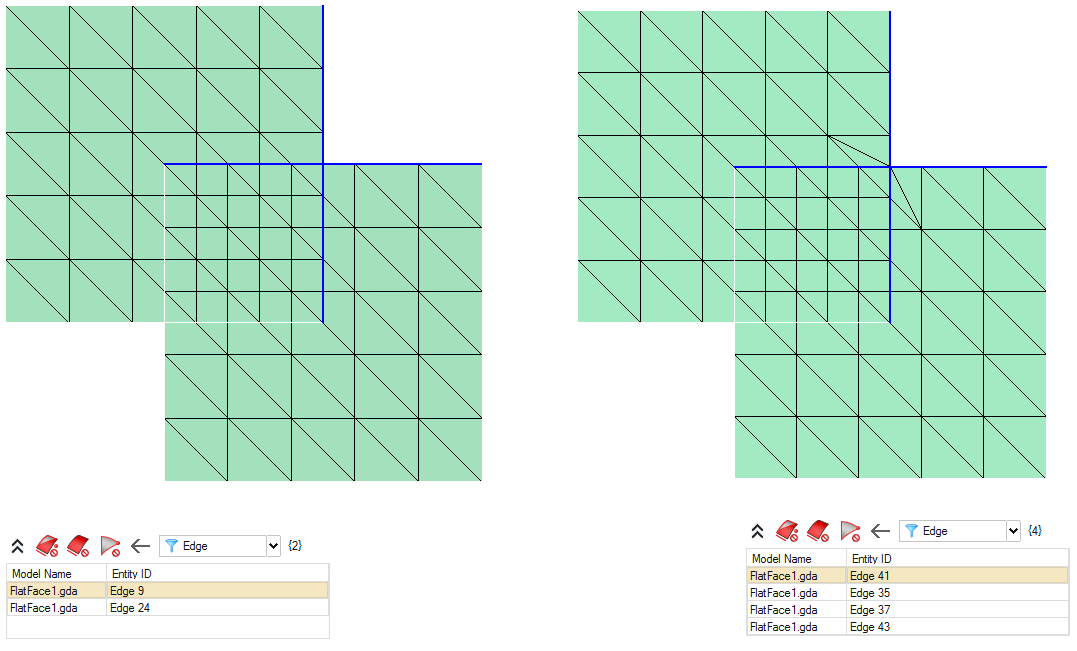
This option splits the selected edge at the intersection point with a body, face, or edge. If the input is a body or face, the intersecting surface element is also split. In the case of an edge, the intersecting bar element is split. Equivalence option is enabled by default. This is used to equivalence one node to another.
Examples
- Splits the edge at the point where the body or face intersects it.
- Splits the edge at the point where another edge intersects it.
Mid point
This option is used to split an edge at the middle.
Example