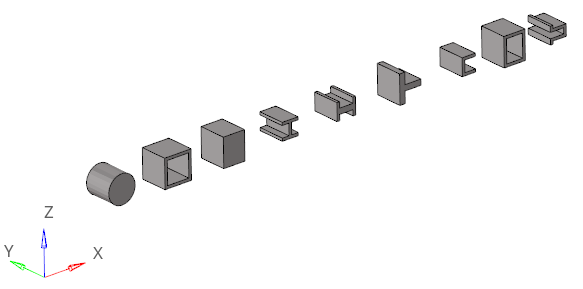
Overview of how to import and export beam section comments.
Import beam section comments.
On import of an FEA model, beam sections are automatically created for all
bar, beam, and rod properties that do not already have beam sections
defined. These beam sections automatically populate bar, beam, and rod
property cards and the cross-section should be edited with Section Manager.
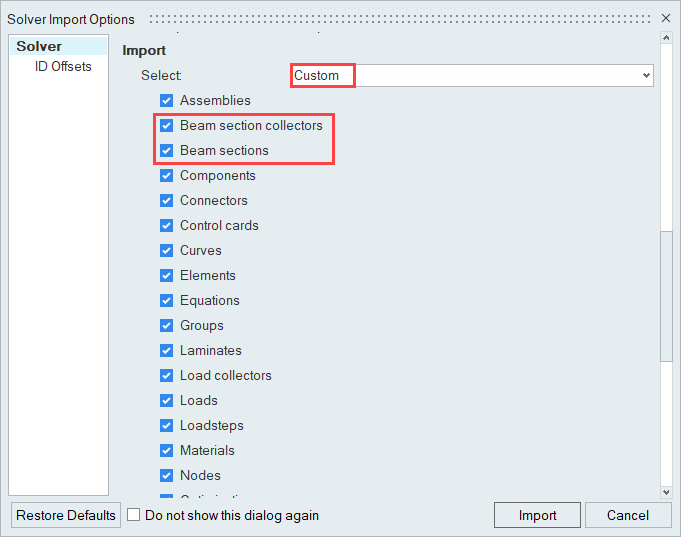
To import an FEA model without automatically creating beam sections for each
1D property, use the custom import feature with beam sections and beam
section collectors unchecked. The section information on the actual property
cards will remain intact, but the geometric and section calculation data
will be missing.Figure 1.
Export beam section comments.
Exporting an FEA deck in HyperMesh operates in a
similar fashion. HyperBeam comments are written
out by default (as are all HyperMesh comments).
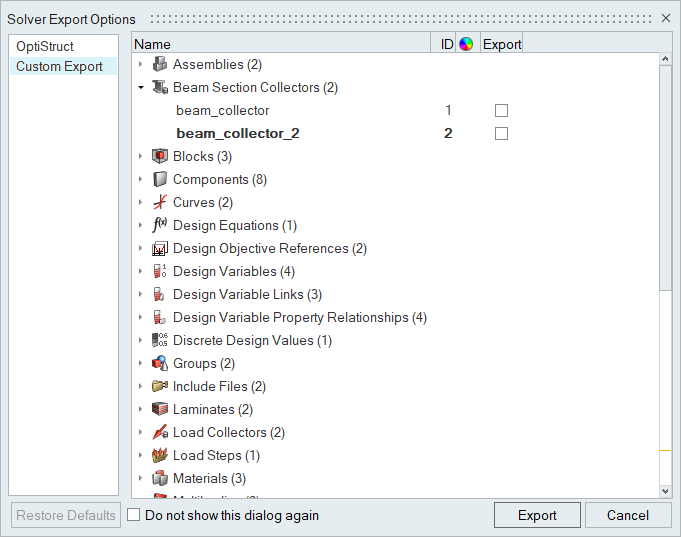
To suppress beam section comments from being exported, you must use the
Custom export feature to turn off all comments.
Beam sections are stored as comments in an exported deck.Figure 2.
Example: Import and Automatic Beam Section Creation
This example illustrates the automatic creation of beam sections on import and the
visualization of these rods, bars, and beams in HyperMesh.
Before you begin, load the OptiStruct user profile and open
the pbeaml.fem input file from
<installation_directory>\hwdesktop\tutorials\hm.
Use a text editor to inspect the following file:
pbeaml.fem.
Figure 3. There are no beam sections or HyperBeam
comments defined in this input file. When imported, HyperMesh automatically creates beam sections, which
allows you to visualize the sections in 3D.
Import pbeaml.fem into HyperMesh.
Turn on beam visualization.
From the View Controls toolbar, click .
Click the first icon in the microdialog to
display 3D or 1D and 3D beam sections.


 .
.