
Sketch a Slot
Sketch a slot by defining the start and end points, mid and end points, arc center and end points, or three arc points.
-
On the Sketch ribbon, select one of the
Slots tools.

Tip: To find and open a tool, press Ctrl+F. For more information, see Find and Search for Tools. - Select a face or plane as the sketch plane.
-
Sketch a slot:
To sketch this Do this Slot by 2 Points 
Click to set the end points of the slot, and then click to set the width of the slot. Midpoint Slot 
Click to set the midpoint and end of the slot, and then click to set the width of the slot. Arc Slot by Center and Ends 
Click to set the center of the circle that defines the slot, click to set the end points of the slot, and then click to set the width of the slot. Arc Slot by 3 Points 
Click to set the end points of the slot, click to set the radius at the middle of the slot, and then click to set the width of the slot. Tip: Select the Create Dimension checkbox to automatically create dimension constraints with the slot: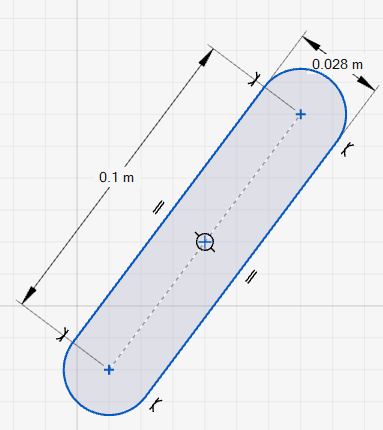 The centerline of the slot is created as construction geometry.
 - Right-click and mouse through the check mark to exit, or double-right-click.