
New Sketch
Start a new sketch (S) and select a sketch plane.
-
On the Sketch ribbon, select the New Sketch tool.

Tip: To find and open a tool, press Ctrl+F. For more information, see Find and Search for Tools. -
Select a face or plane as the sketch plane. A sketch plane can be a global
plane, a user-created construction plane, a user-defined
coordinate system, or a planar face of an existing part.
When you hover over a user-defined coordinate system, planes are displayed. Click a plane to select the sketch normal. A microdialog is displayed to allow you to change the sketch direction or click Apply to create the sketch.
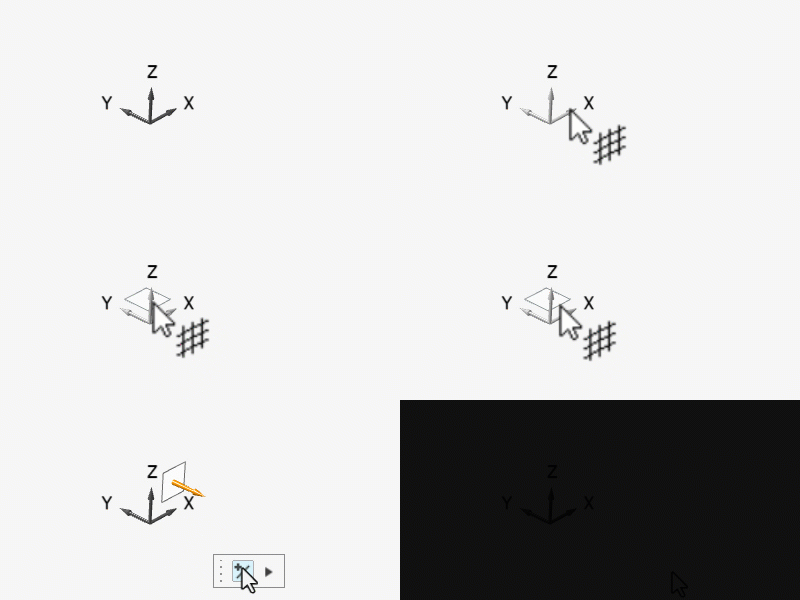 By default, the view is rotated along the sketch normal. When using a user-created coordinate system, the origin of the sketch is the user coordinate system.Tip: If you don’t want the view to be rotated along the sketch normal, you can do one of the following:
- Press Shift+S while selecting the sketch plane.
- From the File menu, select the Preferences button. Under Sketching, turn off View Along Sketch Normal, then click OK.
Note: To create a sketch on a reference or global plane:
- Right-click the reference or global plane.
- From the context menu, select Create Sketch.