Use the Replicate tool to replicate features, such as beads, holes, and dimples, and
to generate and replicate doublers or bulkheads.
From the Design Explorer ribbon, click the Replicate
tool.
Figure 1.
Replicate Components
From the guide bar, select
Replicate.
Select a component.
Tip: For proper feature replication, try to ensure similar mesh
sizes between the replicated component and the mesh where the replication is
to occur.
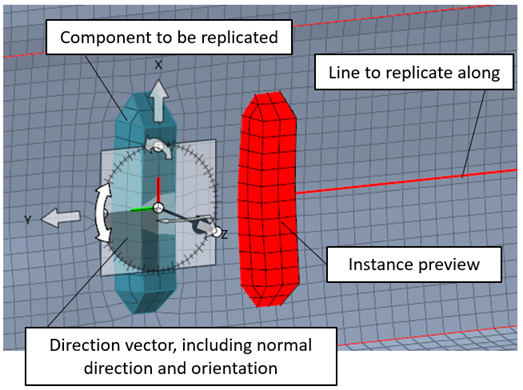
Select one or more lines or nodes for the replication path.
If nodes are selected, the number of instances is automatically chosen.
Note: Selecting multiple lines
or nodes will also generate multiple design variables.
Select a direction, which is the orientation of the existing component.
The orientation of the
original component will be used to determine the placement and relative
orientation of each instance along the replication line.
A preview of one
initial instance is shown for reference.Figure 2.
Tip: In the microdialog, click
to orient the
component.
From the guide bar, click .
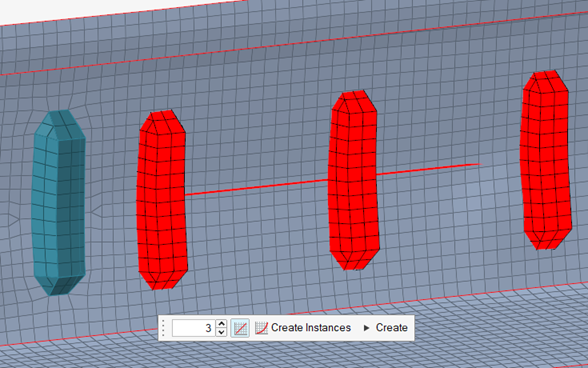
In the microdialog, enter values for how many times you
want to replicate the component and click to preview the
replicated components.
Figure 3.
Click Create Instances.
In the Replicate Instance field, enter the numbers you want to consider,
separated by spaces or commas, and press Enter.
Tip: You can click Add Row and
Remove Row to manually populate the table.
Click OK.
In the microdialog, click
Create.
Create Doublers or Bulkheads
For more information about doubler and bulkhead creation, explore the Concept Modeling tools.
From the guide bar, select
Doubler or Bulkhead.
Optional: From the guide bar, click to define additional
options.
Select the component the doublers/bulkheads will be created in.
Select one or more lines or nodes for the replication path.
If nodes are selected, the number of instances is automatically chosen.
Note: Selecting multiple lines
or nodes will also generate multiple design variables.
From the guide bar, click .
From the microdialog, click and select a material
for the bead or bulkhead.
From the microdialog, click and select a connector
control which will be used to connect the replicated doublers or bulkheads to
the selected component.
In the microdialog, enter values for how
doublers/bulkheads you want to generate and click to preview the
generated doublers/bulkheads.
Click Create Instances.
In the dialog, select and edit Flange width,
Thickness, Length, or
Instances to create design variables.
Note:
The number of instances is required. Other parameters are optionally
set as design variables.
Instances will automatically be set to 0 and 1 when nodes have been
selected.


 to orient the
component.
to orient the
component. .
.
 to preview the
replicated components.
to preview the
replicated components.
 to define additional
options.
to define additional
options.
 and select a material
for the bead or bulkhead.
and select a material
for the bead or bulkhead.
 and select a connector
control which will be used to connect the replicated doublers or bulkheads to
the selected component.
and select a connector
control which will be used to connect the replicated doublers or bulkheads to
the selected component.