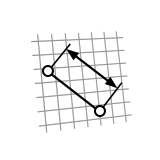
Dimension
Apply and edit a dimensional constraint to control the size and proportions of a sketch. You can make a dimension "driven" so that it's a regular dimension, not a constraint.
Note: Currently you can only use the Dimension tools on sketch curves.
Apply a Dimensional Constraint to a Sketch Curve
Constrain the length of a line, the distance between two points, an angle, or the size of an arc or circle.
- Optional: Double-click the sketch curve to enter edit mode.
- On the ribbon, click the Sketching tab.
-
Click the Dimension icon.

-
Apply one or more constraints.
Dimensional Constraint Do this Note Linear Click a line. You can constrain the vertical or horizontal component of the length. Aligned (the distance between two points) Click two points or two lines. Radius Click an arc. Diameter Click a circle. Angular Click two lines. - Click to position the dimensional constraint.
- Optional: See Edit a Dimensional Constraint.
- Right-click and mouse through the check mark to exit, or double-right-click.
Edit a Dimensional Constraint
Reposition a dimensional constraint, change the value, make it "driven," or delete it.
- Double-click the dimensional constraint to select it.
-
Edit the dimensional constraint.
To Do this Note Reposition a dimensional constraint Drag the dimensional constraint. Change the value - Drag the arrow at the end of the dimensional constraint.
- Click the dimensional constraint, type a value, and then press Enter.
Make a dimensional constraint "driven" Click the dimensional constraint, and then select Driven. A driven dimension is a regular dimension, not a constraint. It updates when the sketch is modified (you cannot modify a driven dimension directly). Delete a dimensional constraint Click the dimensional constraint, and then press Alt+D. Hide dimensions Right-click, and then deselect Show dimensions. - Right-click and mouse through the check mark to exit, or double-right-click.