
Workflow
Overview
 |
|
|---|---|
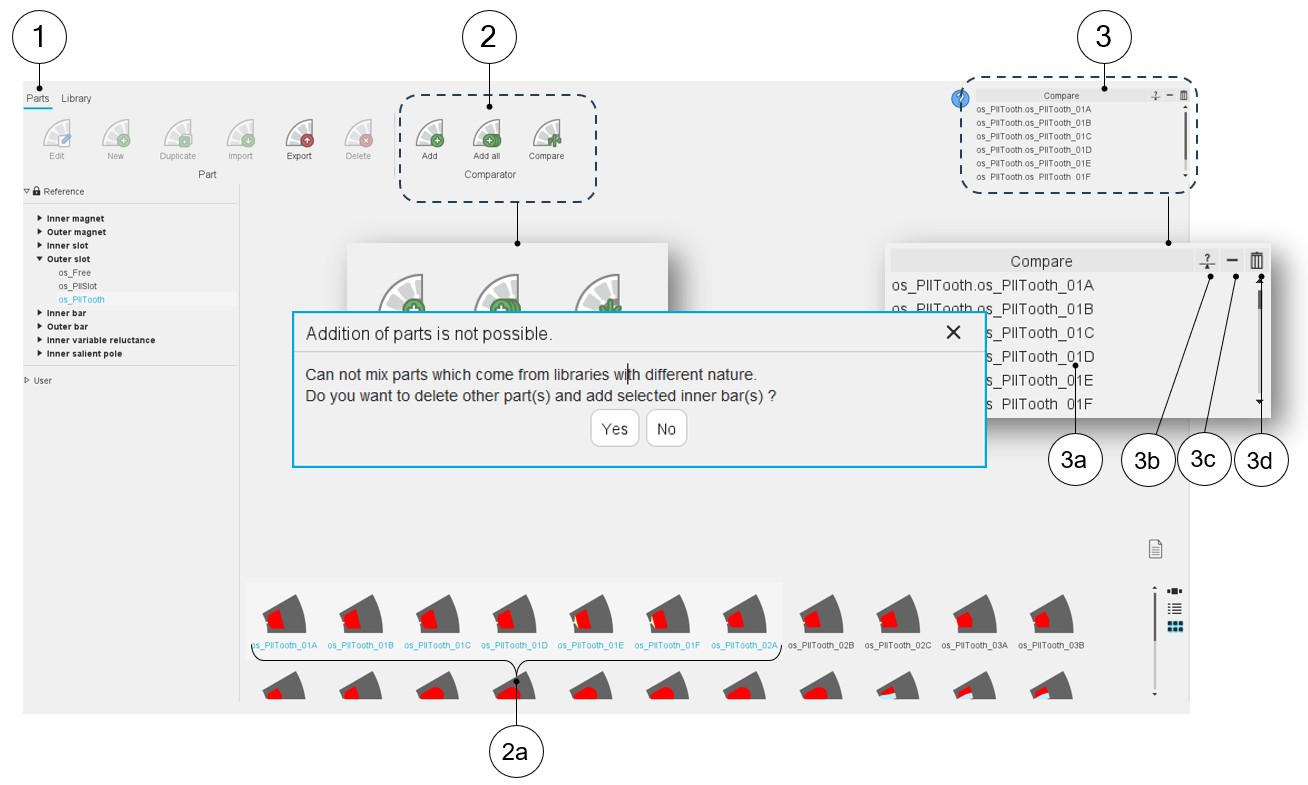
| 1 | Selection of the parts area of the Part Library application. |
| 2 | Box of tools to add the selected parts into the comparator. |
| 2a | Select one or several parts to compare. |
| 2b | Click on this icon to add the selected parts (one or several) into the comparator. |
| 2c | Click on this icon to add all the parts of the selected library into the comparator. |
| 2d | Click on this icon to get into the comparator application and compare the selected parts. |
| 3 | Box of tools to manage the selected parts into the comparator. See more details below. |
| 3a | Visualization of the selected motor list. |
| 3b | Click on this icon to get into the comparator application and compare the selected parts. |
| 3c | Button to remove the selected parts (one or several) from the comparator. |
| 3d | Button to remove all the parts from the comparator. |
Note: It is not possible to mix parts that come from libraries of
different natures.
Comparison of parts
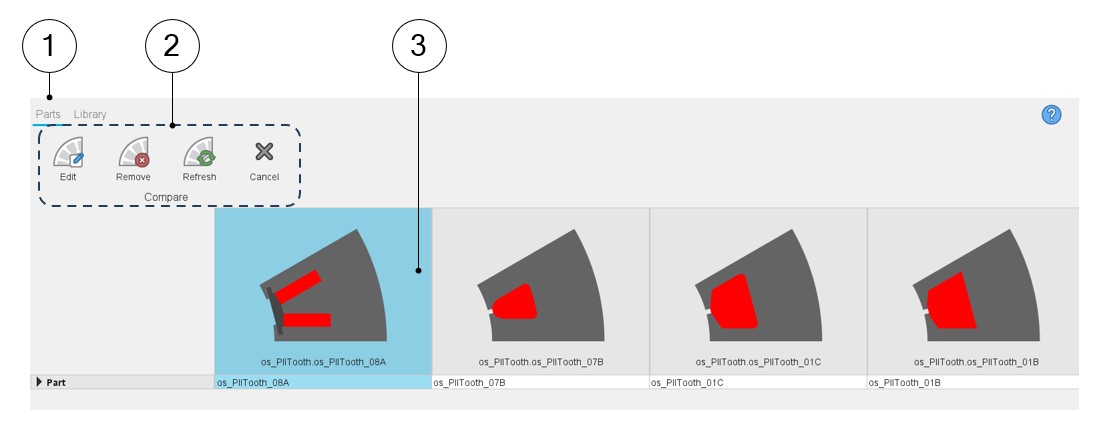
Here is the environment for the comparator of parts.
 |
|
|---|---|
| 1 | Selection of the parts area of the Part Library application. |
| 2 | Box of tools to manage the selected parts into the comparator.
|
| 3 | All the selected parts are aligned to help the comparison. Note: Horizontal scroll bars allow us to see all
the selected parts. |
Note: The comparator of parts only allows us to compare the
topologies of the parts based on the pictures.