
HS-4230: Optimization Study with Discrete Variables
Learn how to use discrete variables.
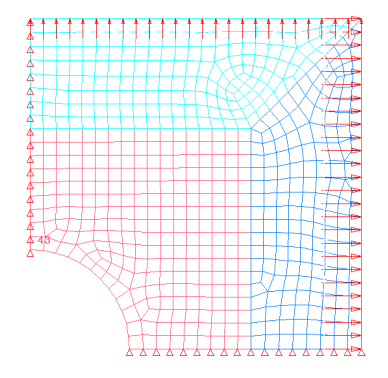
The objective of this tutorial is to maximize the minimum frequency of the first five modes of a plate. The input variables are the thickness of each of the three components, defined in the input deck via the PSHELL card. The thickness should be between 0.05 and 0.15; the initial thickness within the files is 0.1. The optimization type is size. Furthermore, optimum design should have input variables from a discrete set of 0.05, 0.08, 0.11, and 0.14 for all three thicknesses. By default, HyperStudy will add the values from the lower and upper bounds to this set. Hence the resulting set is 0.05, 0.08, 0.11, 0.14, and 0.15. Delete any of these values if needed.
Perform the Study Setup
- Start HyperStudy.
-
Start a new study in the following ways:
- From the menu bar, click .
- On the ribbon, click
 .
.
- In the Add Study dialog, enter a study name, select a location for the study, and click OK.
- Go to the Define Models step.
-
Add a Parameterized File model.
-
From the Directory, drag-and-drop the plate.tpl
file into the work area.
Figure 2. 
-
From the Directory, drag-and-drop the plate.tpl
file into the work area.
-
Click Import Variables.
Three input variables are imported from the plate.tpl resource file.
- Go to the Define Input Variables step.
-
Change Property 21 to be discrete.
-
In the Modes column of Property 21, select
Discrete.
Figure 3. 
-
Click Step Size, enter
0.03, and click
Set.
Figure 4. 
-
In the Modes column of Property 21, select
Discrete.
- Repeat step 8 for Property 22 and Property 23.
Perform Nominal Run
- Go to the Test Models step.
-
Click Run Definition.
An approaches/setup_1-def/ directory is created inside the study Directory. The approaches/setup_1-def/run__00001/m_1 directory contains the input file, which is the result of the nominal run.
Create and Evaluate Output Responses
In this step you will create two output responses.
- Go to the Define Output Responses step.
-
Create the Freq1 output response.
-
Define the following options and click
Next.
- Set Type to Frequency.
- Set Request to Mode 1.
- Set Component to Value.
Figure 5. 
-
Click Finish.
Figure 6. 
-
Define the following options and click
Next.
-
Create the Volume output response.
- Click Evaluate to extract the response values.
Run Optimization
-
Add an Optimization.
- In the Explorer, right-click and select Add from the context menu.
- In the Add dialog, select Optimization.
- For Definition from, select Setup and click OK.
- Go to the step.
- Click the Objectives/Constraints - Goals tab.
-
Apply an objective on the Volume output response.
- Click Add Goal.
- In the Apply On column, select Volume (r_2).
- In the Type column, select Minimize.
Figure 7. 
-
Apply a constraint to the Freq1 output response.
- Click Add Goal.
- In the Apply On column, select Freq1.
- In the Type column, select Constraint.
- deterministic
- In column 1, select >= (less than or equal to).
- In column 2, enter 32.
Figure 8. 
- Go to the step.
-
In the work area, set the Mode to Adaptive
Response Surface Method (ARSM).
Note: Only the methods that are valid for the problem formulation are enabled.
- Click Apply.
- Go to the step.
- Click Evaluate Tasks.
-
Click the Iteration History tab to monitor the progress
of the Optimization iteration.
Figure 9. 
Run DOE
Run a DOE to find the the true best design.
-
Add a DOE.
- Go to the step.
- In the work area, set the Mode to Full Factorial.
-
Click the Levels tab, and change the Levels for each
input variable to 5.
Figure 10. 
- Click Apply.
- Go to the step.
- Click Evaluate Tasks.
- Go to the step.
- Click the Summary tab.
-
Sort run data based on the Volume (which was to be minimized) by right-clicking
on the Volume column and selecting Sort down from the context menu. The lowest
volume design which satisfies the constraint (frequency > 32) is the same as
that found by the optimizer.
Note: The DOE took 125 solver calls to exhaust all combinations, whereas the Optimization found it in 8 solver calls.
Figure 11. 