
View Appliance Summary
View appliance summaries and node statuses for default and shared appliances on the Altair One platform.
- Click Appliances in the left navigation pane.
-
Click the appliance Name link to view its configuration
and resource usage details:
Figure 1. Appliance Summary 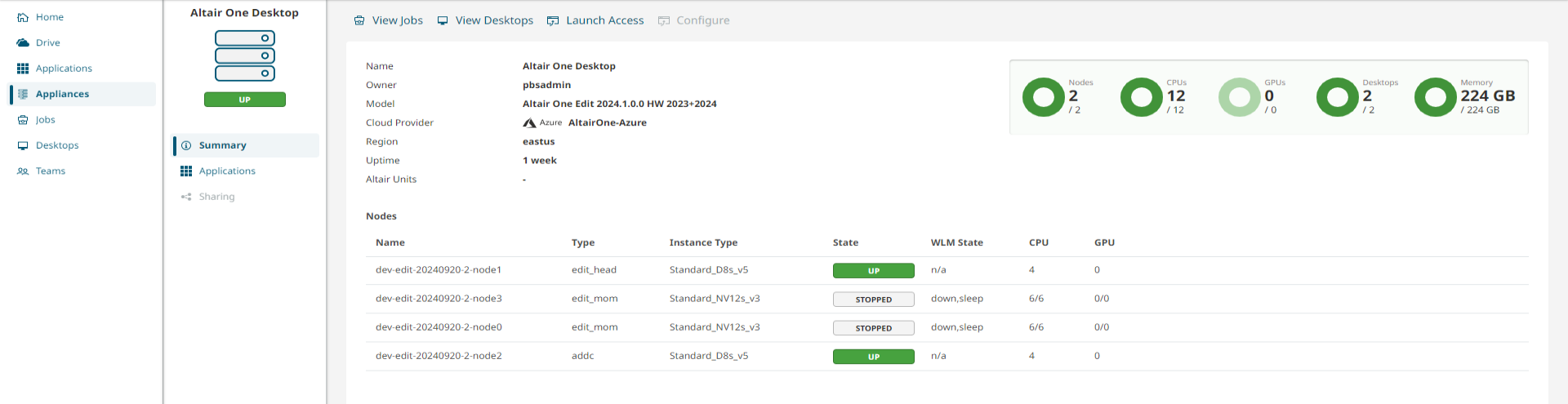
- Appliance overview displays the appliance name, owner, model, appliance ID, description, cloud provider, and region.
- Node status displays the configured nodes for the appliance and shows
their status and resource usage, including desktops, CPUs, and memory.
Displays the distribution of nodes by status: Free (available for
use), Inactive (not currently in use), and Others (nodes
have errors and are unavailable).
Figure 2. Node Status 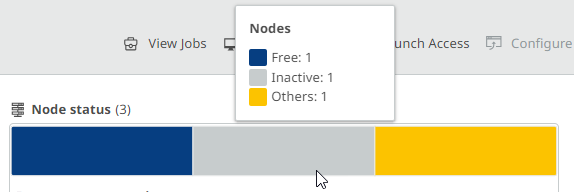
- The bar chart displays the total and used resources, including Nodes, Desktops, CPUs, GPUs, and Memory for efficient resource monitoring.
Note: Click Back to appliances list to return to the appliances list. The secondary navigation displays the application-specific options again. - Select View Jobs at the top menu to view the jobs submitted using the appliance. For more information refer to View Job Status.
- Select View Desktops at the top menu to view sessions launched using the appliance.
- Select Launch Access to launch the application, Access.
-
Select Configure to scale up or scale down an
appliance.
Note: Configure is enabled for Administrators or Appliance Managers to modify appliance configurations in Altair NavOps.
- Select Applications to view the configured list of applications and its version available to access.
-
Select Sharing on second left pane to share an appliance with
your company users.
Note: Sharing is enabled for Administrators or Appliance Managers to share an appliance with a specific group or user.