
New
How to creat a new catalog?
 |
|
|---|---|
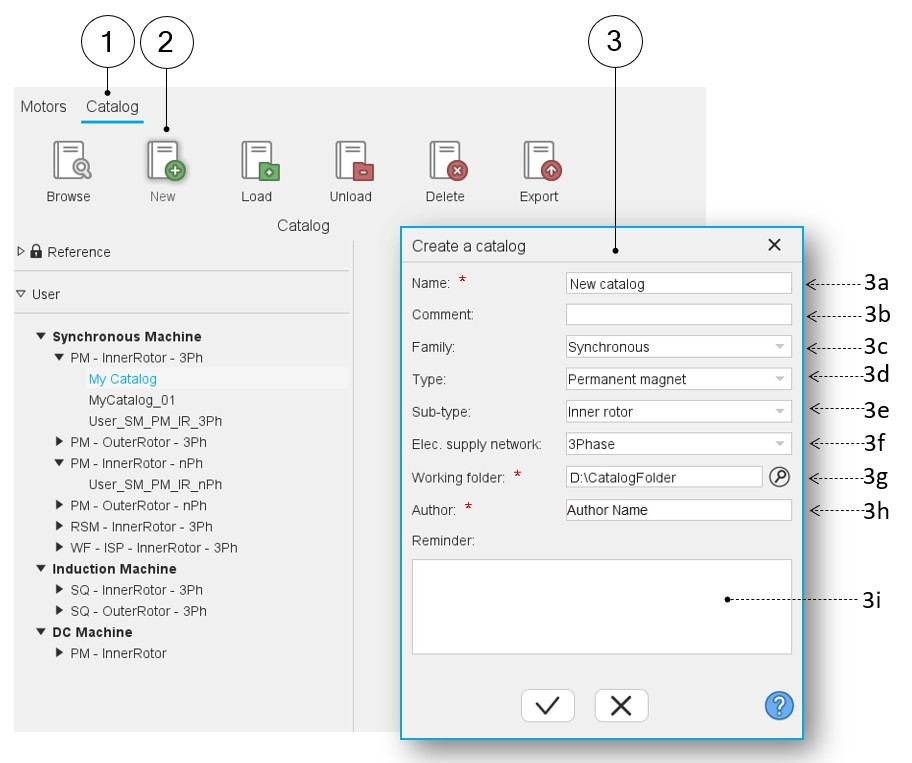
| 1 | Selection of the catalog area of the Motor Catalog application. |
| 2 | Click on the button “create a new catalog” (Shortcut Ctrl+C).
Note: The new catalog will be stored in
the user’s catalog. |
| 3 | Clicking on the button “Create a new catalog” opens a dedicated dialog box. |
| 3a | A catalog is defined by a name (New catalog). Note: A default new name is proposed. One must
choose a name that is not already used in Motor
Catalog. |
| 3b | A comment can be added if needed (it will be the tooltip of the created catalog). |
| 3c | Select the family of machines to be considered (Synchronous / Induction / DC). |
| 3d | Select the type of machine to be considered. |
| 3e | Select the sub-type of machine to be considered. |
| 3f | Select the electrical supply network number of phases to be considered (3Phase or nPhase in the current version). |
| 3g | Select the folder in which you want to store the new Catalog (D:\CatalogFolder). |
| 3h | Set the author of this new catalog. |
| 3i | A reminder allows you to keep important notes to know what was considered in the new catalog. |
Note: Once created, the catalog corresponds to a folder (“New
catalog” in our example) in which data are stored about the motors. The catalog
folder is stored in a parent folder (“D:\CatalogFolder” in our example).
Note: The “Motors” are stored in the catalog folder (folder
"Motors").
All the data corresponding to a motor, like the associated materials and parts, are stored in a specific folder. There are also the “Attachments” (folder "Attachments") joined to the motor by the user.