
Commands
Browse - Description
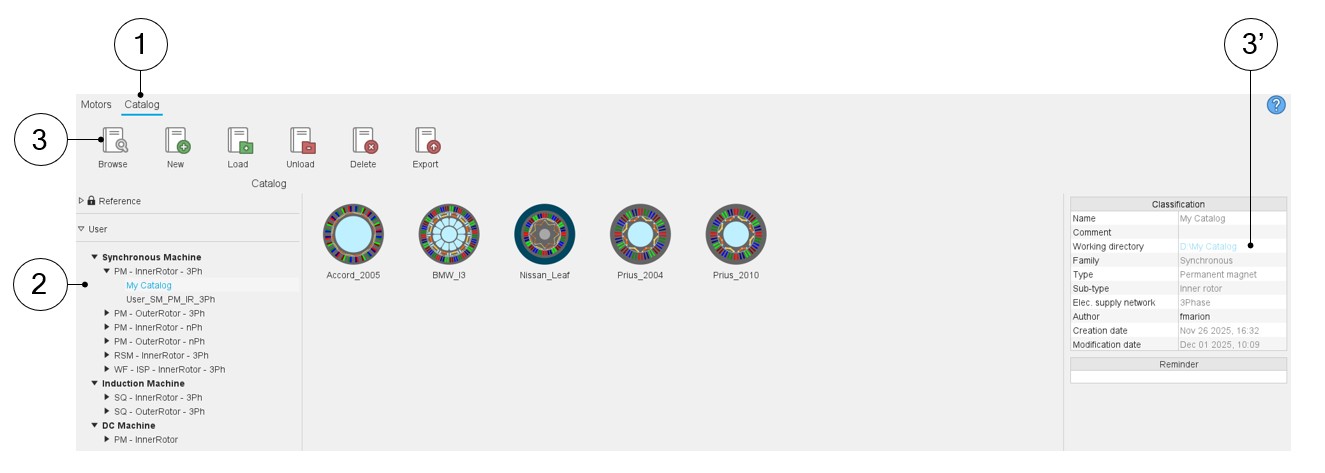
From the Catalog environment, it is possible to directly access the folder in which the data dealing with the selected catalog are stored.
 |
|
|---|---|
| 1 | Selection of the catalog area of the Motor Catalog application. |
| 2 | Selection of a catalog. |
| 3 | Browse function is available from the top part of the environment. Browse allows reaching directly the folder in which stored data of the selected catalog are available. |
| 3' | Browse function is also available from the information table. |
Contents of folders
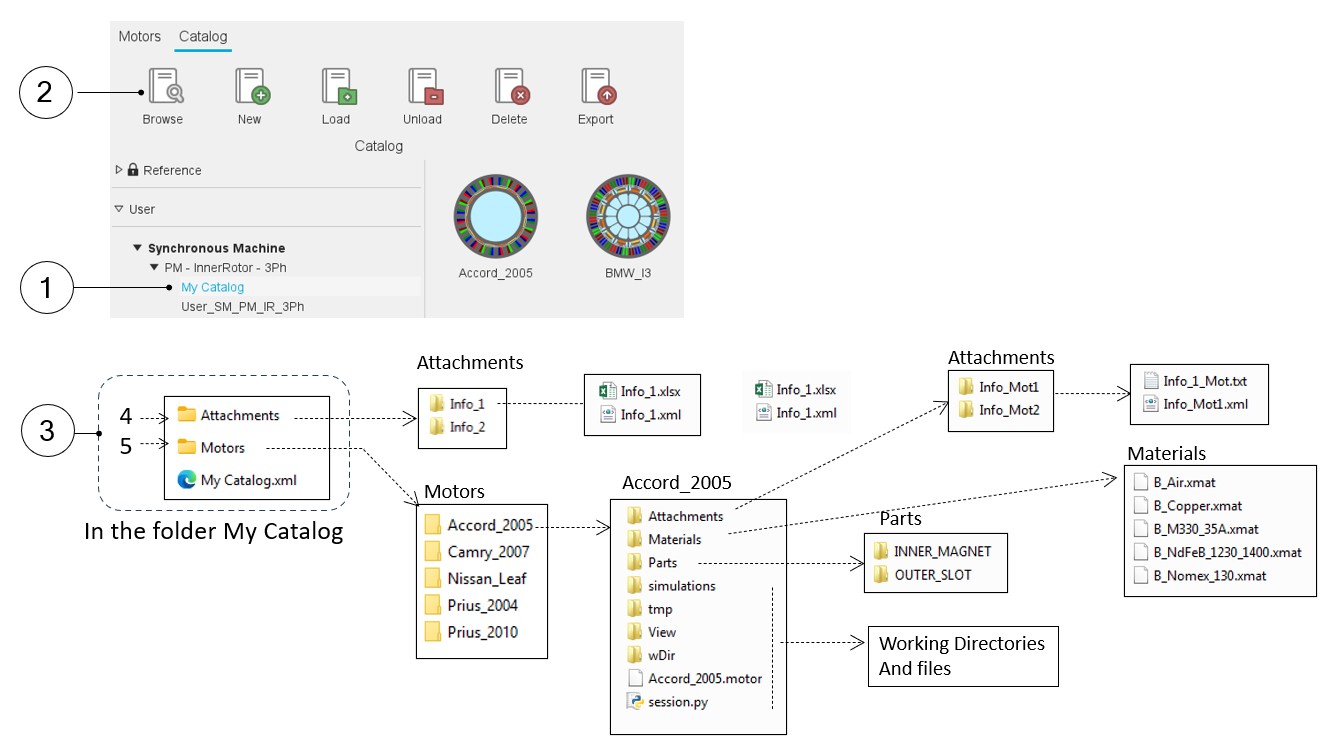
The contents of folder directly reachable from the Catalog interface are described below. The graph below shows how to reach the main files dealing with catalogs or motors.
 |
|
|---|---|
| 1 | Selection of a user’s catalog. In our example the name of this catalog is “My Catalog”. |
| 2 | Click on the icon “Browse” to reach the folders dealing with the motor. |
| 3 | Content of the folder “My Catalog”: Two folders? “Attachments” and “Motors” + one xml file: My Catalog.xml. |
| 4 | Folder “Attachments”: All the documents associated with the considered catalog (or Motor). |
| 5 | Folder “Motors”: All the motors stored in the considered catalog. |