
Troubleshooting: Can't Select Reference Geometry
Condition
I can't select a reference geometry. When I mouse over the reference geometry, it
isn't highlighted in yellow, indicating that it's not selectable.
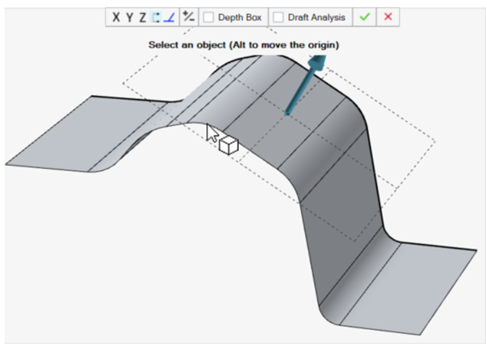
There are two possible scenarios:
Cause 1
You tried to select a solid or non-planar surface. You can only select planar surfaces as reference geometry.
Remedy 1
-
At the bottom of the application window, click Select
Surfaces
 .
.
-
Select a planar surface. Planar surfaces are highlighted in yellow when
you mouse over them.
Now you can select the planar surface as your reference geometry.
Cause 2
Draft Analysis is turned on.
Remedy 2
- Deselect Draft Analysis.
-
Select the reference geometry.
Now you can turn on Draft Analysis again.