
Connection Review
Provides a comprehensive table of all connections within a specified design study
This function, located on the Connections workbench toolbar, allows for detailed
inspection and management of connections. To open the dialog, click the
 Review regular
connections icon.
Review regular
connections icon.
Table Functionality
- Sorting
- Click any column heading to sort the table data.
- Highlighting
- Selecting a row highlights the corresponding connection and its associated parts in the graphical display.
- Multiple Selection
- Use the SHIFT and CTRL keys to select multiple rows simultaneously.
- Zoom-in
- The Zoom-in button (magnifying glass with a plus sign) zooms the view to the selected connection(s).
- Delete
- Connections can be deleted directly from the dialog using the Delete button.
Connection Table Attributes
- Part 1 and Part 2
- These columns list the two parts involved in the connection. Note that self-contact is possible, which can be defined using the manual connection creation dialog.
- Max allowable gap and max allowable penetration
- These attributes represent the user-specified tolerance values for the connection search.
- Found gap or penetration
- This attribute is the actual gap or penetration value determined by the
connection search algorithm. Positive values indicate a gap, while
negative values indicate a penetration. Note: For special connections created at bolt shanks and nut threads, SimSolid assumes no gap or penetration. In these cases, NA (not applicable) is displayed.
- Resolution
- This attribute indicates the user-specified resolution level used during
the gap search. The available values are Normal, Increased, and
High.Note: An Increased resolution is 4 times the resolution of a Normal search, and High is 16 times the resolution of a Normal search.
- # of points
- This attribute provides a relative measure of the accuracy of the connection's representation. A higher number of points generally indicates a more accurate representation. Connections with thin cross-sections and a low number of points may lead to hinges and numerical instability.
- Aspect ratio
- This attribute tells you whether connected parts have sufficient
connection points. This is based on the maximum gap/penetration
associated between connected parts. Aspect ratio for connection review
is calculated as follows.
Figure 1. 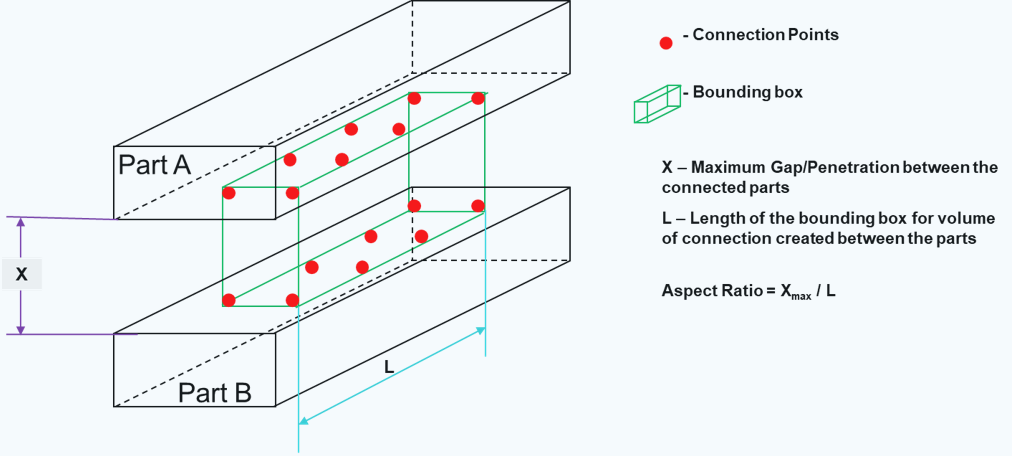
Note: Value = 0 is an ideal connection. If Value > 0.001, you will need to change the gap/penetration value to establish the connection with more connection points. - Save to CSV
- This option provides a convenient way to document and analyze connection data externally. Clicking the Save to CSV button exports all information currently displayed in the Connection Review dialog to a comma-separated values (CSV) file.
- Edit Default Contact Condition
- This option allows you to change the contact condition for single or multiple selected connections. Select the desired connections in the table and click Edit Default Contact Condition to access the modification dialog. This is useful for quickly applying a consistent contact behavior to a group of connections.
- Edit Connection
- This option is designed for modifying a single selected connection. Select a connection from the table and click Edit Connection to open a detailed editing dialog for that specific connection.