
Configure Data Edit
Use the Data Edit section in the AMDC Application Catalog to configure the properties, features, and plots available for single-point and multi-point data entry. AMDC provides a default setup, which Catalog Managers and Admins can review and customize as needed.
Configure Data Edit Settings
Add material properties to control which single-point data to edit.
- On the Administrator Dashboard, open Data Edit. All
available materials are listed.
Figure 1. Materials 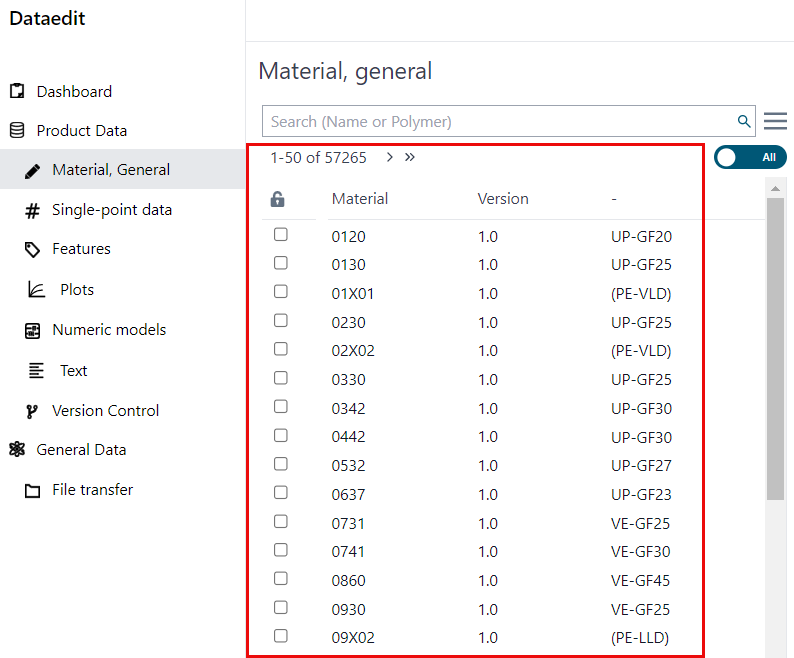
- Select Single-point Data and then selectProperty Group to view available properties.
- Drag and drop the feature into
Add Features to Data Edit
Add feature tags to define which feature data to edit.
- In the Application Catalog, open Data Edit.
- Select Features, then expand the relevant Feature Group.
- Locate the required feature tag in the Base Catalog.
- Drag and drop the feature tag from Base Catalog into AMDC .
Add Plots to Data Edit
Expand the Plots group to view the list of available plots in Data
Edit.
- In the Application Catalog, open Data Edit.
- Expand Plots to view available plot configurations.
- Locate the required plot in the Base Catalog.
- Drag and drop the plot from Base Catalog into AMDC .