
Manage Servers
Add Access Web server in the Access Desktop client.
- Ensure that you have the server details
-
Double-click the Access Desktop client
 shortcut that appears on the desktop or start
Access Desktop client from the Start menu.
Access Desktop client screen is displayed.
shortcut that appears on the desktop or start
Access Desktop client from the Start menu.
Access Desktop client screen is displayed.Figure 1. Access Desktop Client 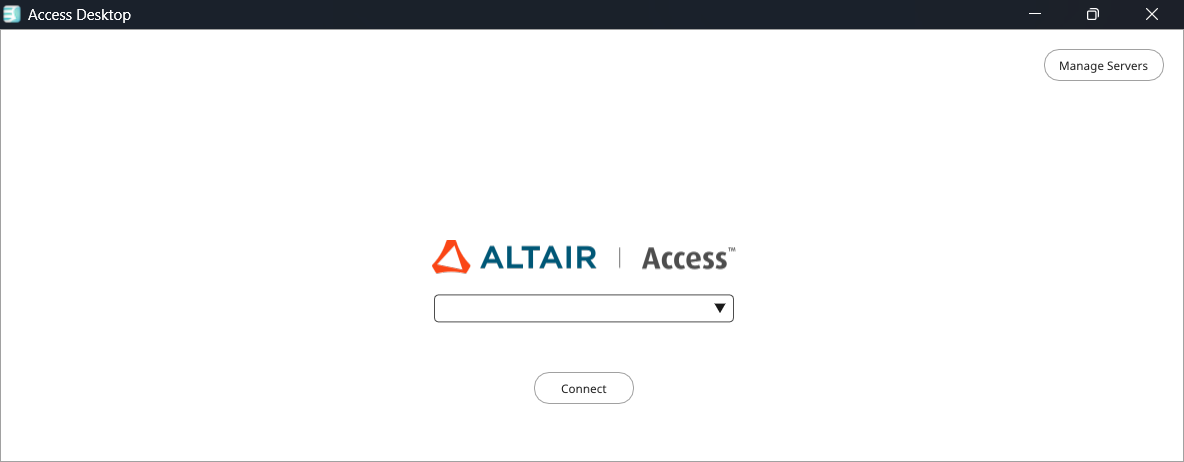
-
Click Manage Servers.
Figure 2. Manage Servers 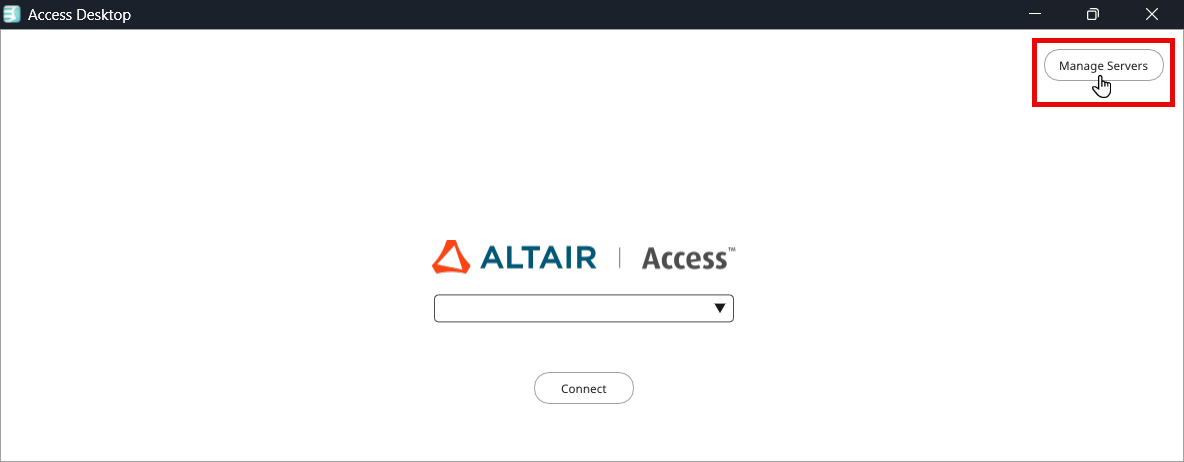
-
Click Add in the Manage Server
Window.
Figure 3. Manage Server - Add 
Add / Edit Server dialog box is displayed.Figure 4. Add / Edit Server 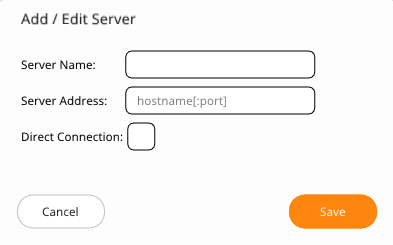
-
Enter the following details:
- Server Name - enter a short name describing the server.
- Server Address - enter the server address for connecting to the Access Web server.
The server address is in the format
hostname:4443where <hostname> is the hostname of the machine where the Access Web Server is installed.
-
Select Direct Connection option if you want to connect
directly to the graphical node when Access Desktop client is launched.
Figure 5. Add / Edit Server - New 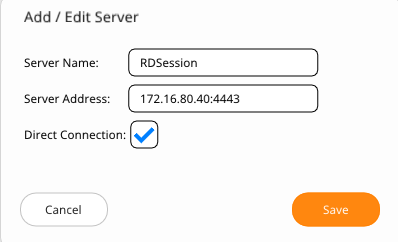
-
Click Save.
The Server details will be added.
Figure 6. Server Details 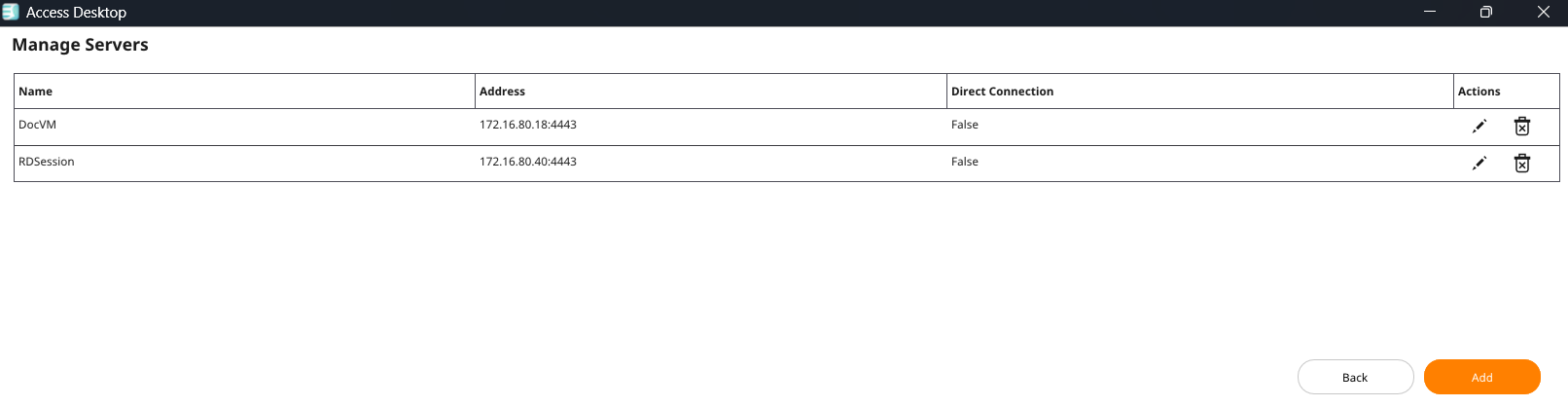
You can edit (
 ) or delete (
 ) the server that is added.
 - Click Back to go to Access Desktop client screen.