
Import
How to import a motor? Solutions
Three ways are possible for importing a motor in a user’s catalog:
- Import of motors from another catalog
- Import of motors from a folder
- Import of motors from a zip file
Note: Importing motors is possible only in a user’s
catalog. Whatever the selected import mode, if you select a reference catalog,
the icon "Import" is disabled.
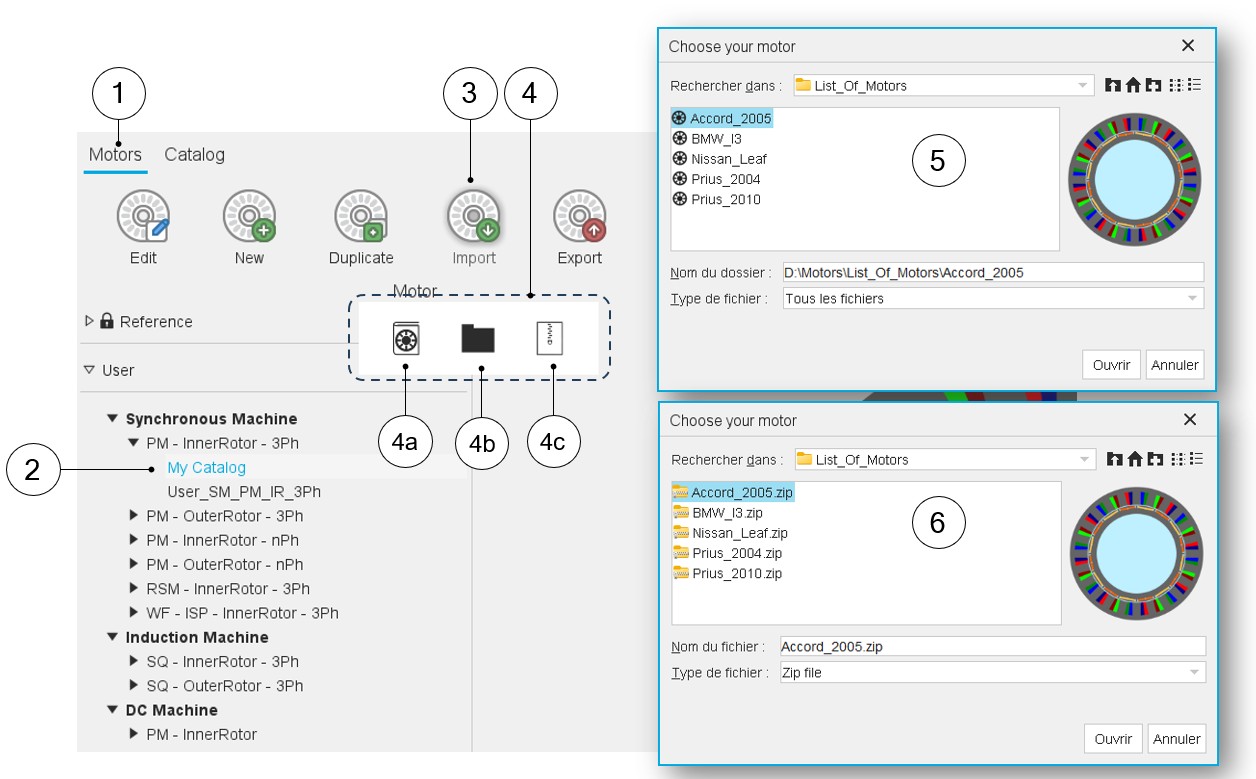
Clicking on the icon "Import" opens a dialog box, allowing selection of one way for importing the motors.
 |
|
|---|---|
| 1 | Selection of the motors area of the Motor Catalog application. |
| 2 | Selection of a user’s catalog in which the motors to import will be stored. |
| 3 | Click on the button “Import”. |
| 4 | Clicking on the icon "Import" opens a dialog box, allowing three ways for importing motors. |
| 4a | 1st solution: Import motors from another catalog. Clicking on this icon allows access to the Motor Catalog via a dialog box to navigate through the various catalogs - reference and users - to select the motor to import. |
| 4b | 2nd solution: Import a motor from a folder. |
| 4c | 3rd solution: Import a motor from a zip file. |
| 5 | Dialog box when importing motors from folders for visualizing the
folder content. Comments:
|
| 6 | Dialog box when importing motors from zip files for visualizing
the folder content. Comments:
|
Note: Whatever the way for importing motors is, the rules for
importing a motor into a catalog are like those for creating a new motor. The name
of the imported motor must not already exist. If this is not the case, a procedure
allows you to change it before importing it.
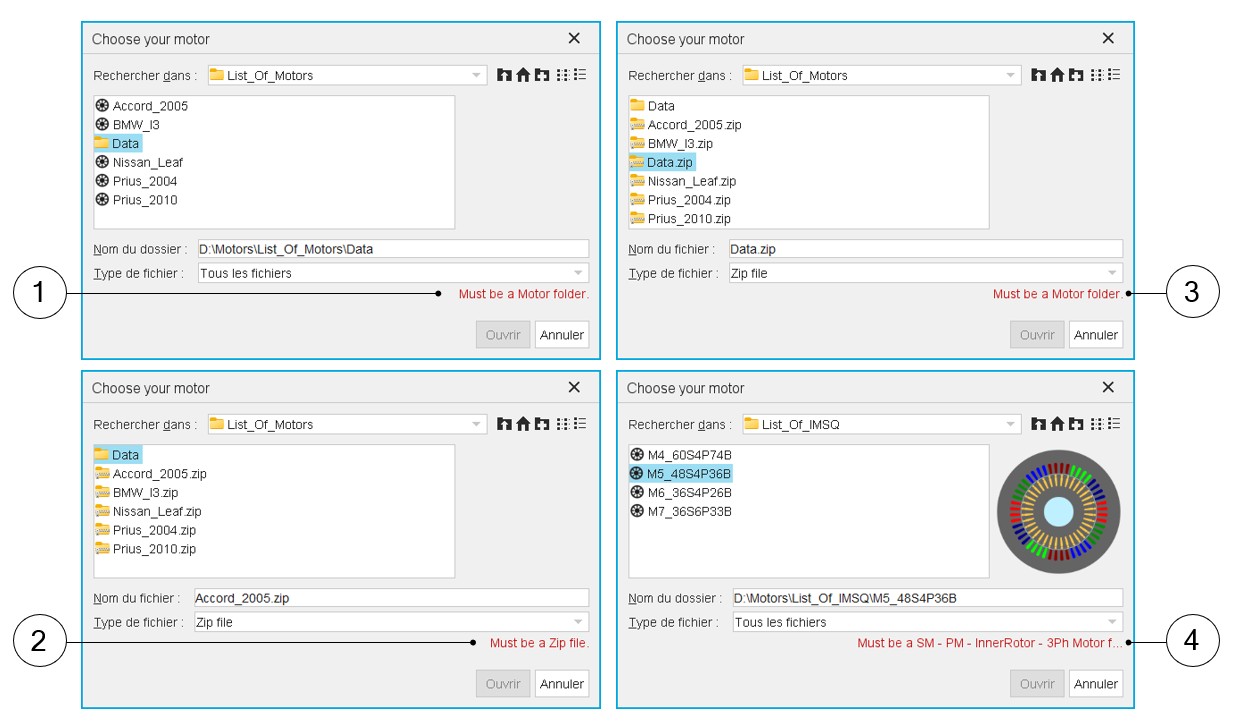
Cases where importation is not possible
 |
|
|---|---|
| 1 | When the selected folder is not identified as a motor, a warning message is written in red (Must be a Motor folder). |
| 2 | When the selected folder is not a zip file, a warning message is written in red (Must be a Zip file). |
| 3 | When the selected zip file is not identified as a zipped motor, a warning message is written in red (Must be a Motor folder). |
| 4 | When the selected user’s catalog and the motor to be imported are
not compatible. In that case an error message is written in red to
explain why it is not possible to finalize the operation. In our example above, one wants to import induction machines with squirrel cage (IMSQ) into a Synchronous machine with permanent magnets (SMPM) catalog. |
Note: In all these cases where importation is not possible, the
“Open” button is disabled.