Create and Register Webjects on the Windchill Server

Configure and register Altair Webjects for use with Windchill.

  1. On your Windchill server, create a dedicated directory to store Altair's Webjects.
    Example path: C:\ptc\Windchill_11.1\Windchill\tasks\ext
  2. Copy Webject files.
    1. Copy the Webject XML files from the Altair installation directory into the folder you created in step 1.
      Example source directory (from the Altair installation):C:\Program Files\Altair\2026.1\Inspire2026.1\javaapps\win64\pdmconnector_server\webjects
    2. Paste the Webject XML files into the following folder: C:\ptc\Windchill_11.1\Windchill\tasks\ext.
  3. Log in as Windchill administrator.
    1. Open the Windchill interface.
    2. Navigate to Utilities > Task Delegate Administration.
    3. Log in using your LDAP Server Administrator credentials.
  4. Create a task delegate for each Webject.
    For every Webject file in the ext directory, repeat steps 4.a- 4.c.
    1. Click Create Delegate.
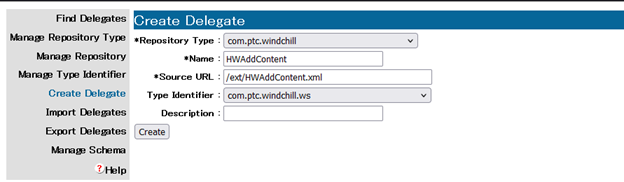
    2. Fill out the form using the example format in Figure 1 and Table 1.
      Important: Double-check the Source URL and Name values. Even small typos will cause the delegate registration to fail.
    3. Repeat steps 4.a - 4.b for each Webject you copied.
    Figure 1.


    Table 1. Delegate Configuration Example
    Field Value
    Repository Type com.ptc.windchill
    Name HWAddContent
    Source URL /ext/HWAddContent.xml
    Type Identifier com.ptc.windchill.ws
    Description (optional - for, Altair Webject)