
FEMT 2023: X Factor
Introduction
The X Factor allows the user to adjust the iron losses to his measurements and recompute the efficiency of his motor with a better accuracy. The X Factor is a floating value by which the iron losses amplitude is multiplied.
The X Factor can be accessed:
- before solving: in the Input Parameters
- after solving: in Post-process with a New Command
- Iron Losses (Rotor + Stator) in Torque-Speed Area
- Rotor Iron Losses in Torque-Speed Area
- Stator Iron Losses in Torque-Speed Area
- Total Losses in Torque-Speed Area (including Iron Losses)
So with MTPA Fast and MTPV Fast modes, the X Factor is not available.

Steps to define X Factor before solving
The X Factor parameter has been added to the list of Input Parameters.
The default value is 1.
The X Factor will be applied when a new test is run.
- Open your FEMT component generated by Flux
- Configure your inputs, including the X Factor parameter

- Run the test by clicking on

→ Solving is launched
→ After solving is complete, maps are computed and displayed
- Post-process the results
→ You can see the Iron Losses maps and Total Losses maps impacted by the defined X Factor value
→ The X Factor value used appears in the Inputs table corresponding to the test in the middle area

Steps to define X Factor after solving
The X Factor can be modified after a test has been run. It allows you to quickly obtain a new test with a new set of values, which you do not need to solve again. It is simply a matter of recomputing the values of the maps to be displayed, taking into account the new set of values for the possible parameters (including the X Factor).
- Edit a test already solved and click on Post-Process with new values
for the command
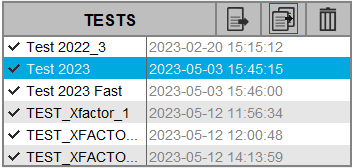
→ The Post-process with a new command dialog box opens
-
Enter the new X Factor value and validate

→ Maps are rebuilt

→ After rebuilding, the new maps are displayed
- Post-process the results
→ You can see the Iron Losses maps and Total Losses maps impacted by the defined X Factor value