Apply Tags
Apply tags to files and folders.
- Select one or more files or folders from your My Files.
- Right-click to select Add tags or use the options in the ribbon menu.
-
In the Select Tag dialog, browse or search for the
required tags.
You can also view the applied tags for the selected item. You can retain or delete them.Note: If the file or folder has no tags, No tags applied is displayed .
-
Select the required tags and then click Apply.
Tags apply to the selected files and folders. For folders, the tag also applies to all files inside the folder.
-
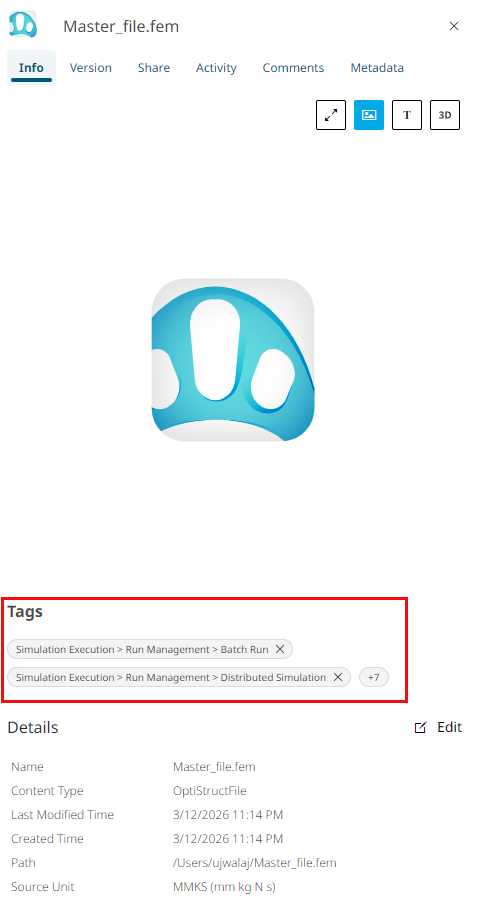
To view the applied tags, right-click the file or folder and select
Info. The info panel displays the tags applied to the
file or folder.
Figure 1. View Tags Info